

How to Disable Speech Recognition in Windows 11?
 Azaz Shaikh
Speech recognition is made of the user who wants to control their PC by voice commands. If you want to give any command to use your PC then you should tell the command that the Windows respond. It is a very thankful moment for Windows users that speech recognition isn’t enabled by default. Whenever you want this feature then you have to enable it manually. There are different kinds of reasons that people wanted to disable speech recognition. When you enable speech recognition then you have to improve the accuracy of it by training. If you want to disable speech recognition then you need to read this article. From this article, I’ll guide you about How to Disable Speech Recognition in Windows 11?
Some Common Voice Commands
If you like this feature you have to know about the most common commands that will give your extra experience. One thing you have to keep in your mind is that the mic of your PC should work, or work properly.
To Scroll: Tell Scroll Down, Scroll Up
Insert a New Line: Tell New Line
Select any Item: Tell Click Computer or Click File Name
Launch Search: Tell Press Windows + S
Capitalize the First Letter of a Word: Tell Caps Word
To Not Insert a Space Before the Next Word: Tell No Space
To Move our Cursor to any Word: Tell Go to the Word
Check the List of the Commands: Tell What Can I Say?
Method 1: Disable Speech Recognition From Settings
Step 1. First of all, you need to press and hold Win + I then the Settings will open by shortcut.
Step 2. Once you open the settings then go to the Accessibility from the left side after that select Speech on the section of Interaction.
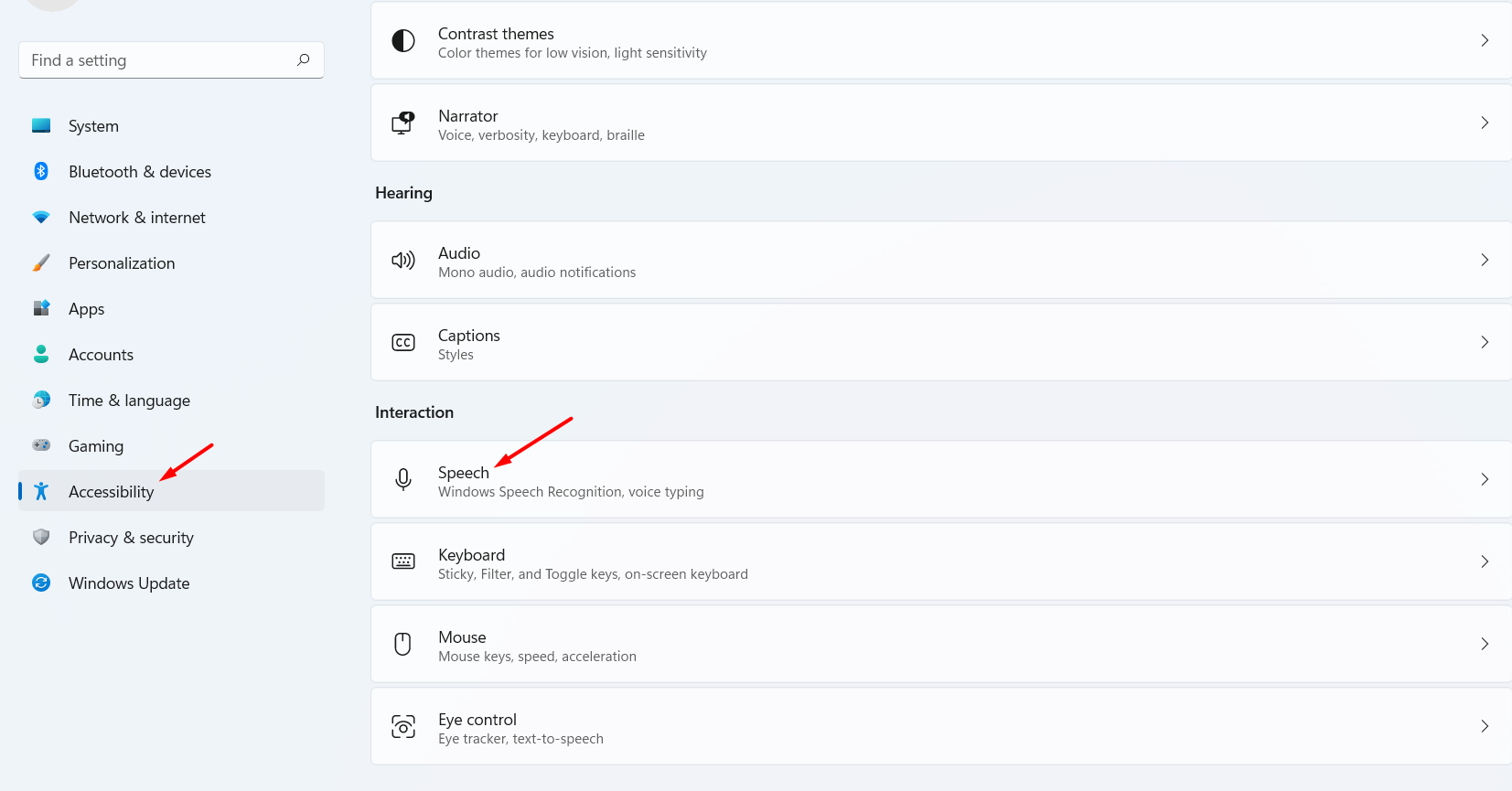 Select Speech
Step 3. At last, turn off the toggle of Windows Speech Recognition.
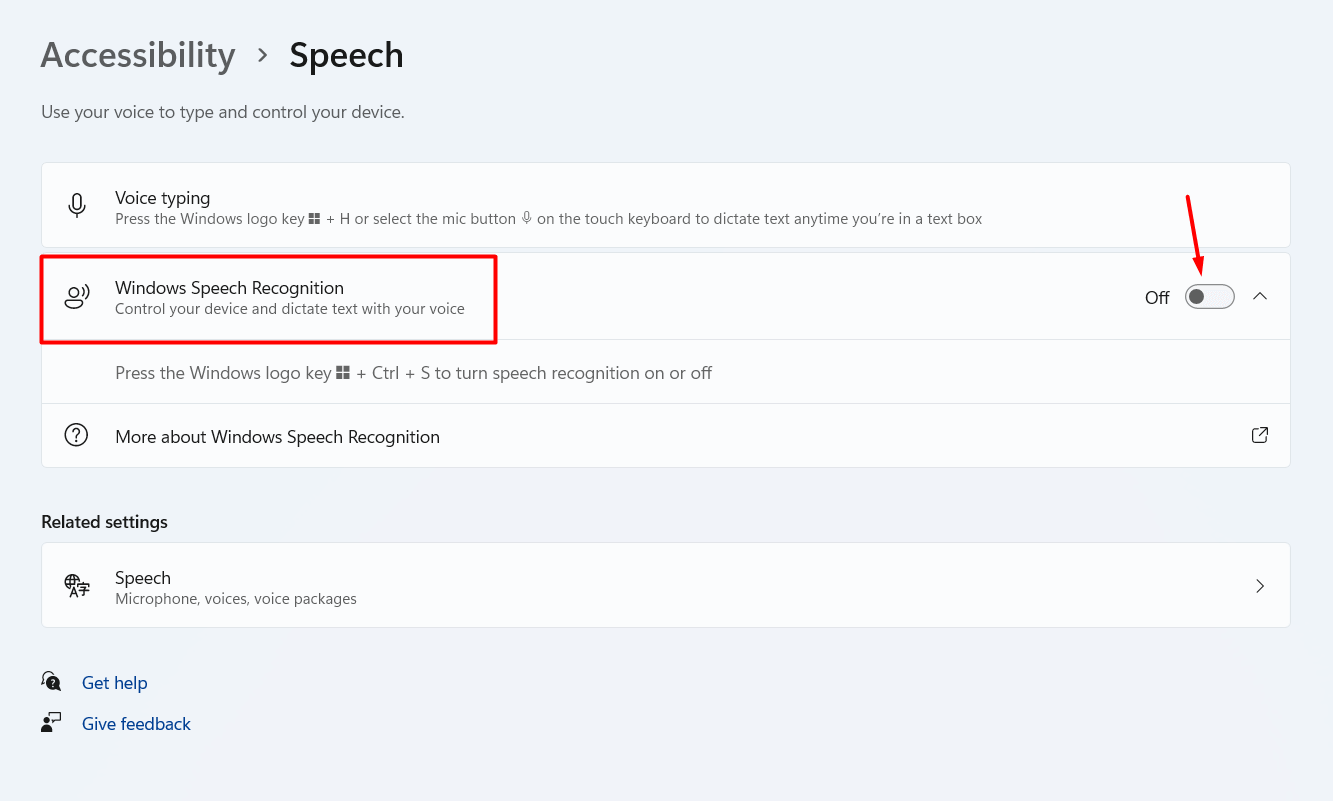 Turn Off Windows Speech Recognition
Method 2: Disable Speech Recognition
Step 1. First, open the Start menu by clicking on it then go to Settings.
Step 2. Select Privacy & Security.
Step 3. Head towards the Speech.
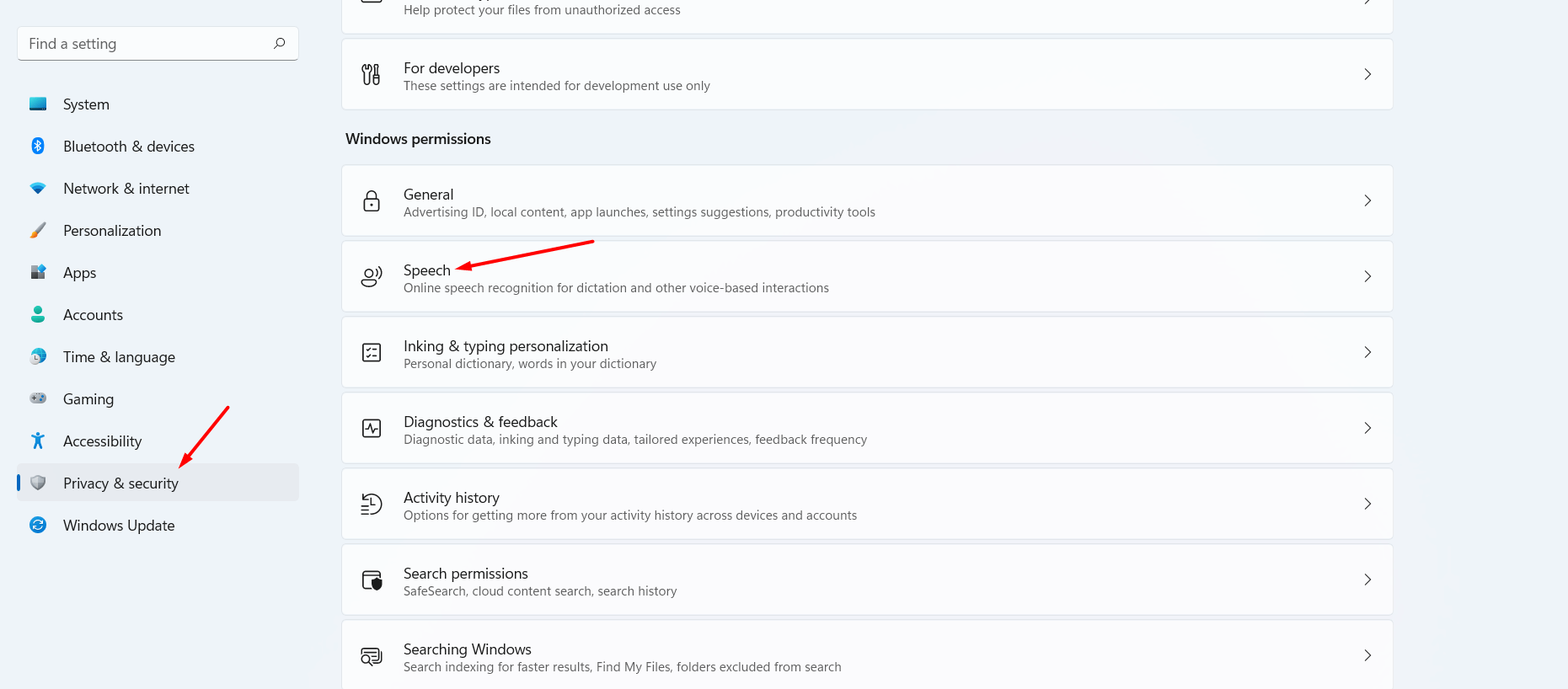 Speech
Step 4. Finally, the same as above method turn the toggle of Online Speech Recognition.
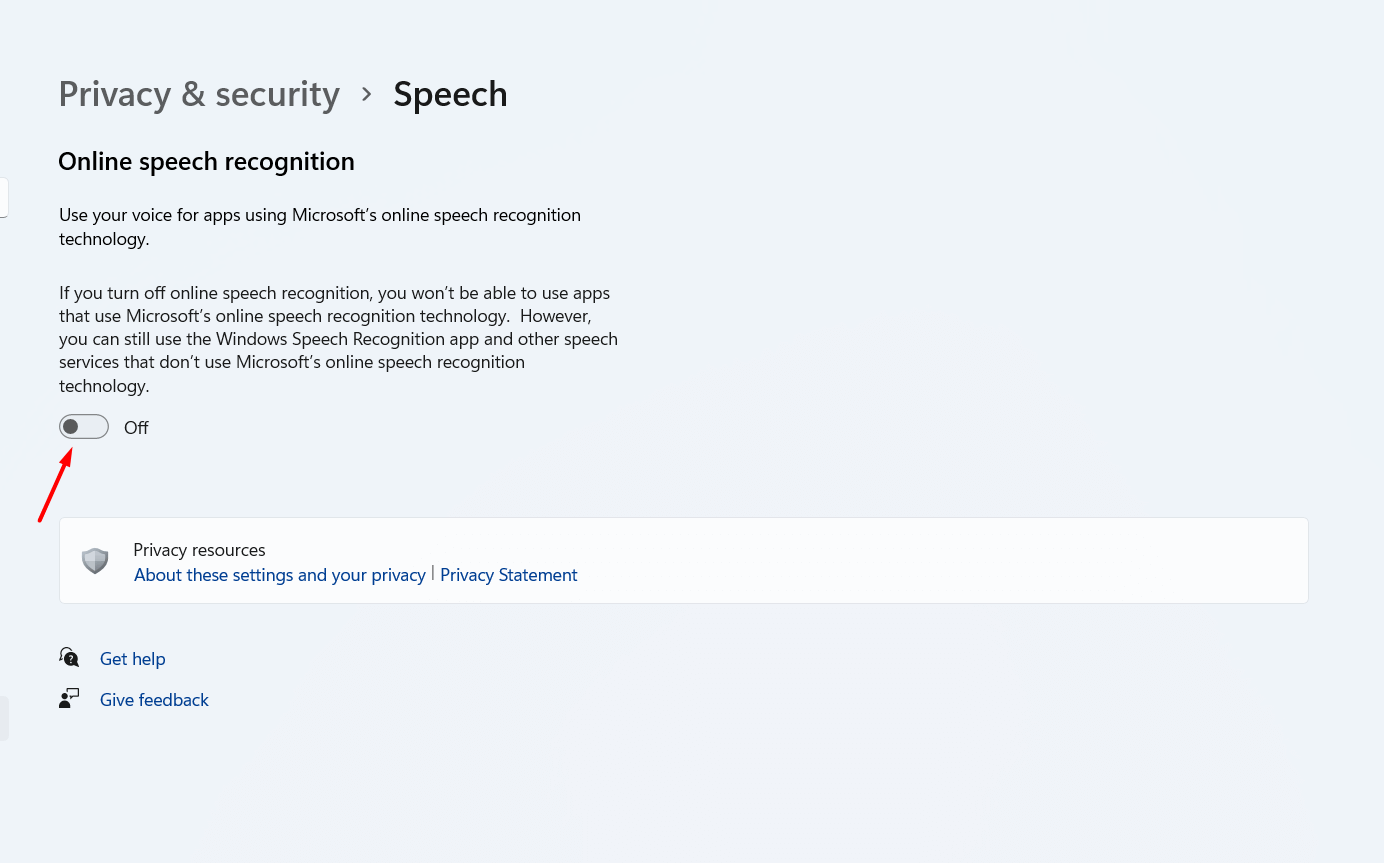 Turn Off
Method 3: Disable Speech Recognition Registry Editor
Step 1. Firstly, press Windows + R to open the run.
Step 2. Then type Regedit after that click on the Ok.
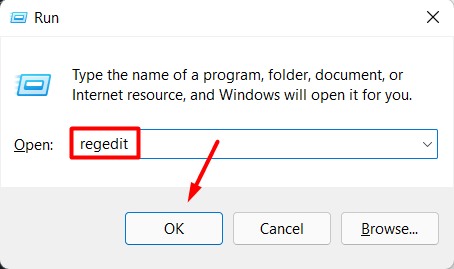 Regedit
Step 3. Now, copy and paste the following path in the address bar:
HKEY_CURRENT_USER\Software\Microsoft\Speech_OneCore\Settings\OnlineSpeechPrivacy
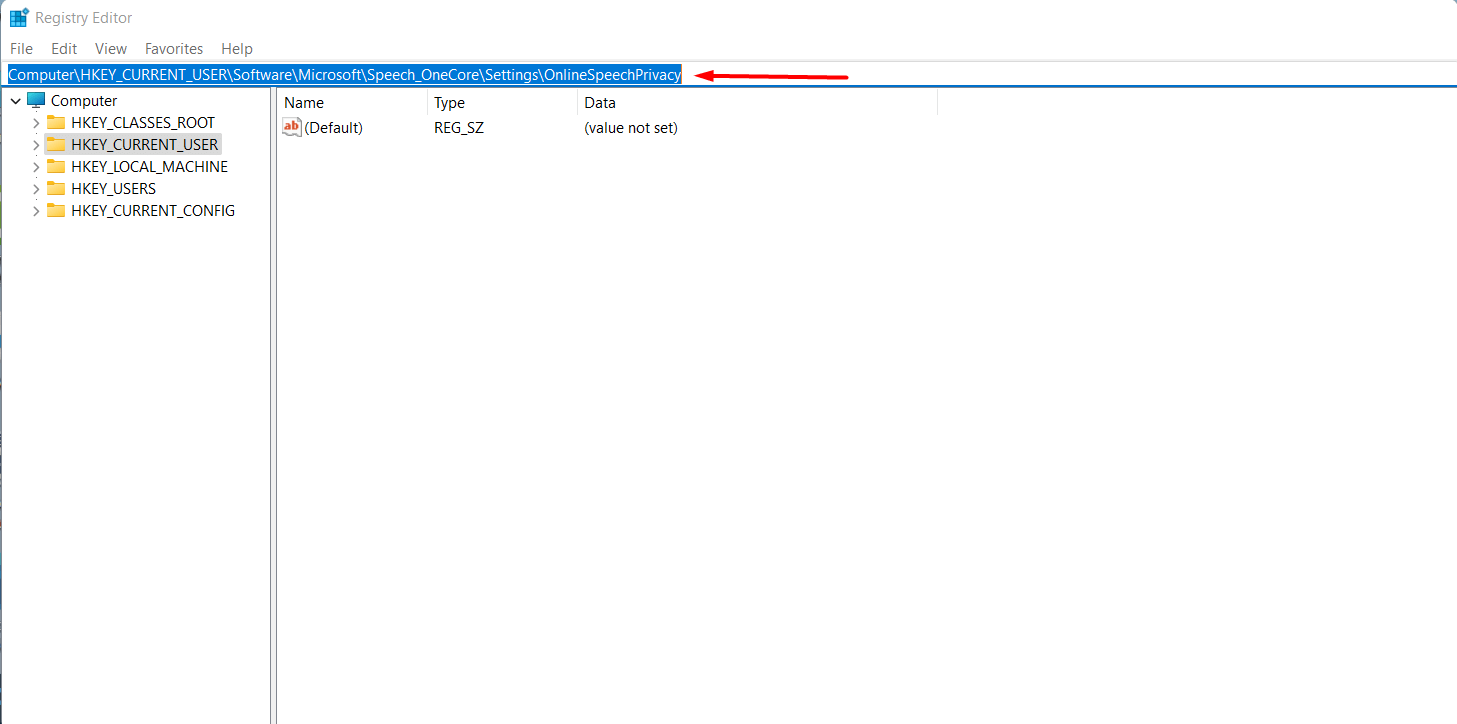
Step 4. Next, double click on the HasAccepted then changes its value to 0.
Step 5. Restart your PC to save all the changes.
Bottom Line
It was all about How to Disable Speech Recognition in Windows 11? I hope this article is very helpful for you to disable. From this article, you will get something good. This is the right place where you can easily solve your problem. After following these steps I hope you will not face any kind of problem. If you faced any kind of problem and if you have any type of suggestions then do comment.
Explore More:
Tagged
Share This Article
Speech recognition is made of the user who wants to control their PC by voice commands. If you want to give any command to use your PC then you should tell the command that the Windows respond. It is a very thankful moment for Windows users that speech recognition isn’t enabled by default. Whenever you want this feature then you have to enable it manually. There are different kinds of reasons that people wanted to disable speech recognition. When you enable speech recognition then you have to improve the accuracy of it by training. If you want to disable speech recognition then you need to read this article. From this article, I’ll guide you about How to Disable Speech Recognition in Windows 11?
Some Common Voice Commands
If you like this feature you have to know about the most common commands that will give your extra experience. One thing you have to keep in your mind is that the mic of your PC should work, or work properly.
To Scroll: Tell Scroll Down, Scroll Up
Insert a New Line: Tell New Line
Select any Item: Tell Click Computer or Click File Name
Launch Search: Tell Press Windows + S
Capitalize the First Letter of a Word: Tell Caps Word
To Not Insert a Space Before the Next Word: Tell No Space
To Move our Cursor to any Word: Tell Go to the Word
Check the List of the Commands: Tell What Can I Say?
Method 1: Disable Speech Recognition From Settings
Step 1. First of all, you need to press and hold Win + I then the Settings will open by shortcut.
Step 2. Once you open the settings then go to the Accessibility from the left side after that select Speech on the section of Interaction.
Select Speech
Step 3. At last, turn off the toggle of Windows Speech Recognition.
Turn Off Windows Speech Recognition
Method 2: Disable Speech Recognition
Step 1. First, open the Start menu by clicking on it then go to Settings.
Step 2. Select Privacy & Security.
Step 3. Head towards the Speech.
Speech
Step 4. Finally, the same as above method turn the toggle of Online Speech Recognition.
Turn Off
Method 3: Disable Speech Recognition Registry Editor
Step 1. Firstly, press Windows + R to open the run.
Step 2. Then type Regedit after that click on the Ok.
Regedit
Step 3. Now, copy and paste the following path in the address bar:
HKEY_CURRENT_USER\Software\Microsoft\Speech_OneCore\Settings\OnlineSpeechPrivacy
Step 4. Next, double click on the HasAccepted then changes its value to 0.
Step 5. Restart your PC to save all the changes.
Bottom Line
It was all about How to Disable Speech Recognition in Windows 11? I hope this article is very helpful for you to disable. From this article, you will get something good. This is the right place where you can easily solve your problem. After following these steps I hope you will not face any kind of problem. If you faced any kind of problem and if you have any type of suggestions then do comment.
Explore More:


