

How to Disable Cortana Windows 10 Permanently
 Azaz Shaikh
Cortana is a voice control virtual assistant of Microsoft. Most of the time you see a Siri in iPhones then Cortana is like Siri when asking questions from Cortana it gives you the answer to your questions in a second. This Cortana uses for searching for any app or program. Moreover, in your laptop data or files then it shows the result for you. Cortana is a game that takes from games that have developed by Microsoft. So, Microsoft develops the game in that was the character name is Cortana a very powerful character so they have inspired and they gave Cortana in the taskbar. Without wasting any time let’s started to disable Cortana. From this article, you will learn How to Disable Cortana Windows 10 Permanently.
How to Disable Cortana Windows 10 Permanently
Step 1. At first, you need to go to the start menu and type Registry Editor.
Step 2. However, you will see Registry Editor at the top after that click on it then you need to click on the Yes.
Step 3. Moreover, find then HKEY_LOCAL_MACINE then click on the arrow to expand the list.
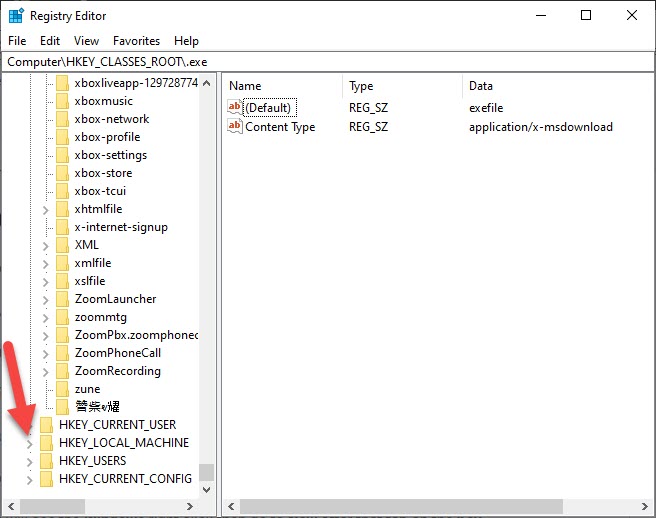 Click on the Arrow
Step 4. Further, find Software after that tap on the arrow to expand.
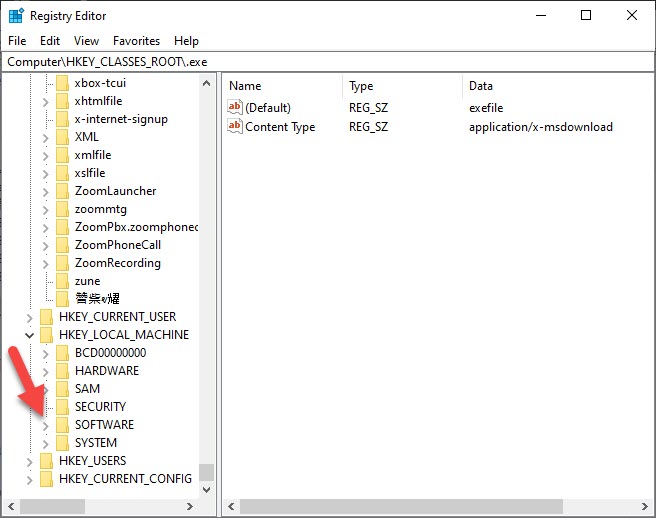 Click on the Arrow of Software
Step 5. When you click on the arrow of Software then you need to find Policies after that click on the arrow.
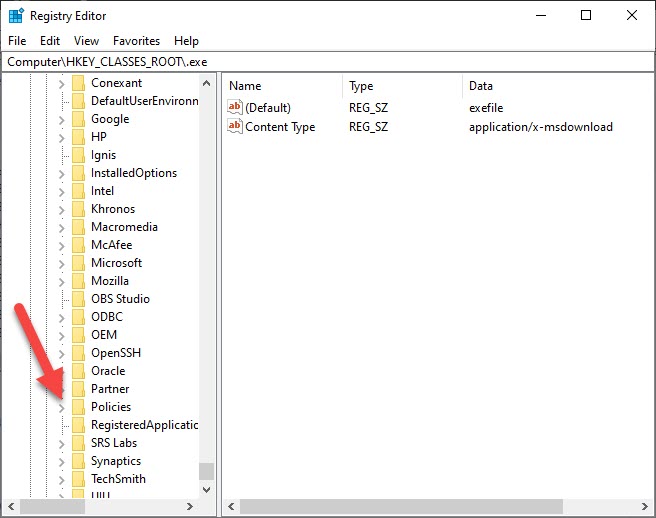 Find Policies after that click on the arrow.
Step 6. Inside policy, you see Microsoft then click on the arrow.
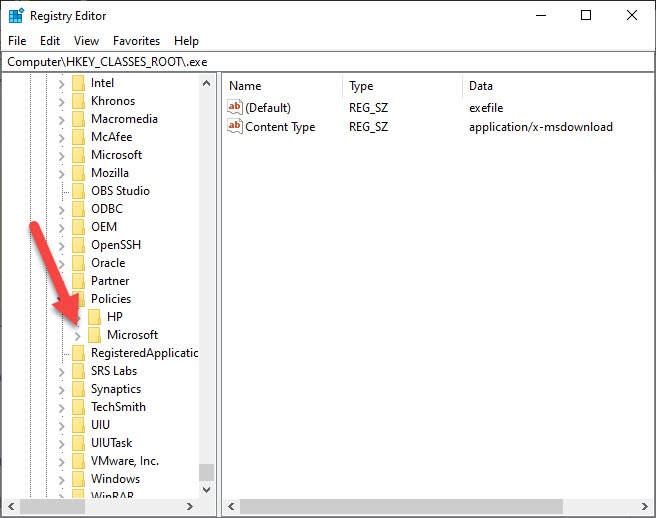
Step 7. Then you will see the Windows right-click then go to New after that tap on the Key.
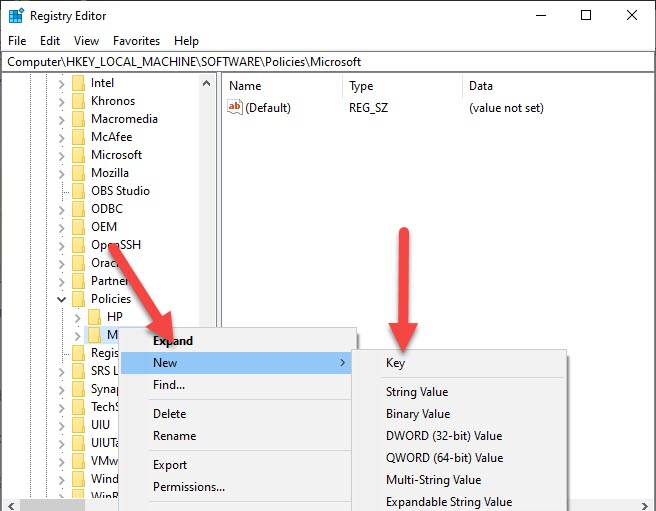 You will See the Windows Right-Click Then Go to New After That Tap on the Key
Step 8. You need to set name and name in Windows Search then tap on the Enter.
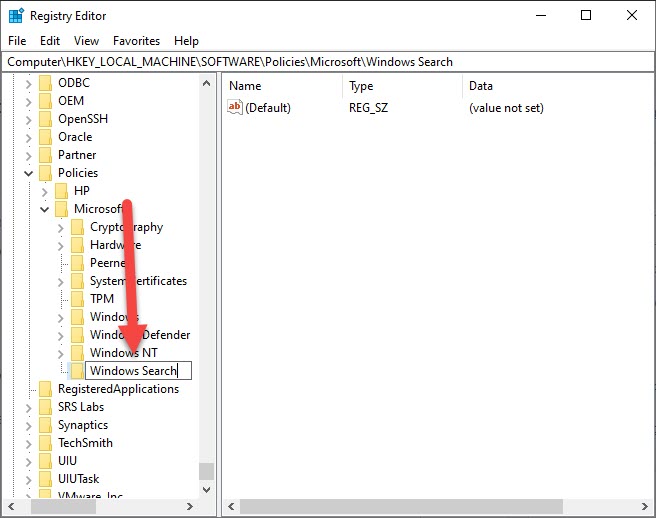 Set Name and Name in Windows Search Then Tap on the Enter.
Step 9. Right-click on your bottom of the screen then select the New and DWORD (32-bit) Value.
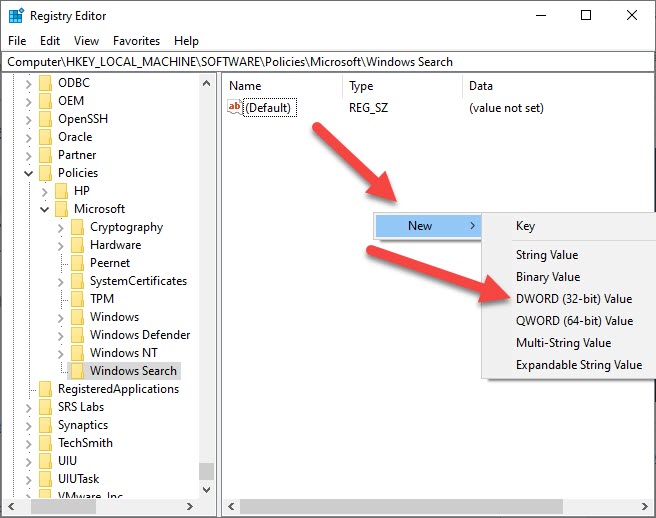 DWORD (32-bit) Value
Step 10. Then again set name and name is AllowCortana without and space then taps on the Enter.
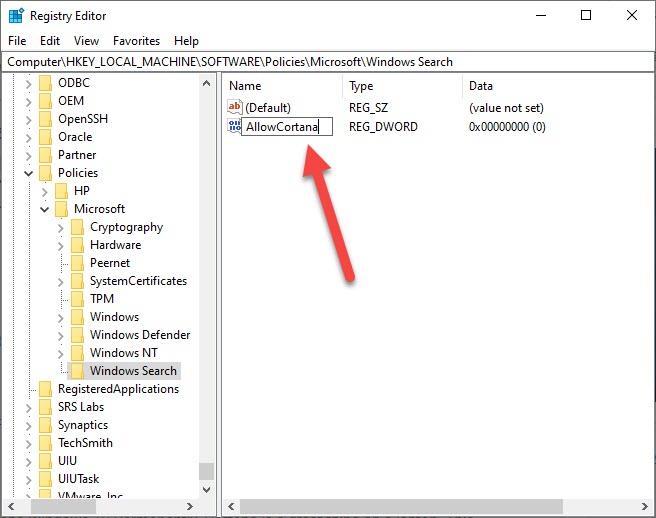 AllowCortana
Step 11. Finally, you are in the last step then go and restart your laptop.
Related Guides:
How to Fix Drive Authorization HTTP 403 Error
Bottom Line
It was all about How to Disable Cortana Windows 10 Permanently. Cortana is a great thing on a laptop. This step is easy for you to disable Cortana permanently. I hope after reading this article you have no problem. However, if you have any kind of problem or question then feel free to comment down below. I hope this guide was helpful to you.
Share This Article
Cortana is a voice control virtual assistant of Microsoft. Most of the time you see a Siri in iPhones then Cortana is like Siri when asking questions from Cortana it gives you the answer to your questions in a second. This Cortana uses for searching for any app or program. Moreover, in your laptop data or files then it shows the result for you. Cortana is a game that takes from games that have developed by Microsoft. So, Microsoft develops the game in that was the character name is Cortana a very powerful character so they have inspired and they gave Cortana in the taskbar. Without wasting any time let’s started to disable Cortana. From this article, you will learn How to Disable Cortana Windows 10 Permanently.
How to Disable Cortana Windows 10 Permanently
Step 1. At first, you need to go to the start menu and type Registry Editor.
Step 2. However, you will see Registry Editor at the top after that click on it then you need to click on the Yes.
Step 3. Moreover, find then HKEY_LOCAL_MACINE then click on the arrow to expand the list.
Click on the Arrow
Step 4. Further, find Software after that tap on the arrow to expand.
Click on the Arrow of Software
Step 5. When you click on the arrow of Software then you need to find Policies after that click on the arrow.
Find Policies after that click on the arrow.
Step 6. Inside policy, you see Microsoft then click on the arrow.
Step 7. Then you will see the Windows right-click then go to New after that tap on the Key.
You will See the Windows Right-Click Then Go to New After That Tap on the Key
Step 8. You need to set name and name in Windows Search then tap on the Enter.
Set Name and Name in Windows Search Then Tap on the Enter.
Step 9. Right-click on your bottom of the screen then select the New and DWORD (32-bit) Value.
DWORD (32-bit) Value
Step 10. Then again set name and name is AllowCortana without and space then taps on the Enter.
AllowCortana
Step 11. Finally, you are in the last step then go and restart your laptop.
Related Guides:
How to Fix Drive Authorization HTTP 403 Error
Bottom Line
It was all about How to Disable Cortana Windows 10 Permanently. Cortana is a great thing on a laptop. This step is easy for you to disable Cortana permanently. I hope after reading this article you have no problem. However, if you have any kind of problem or question then feel free to comment down below. I hope this guide was helpful to you.


