

How to Check Hard Disk health in Windows 11?
 Azaz Shaikh
Hard disk is playing an essential role inside our computer. It will store all our private things. When you download something from the browser or somewhere else after that the files of the apps and games with stored on the hard disk. And it is important to check the health of our hard disk from time to time. If you don’t check the health of your hard disk and when you don’t take care of it otherwise it won’t properly. We have different kinds of ways that will provide information about the health of your hard disk. If you want to check the hard disk then you need to read this article. From this article, I’ll guide you about How to Check Hard Disk health in Windows 11? So, without wasting any time let’s get has started.
Method 1: Check From BIOS
Step 1. First of all, you need to restart your PC then it work.
Step 2. While your PC is restarting then press Delete, F2, F12 continuously which will take you in the window of BIOS.
Step 3. Now, go to the Settings then select Advance after that click on the NVMe SSD Self-Test to check the health of the hard disk.
Method 2: Via CMD (Command Prompt)
If the above method doesn’t work then this method will work for sure. If you follow the same process as shown down below. For this method, you have to take the help of CMD that you will enter a command and it will give information about the health of the hard disk. Sometimes the command won’t function properly. So, follow the easy steps to execute the command in CMD.
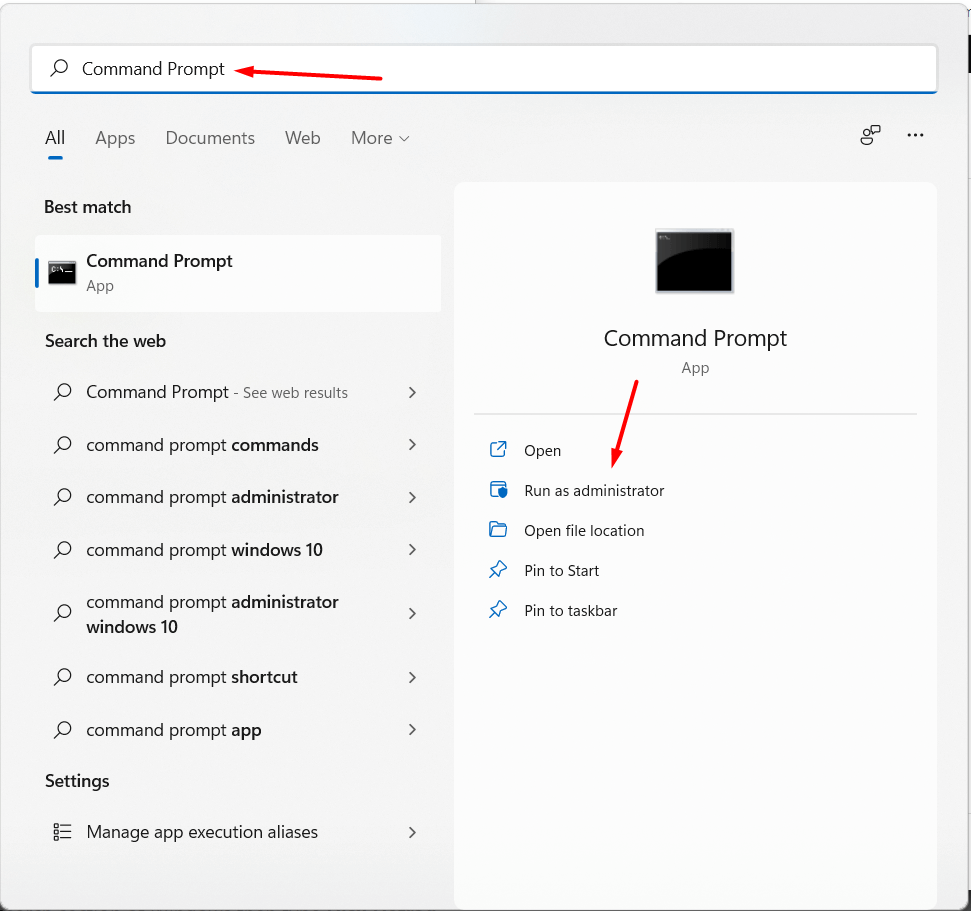
Step 1. First, press Win Key + S then search for Command Prompt, and don’t forget to open the CMD as administrator.
Step 2. Once the CMD is launched successfully then copy and paste the command chkdsk then hit the Enter.
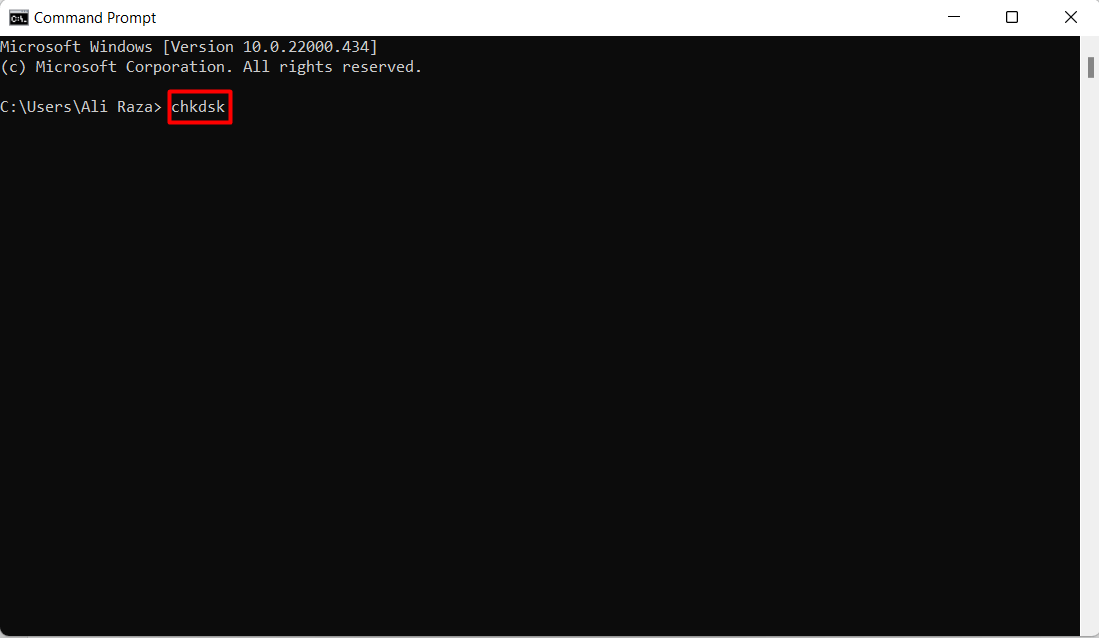 Hit the Enter
If you want to use other commands instead of the above command after that you can also use this command chkdsk /f /r or chkdsk /f /r /x, but if you use the chsdsk it will surely give the details to check the health of the hard disk.
Method 3: Optimize and Defrag in Windows 11
This method is pretty easy to do it. It will also give chances to check the health of the hard disk.
Step 1. At first, open the search section of Windows then type Disk Defrag.
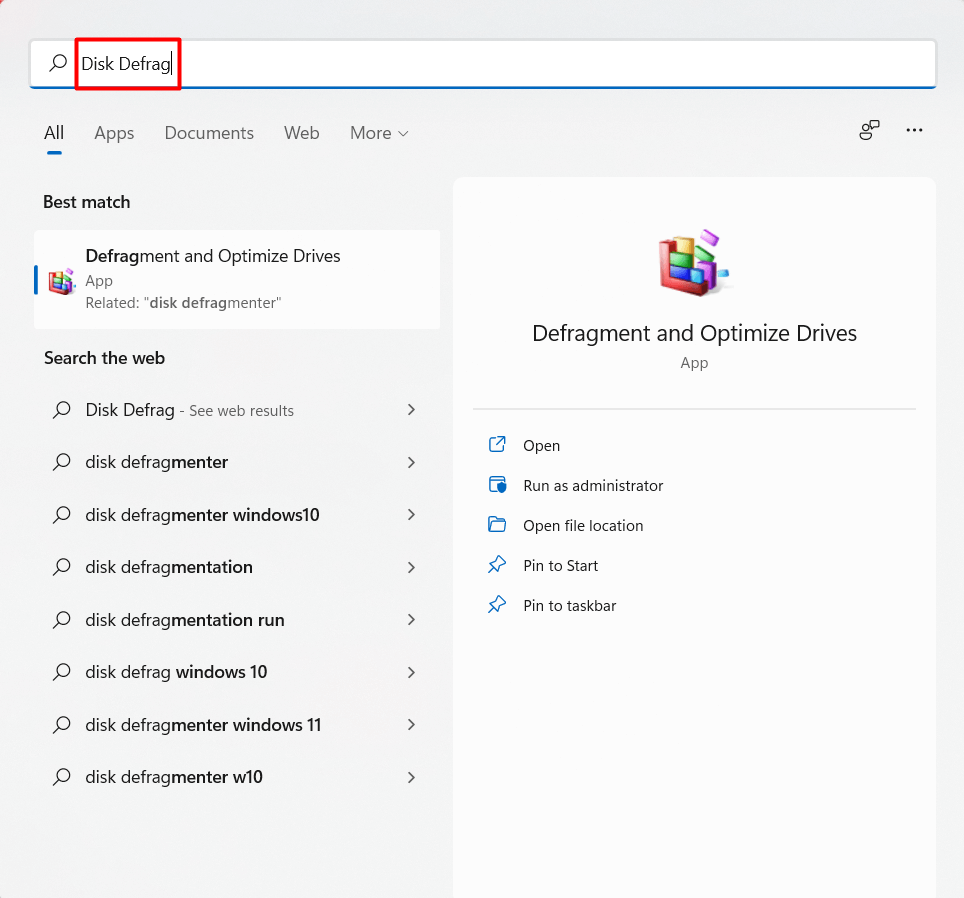 Disk Defrag
Step 2. The result of that will come at the top in the name of defragment and optimize drives after that open it.
Step 3. Next, select the disk that you want to check the health of it after that click on the Optimize at the bottom right side.
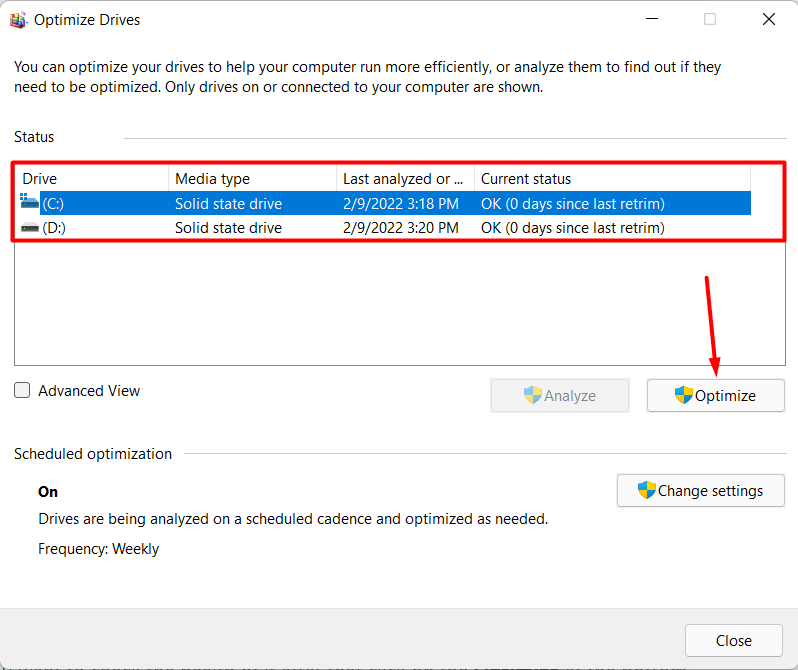 Click on the Optimize
Method 4: Via WMIC
Step 1. Firstly, open the CMD as administrator.
Step 2. Once the CMD is open then paste wmic then press Enter button from the keyboard.
Step 3. After that paste diskdrive get status then hit the Enter again to reach the destination where you wanted.
Bottom Line
It was all about How to Check Hard Disk health in Windows 11? I hope this article is very helpful for you to check hard disk health. From this article, you will get something good. This is the right place where you can easily solve your problem. After following these steps I hope you will not face any kind of problem. If you faced any kind of problem and if you have any type of suggestions then do comment.
Explore More:
Share This Article
Hard disk is playing an essential role inside our computer. It will store all our private things. When you download something from the browser or somewhere else after that the files of the apps and games with stored on the hard disk. And it is important to check the health of our hard disk from time to time. If you don’t check the health of your hard disk and when you don’t take care of it otherwise it won’t properly. We have different kinds of ways that will provide information about the health of your hard disk. If you want to check the hard disk then you need to read this article. From this article, I’ll guide you about How to Check Hard Disk health in Windows 11? So, without wasting any time let’s get has started.
Method 1: Check From BIOS
Step 1. First of all, you need to restart your PC then it work.
Step 2. While your PC is restarting then press Delete, F2, F12 continuously which will take you in the window of BIOS.
Step 3. Now, go to the Settings then select Advance after that click on the NVMe SSD Self-Test to check the health of the hard disk.
Method 2: Via CMD (Command Prompt)
If the above method doesn’t work then this method will work for sure. If you follow the same process as shown down below. For this method, you have to take the help of CMD that you will enter a command and it will give information about the health of the hard disk. Sometimes the command won’t function properly. So, follow the easy steps to execute the command in CMD.
Step 1. First, press Win Key + S then search for Command Prompt, and don’t forget to open the CMD as administrator.
Step 2. Once the CMD is launched successfully then copy and paste the command chkdsk then hit the Enter.
Hit the Enter
If you want to use other commands instead of the above command after that you can also use this command chkdsk /f /r or chkdsk /f /r /x, but if you use the chsdsk it will surely give the details to check the health of the hard disk.
Method 3: Optimize and Defrag in Windows 11
This method is pretty easy to do it. It will also give chances to check the health of the hard disk.
Step 1. At first, open the search section of Windows then type Disk Defrag.
Disk Defrag
Step 2. The result of that will come at the top in the name of defragment and optimize drives after that open it.
Step 3. Next, select the disk that you want to check the health of it after that click on the Optimize at the bottom right side.
Click on the Optimize
Method 4: Via WMIC
Step 1. Firstly, open the CMD as administrator.
Step 2. Once the CMD is open then paste wmic then press Enter button from the keyboard.
Step 3. After that paste diskdrive get status then hit the Enter again to reach the destination where you wanted.
Bottom Line
It was all about How to Check Hard Disk health in Windows 11? I hope this article is very helpful for you to check hard disk health. From this article, you will get something good. This is the right place where you can easily solve your problem. After following these steps I hope you will not face any kind of problem. If you faced any kind of problem and if you have any type of suggestions then do comment.
Explore More:


