

How to Change or Reset Your Instagram Account Password? (2022)
 Azaz Shaikh
Instagram is the best platform for advertising your product. Nowadays, everyone is having Instagram on their mobile because it helps to stay in touch with our relatives. If any celebrity is your crush then if they have also Instagram then you can follow your crush to see what he or she is posting. These days, people are making reels on Instagram for popular songs. However, Instagram is owned by Facebook. When your Facebook account is linked with your Instagram account. Then whenever you shared something on Instagram then the picture of the video will also post on Facebook. If you don’t like the feature of the link after that you can unlink the accounts from the Settings of it. From this article, I’ll guide you about How to Change or Reset Your Instagram Account Password.
Moreover, if your Instagram account’s password is weak then you have to change it immediately because it will be easy for hackers to hack your account. When any of your friends or any strange person you the password of your account then on that you want to change the password. Or if you set the same password which is the same password on the other platform then it will harmful. When anyone knows the password of the other platform then they might try to enter that password on Instagram to access it.
There are many people that they have forgotten the password of their Instagram account. So, if you are one of them that forgot the password then you need to read this article. Without wasting time let’s get has started.
Change Your Instagram Account Password on Android and iOS
Step 1. First of all, you need to open the Instagram app.
Step 2. Once you launch Instagram then go to your Profile.
Step 3. Now, click on the Hamburger icon after that select Settings.
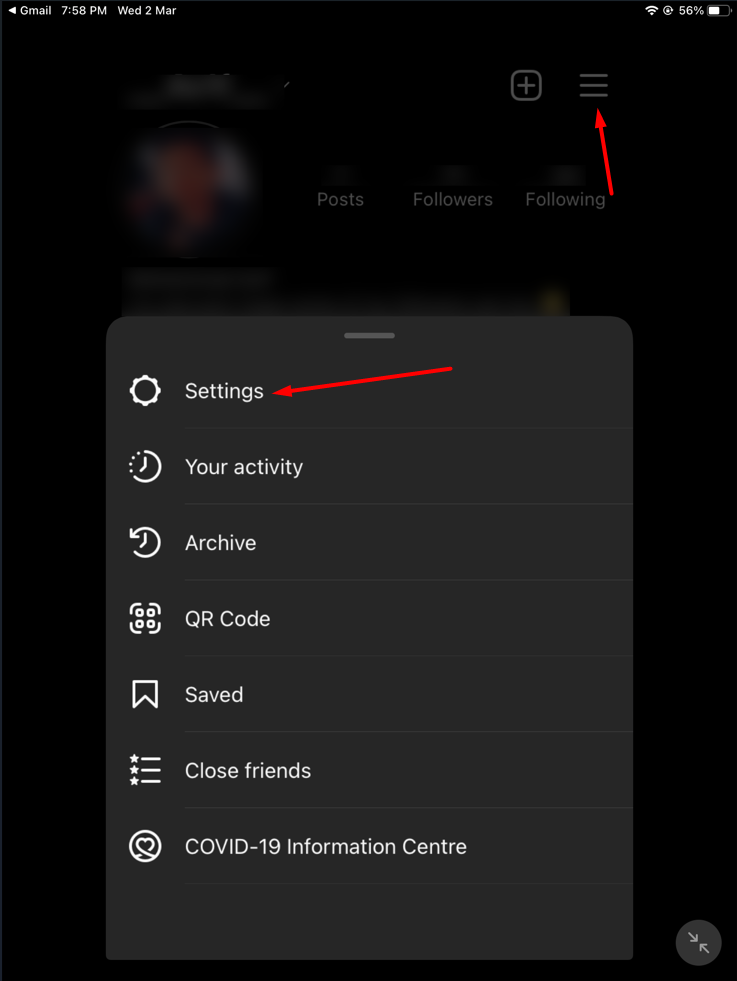 Select Settings
Step 4. Next, go to Security.
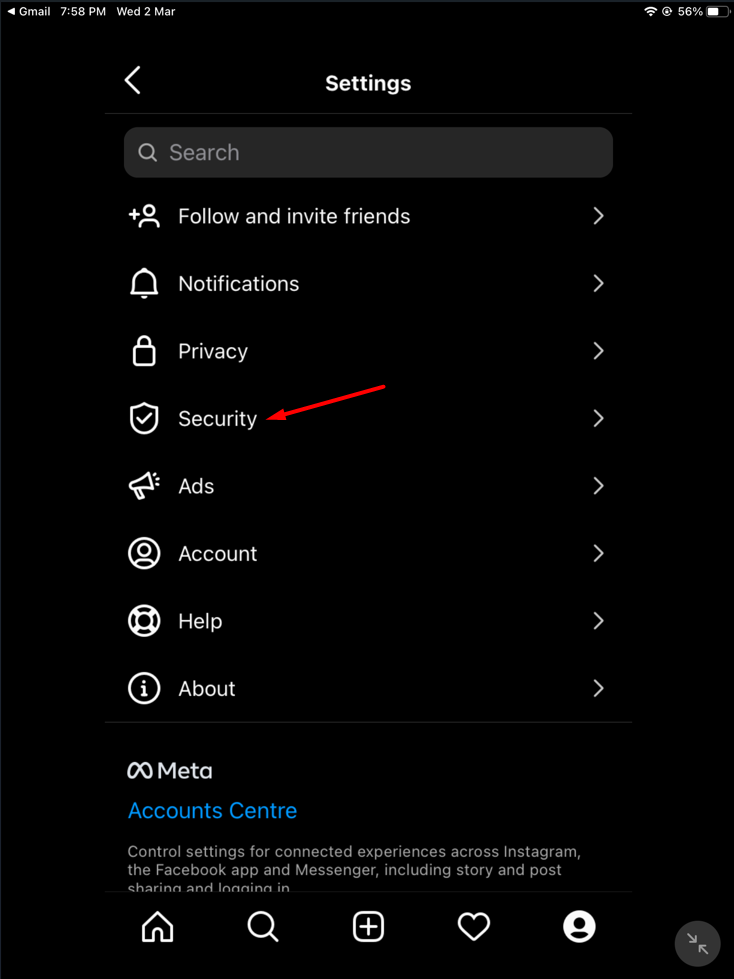 Go to Security
Step 5. Then the section of security will open then click on the Password.
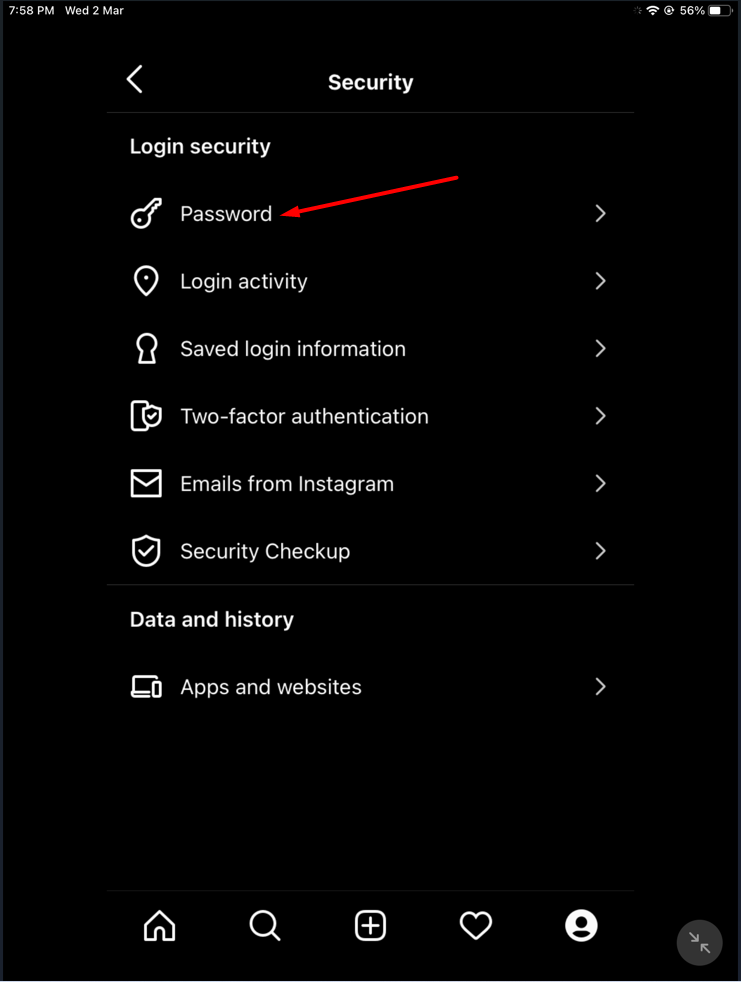 Password
Step 6. At last, type the current password of your account then enter the new password and confirm the password, if you have an Android device tick mark, and if you have iPhone then click on the Save.
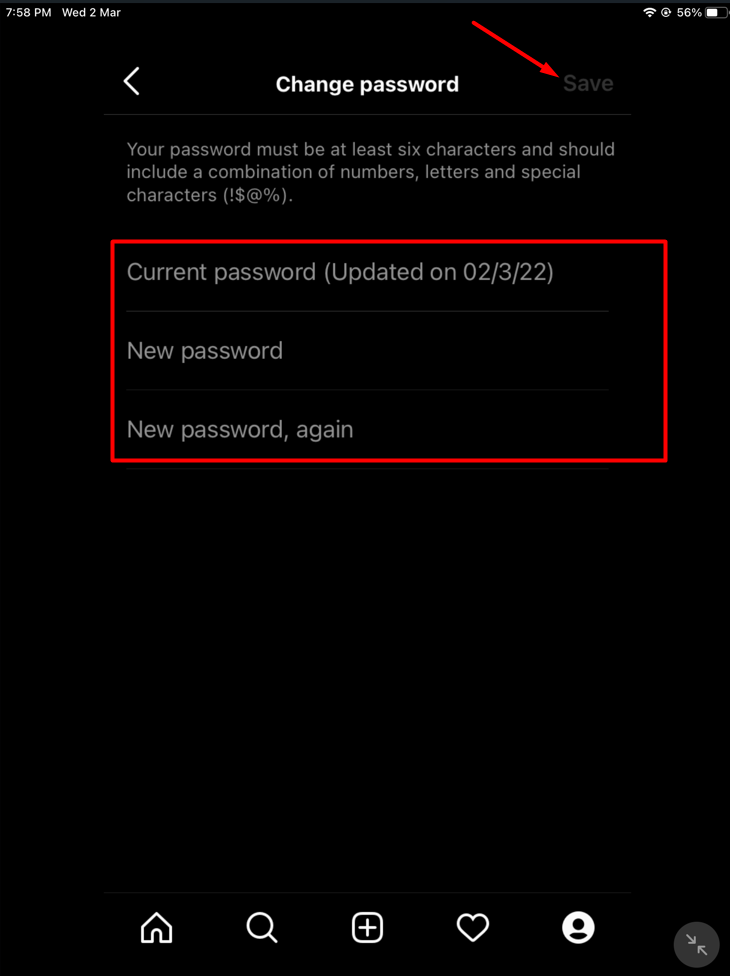 Click on the Save
Change Your Instagram Account Desktop Website
Step 1. Open your browser then go to Instagram.com after that login in with your account.
Step 2. Now, click on the Account at the top right side then tap on the Profile.
Step 3. Select the Setting icon then tap on the Change Password.
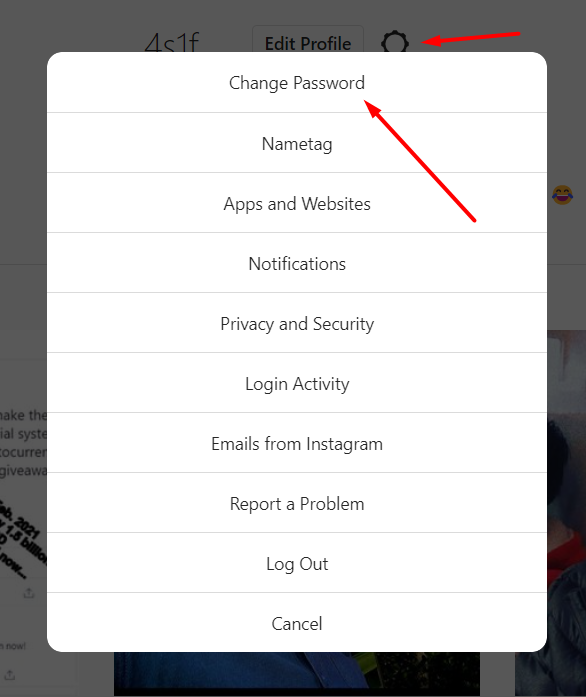 Tap on the Change Password
Step 4. Finally, type the current of it then write any new password that you want after that select Change Password.
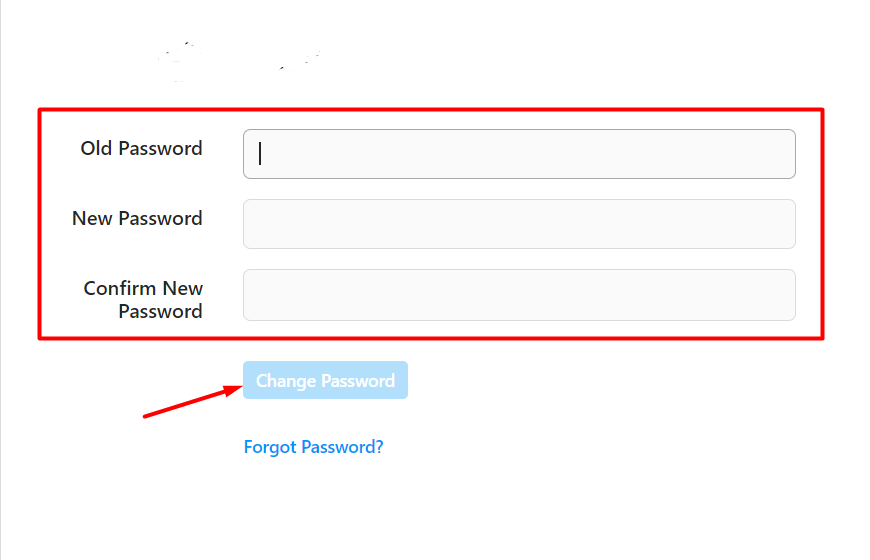 Select Change Password
Reset Your Instagram Account Password
Step 1. Open the app of Instagram then you will get the section of log in simply click on the Forgot Password?
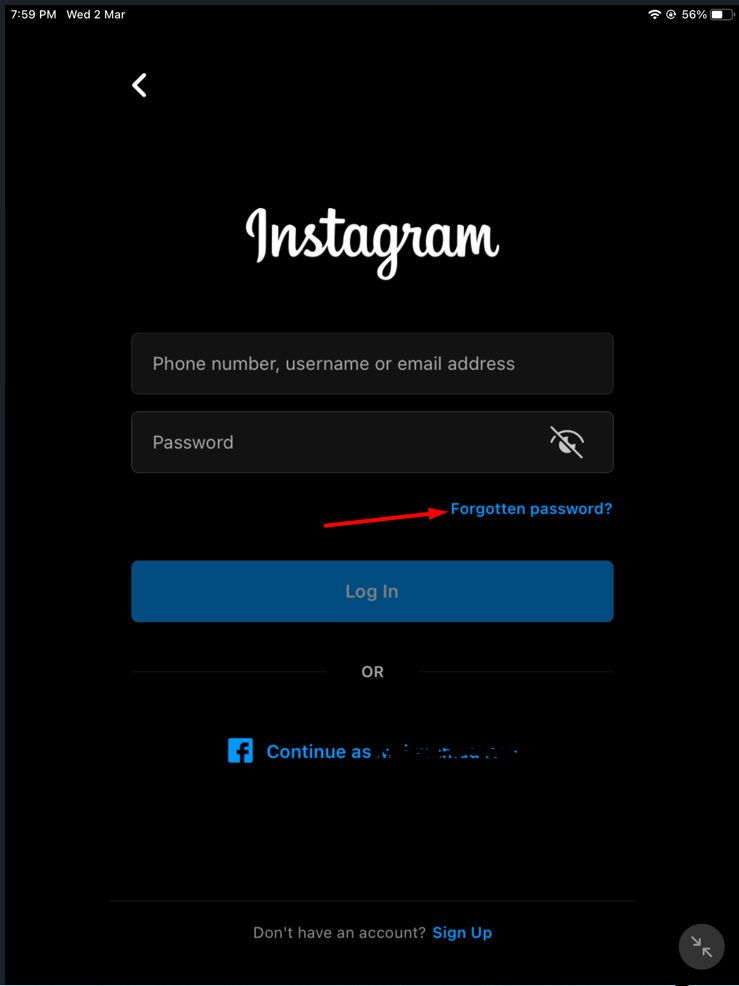 Forgot Password?
Step 2. Then enter the email address of your account if you have Android then click on the Next.
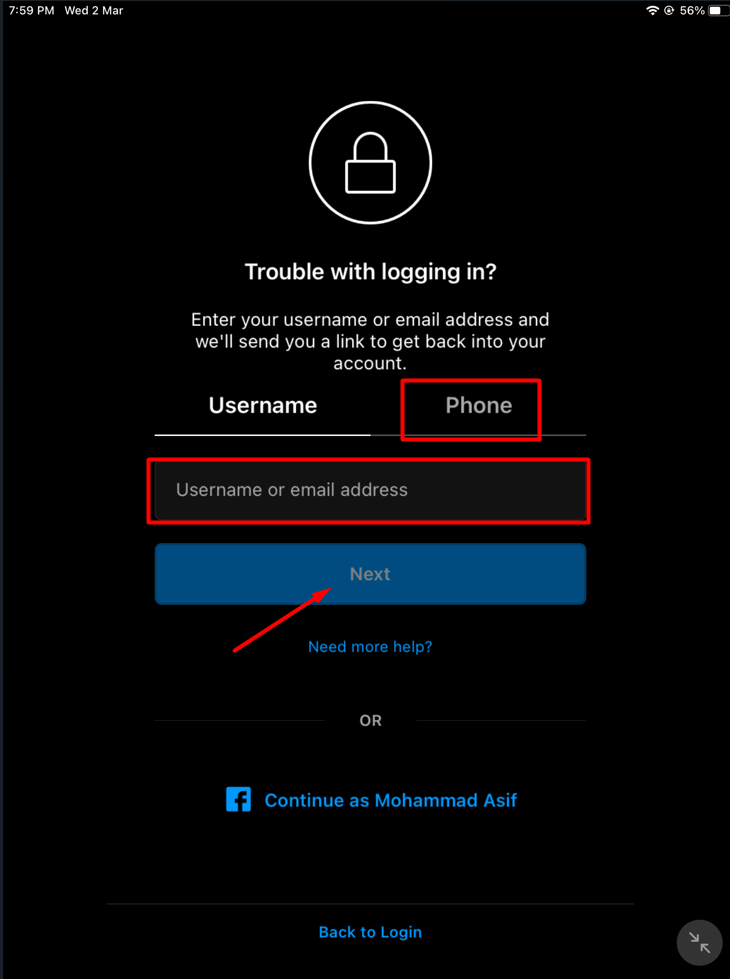
Step 3. At last, you will get a code that will help you to reset the password of your account.
- On Desktop
Step 1. first, open any browser then head the Instagram.com.
Step 2. When you open the site of Instagram then click on the Forgot Password?
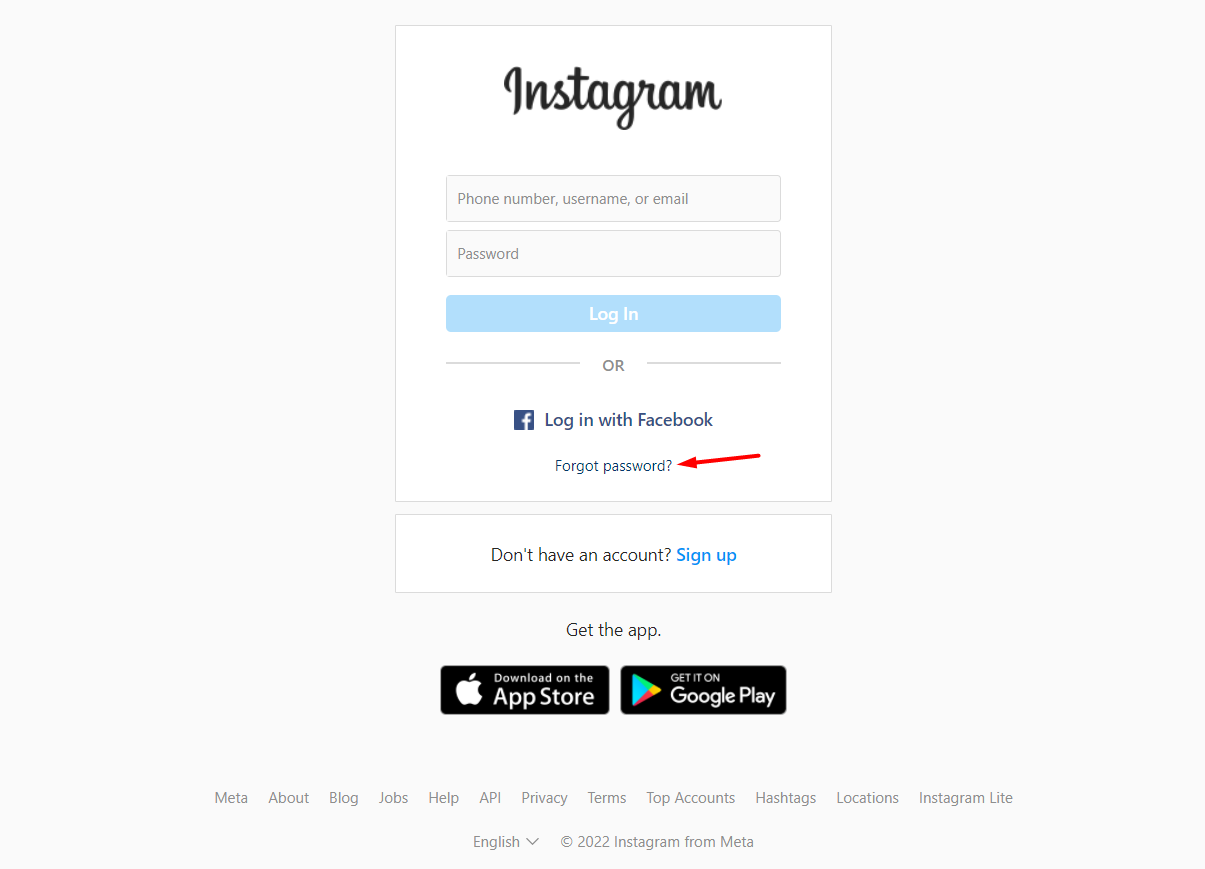 Click on the Forgot Password?
Step 3. Next, enter your email address, username, phone number, then click on the Send Login Link.
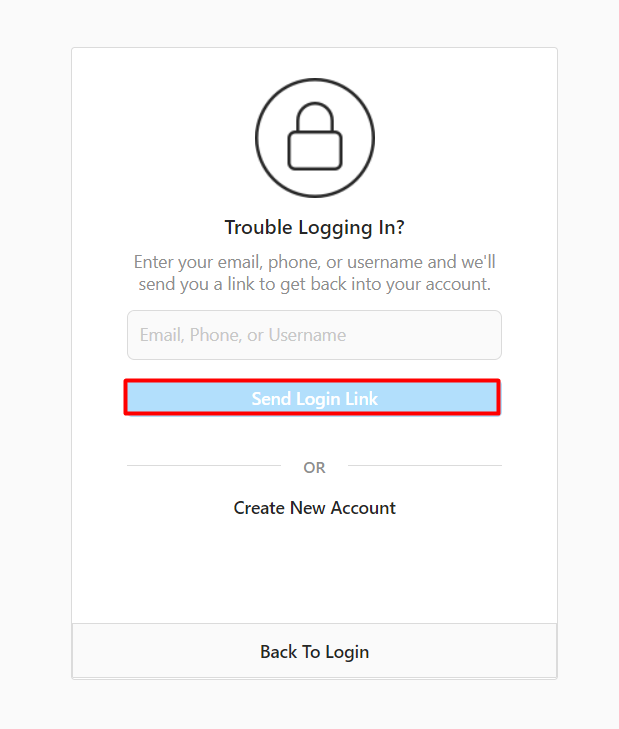 Send Login Link
Final Words
It was all about How to Change or Reset Your Instagram Account Password. I hope this article is very helpful for you to change or reset. From this article, you will get something good. This is the right place where you can easily solve your problem. After following these steps I hope you will not face any kind of problem. If you faced any kind of problem and if you have any type of suggestions then do comment.
Explore More:
Share This Article
Instagram is the best platform for advertising your product. Nowadays, everyone is having Instagram on their mobile because it helps to stay in touch with our relatives. If any celebrity is your crush then if they have also Instagram then you can follow your crush to see what he or she is posting. These days, people are making reels on Instagram for popular songs. However, Instagram is owned by Facebook. When your Facebook account is linked with your Instagram account. Then whenever you shared something on Instagram then the picture of the video will also post on Facebook. If you don’t like the feature of the link after that you can unlink the accounts from the Settings of it. From this article, I’ll guide you about How to Change or Reset Your Instagram Account Password.
Moreover, if your Instagram account’s password is weak then you have to change it immediately because it will be easy for hackers to hack your account. When any of your friends or any strange person you the password of your account then on that you want to change the password. Or if you set the same password which is the same password on the other platform then it will harmful. When anyone knows the password of the other platform then they might try to enter that password on Instagram to access it.
There are many people that they have forgotten the password of their Instagram account. So, if you are one of them that forgot the password then you need to read this article. Without wasting time let’s get has started.
Change Your Instagram Account Password on Android and iOS
Step 1. First of all, you need to open the Instagram app.
Step 2. Once you launch Instagram then go to your Profile.
Step 3. Now, click on the Hamburger icon after that select Settings.
Select Settings
Step 4. Next, go to Security.
Go to Security
Step 5. Then the section of security will open then click on the Password.
Password
Step 6. At last, type the current password of your account then enter the new password and confirm the password, if you have an Android device tick mark, and if you have iPhone then click on the Save.
Click on the Save
Change Your Instagram Account Desktop Website
Step 1. Open your browser then go to Instagram.com after that login in with your account.
Step 2. Now, click on the Account at the top right side then tap on the Profile.
Step 3. Select the Setting icon then tap on the Change Password.
Tap on the Change Password
Step 4. Finally, type the current of it then write any new password that you want after that select Change Password.
Select Change Password
Reset Your Instagram Account Password
Step 1. Open the app of Instagram then you will get the section of log in simply click on the Forgot Password?
Forgot Password?
Step 2. Then enter the email address of your account if you have Android then click on the Next.
Step 3. At last, you will get a code that will help you to reset the password of your account.
- On Desktop
Step 1. first, open any browser then head the Instagram.com.
Step 2. When you open the site of Instagram then click on the Forgot Password?
Click on the Forgot Password?
Step 3. Next, enter your email address, username, phone number, then click on the Send Login Link.
Send Login Link
Final Words
It was all about How to Change or Reset Your Instagram Account Password. I hope this article is very helpful for you to change or reset. From this article, you will get something good. This is the right place where you can easily solve your problem. After following these steps I hope you will not face any kind of problem. If you faced any kind of problem and if you have any type of suggestions then do comment.
Explore More:


