

How to Change Windows 11 Wallpaper Without Activating?
 Azaz Shaikh
The wallpapers will give an extra good look to your PC. It is the thing that you can always change to get a new look. Unfortunately, your operating system is not activated then you can not access Taskbar Settings, Themes, Personalization. If you are thinking that if our operating is not activated then how can I alter the wallpaper. However, do not be worry about that because there is a way to change the wallpaper of your PC even if you haven’t activated your PC. If you want to change Windows 11 wallpaper without activated OS then you need to read this article. From this article, I’ll guide you about How to Change Windows 11 Wallpaper Without Activating? So, without wasting any time let’s get started.
Change Windows 11 Wallpaper Using File Explorer
Step 1. First of all, you have to press and hold Windows Key + E from the keyboard to open the file explorer or click on it from the taskbar section.
Step 2. Once the file explorer is open then head towards the folder where you will the wallpapers.
Step 3. Now, one click on the wallpaper to select it after that click on the Set As Background from the top right side.
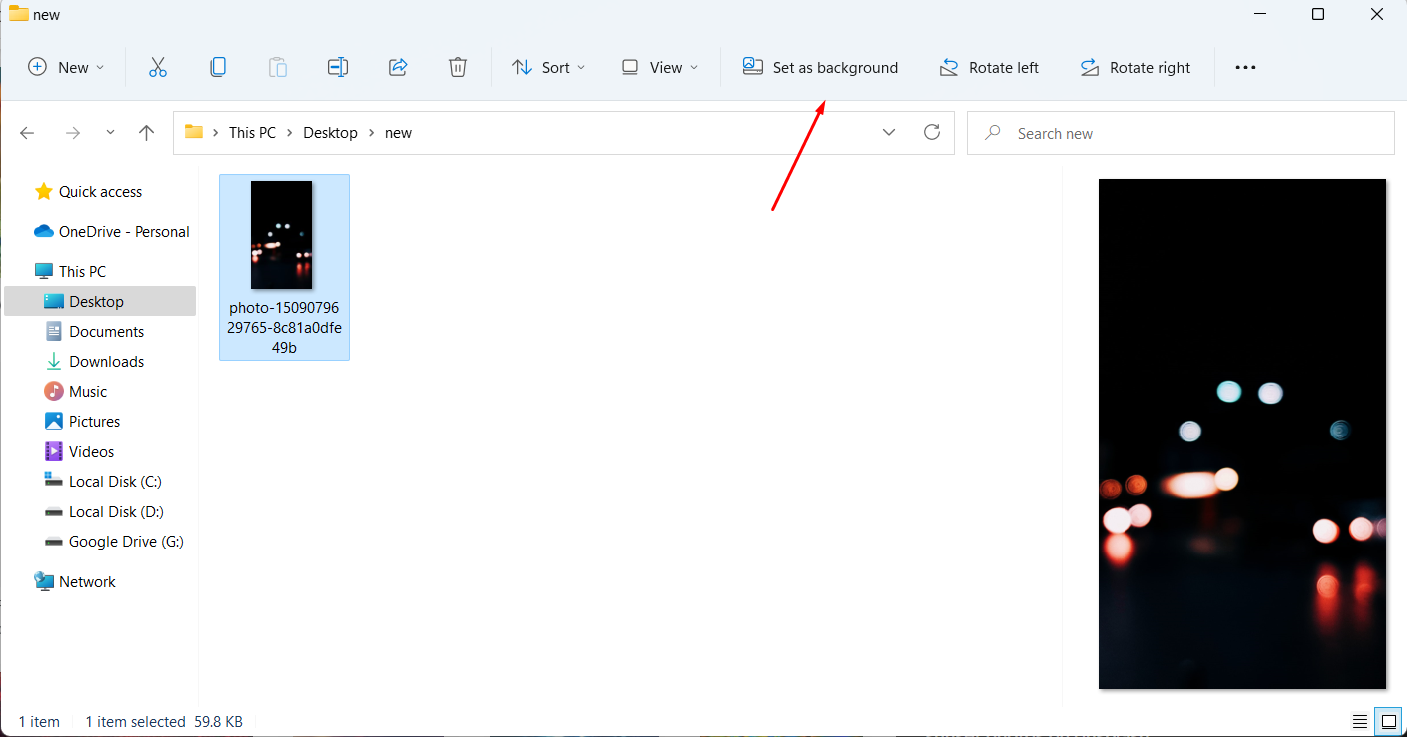 Click on the Set As Background
 Step 4. In the same way, right-click on the wallpaper then select Set As Desktop Background.
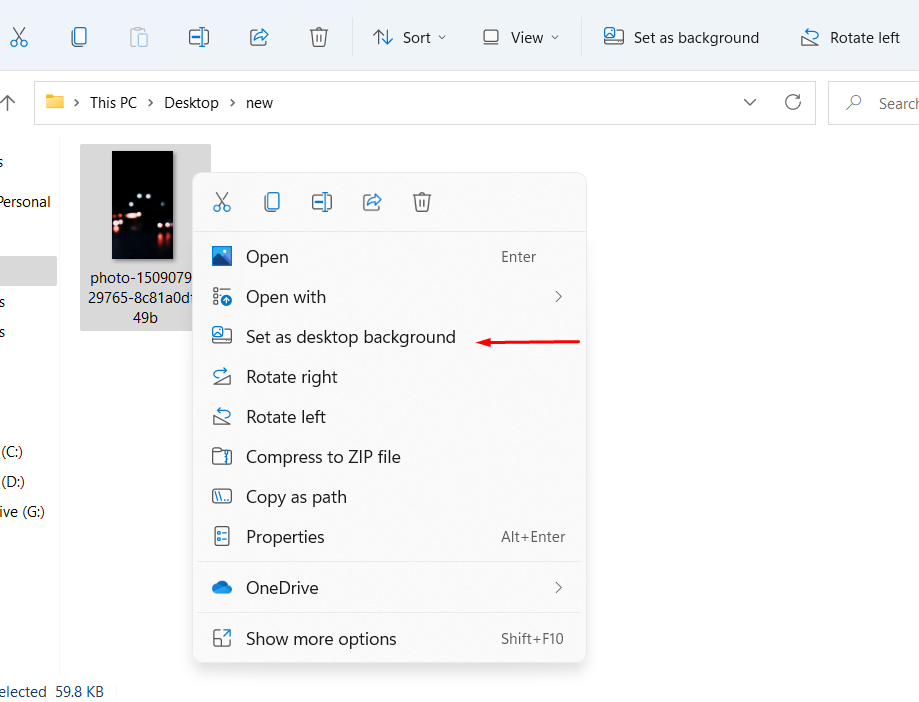 Select Set As Desktop Background
 Change Windows 11 Wallpaper Non-Activated Windows
As you know that in Windows 10 if your system is not activated then you can’t change the wallpaper of your PC. But you are having Windows 11 operating system after that you are able to change wallpaper, through the Photos app which is installed on your PC by default. Follow the steps given below.
Step 1. Firstly, Open the File Explorer of your computer.
Step 2. Next, right-click on the wallpaper then select Open With after that click on the Photos.
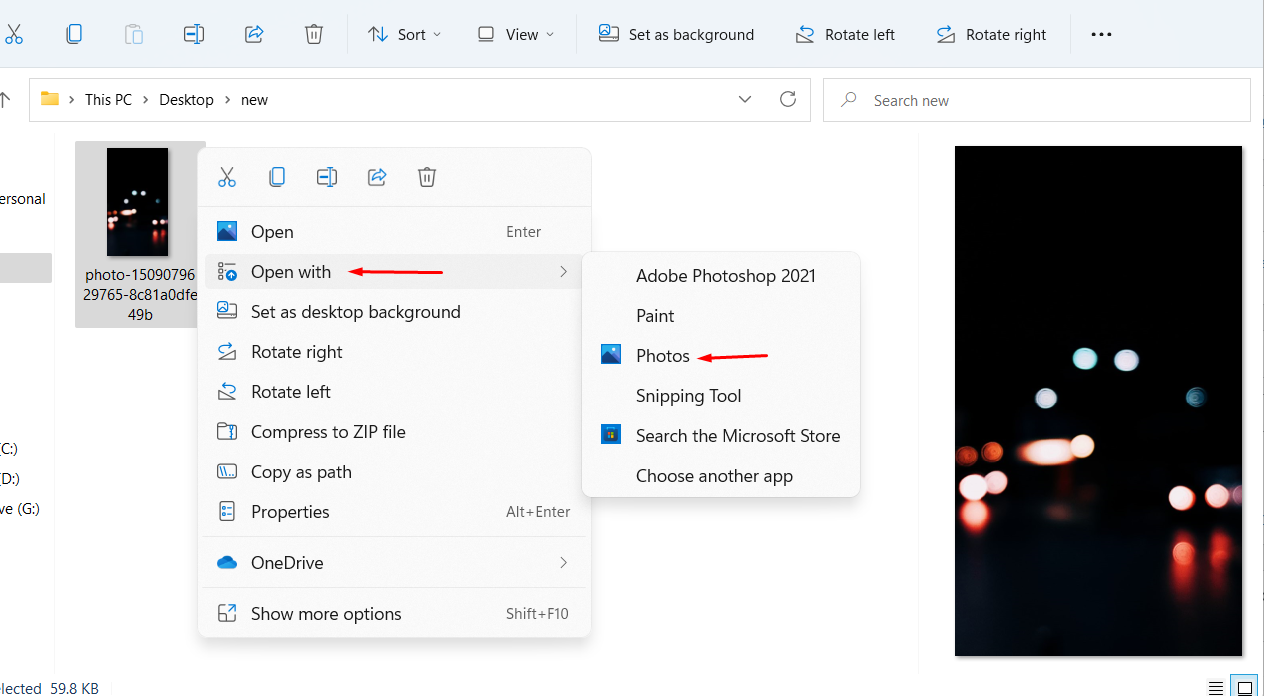 Photos
 Step 3. Then the wallpaper will open in a window of the Photos app then click on the Three Dots which is on the top side of the screen after that tap on Set As and select Set As background, you can also select the Set As Lock Screen.
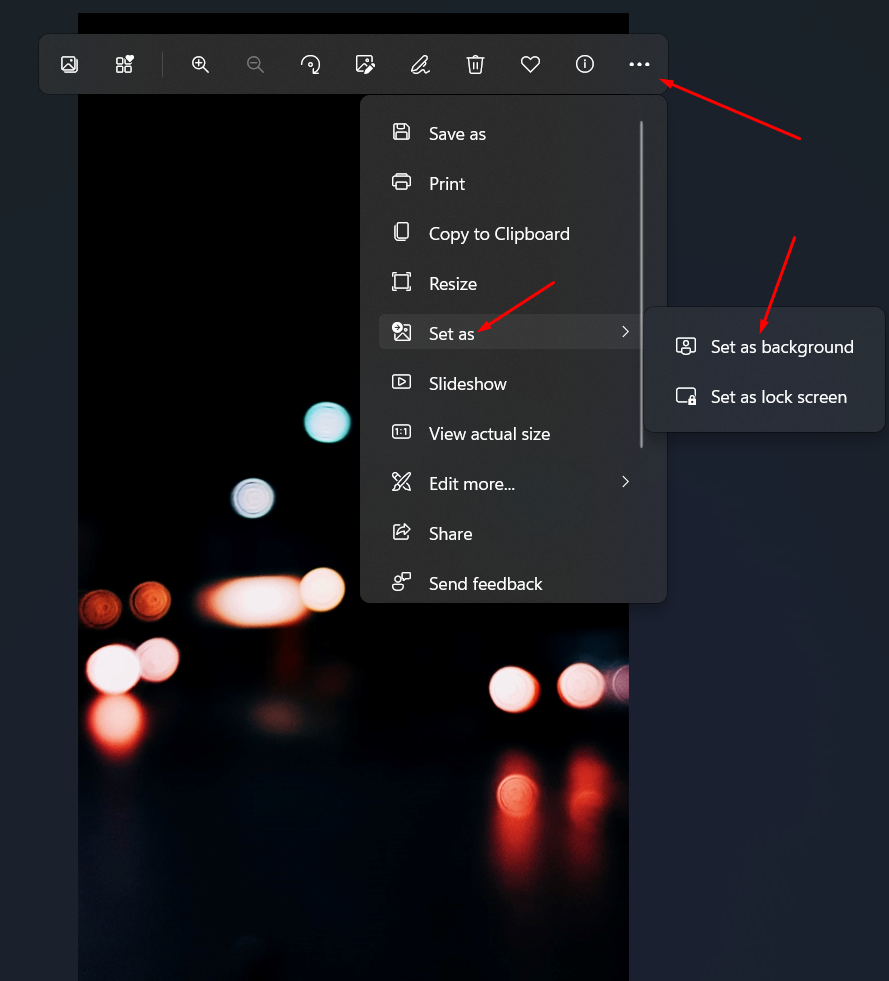 Set As background
 Bottom Line
It was all about How to Change Windows 11 Wallpaper Without Activating? I hope this article is very helpful for you to change Windows 11 wallpaper. Those were the best method that you can use to update the wallpaper no matter if your operating system is activated. From this article, you will get something good. This is the right place where you can easily solve your problem. After following these steps I hope you will not face any kind of problem. If you faced any kind of problem and if you have any type of suggestions then do comment.
Explore More:
Share This Article
The wallpapers will give an extra good look to your PC. It is the thing that you can always change to get a new look. Unfortunately, your operating system is not activated then you can not access Taskbar Settings, Themes, Personalization. If you are thinking that if our operating is not activated then how can I alter the wallpaper. However, do not be worry about that because there is a way to change the wallpaper of your PC even if you haven’t activated your PC. If you want to change Windows 11 wallpaper without activated OS then you need to read this article. From this article, I’ll guide you about How to Change Windows 11 Wallpaper Without Activating? So, without wasting any time let’s get started.
Change Windows 11 Wallpaper Using File Explorer
Step 1. First of all, you have to press and hold Windows Key + E from the keyboard to open the file explorer or click on it from the taskbar section.
Step 2. Once the file explorer is open then head towards the folder where you will the wallpapers.
Step 3. Now, one click on the wallpaper to select it after that click on the Set As Background from the top right side.
Click on the Set As Background Step 4. In the same way, right-click on the wallpaper then select Set As Desktop Background.
Select Set As Desktop Background Change Windows 11 Wallpaper Non-Activated Windows
As you know that in Windows 10 if your system is not activated then you can’t change the wallpaper of your PC. But you are having Windows 11 operating system after that you are able to change wallpaper, through the Photos app which is installed on your PC by default. Follow the steps given below.
Step 1. Firstly, Open the File Explorer of your computer.
Step 2. Next, right-click on the wallpaper then select Open With after that click on the Photos.
Photos Step 3. Then the wallpaper will open in a window of the Photos app then click on the Three Dots which is on the top side of the screen after that tap on Set As and select Set As background, you can also select the Set As Lock Screen.
Set As background Bottom Line
It was all about How to Change Windows 11 Wallpaper Without Activating? I hope this article is very helpful for you to change Windows 11 wallpaper. Those were the best method that you can use to update the wallpaper no matter if your operating system is activated. From this article, you will get something good. This is the right place where you can easily solve your problem. After following these steps I hope you will not face any kind of problem. If you faced any kind of problem and if you have any type of suggestions then do comment.
Explore More:


