

How to Change the Folder Color in Windows 11?
 Azaz Shaikh
From this article, you will learn How to Change the Folder Color in Windows 11? Do you want to change the color of your folder? Then you are in the right article. To change the color of the folder is very interesting because we got to bore that the colors of our folder are always yellow. When you create a folder then the color of the folder is by default yellow. Windows 11 donʻt have the feature to change the colors of any folder. But there is very great software that can help you to change the color of the folder. If you want to change the color of your folder then you need to read this article. So, without wasting any time let’s get has started.
Method 1: Change the Folder Color Using CustomFolder
Step 1. First of all, you need to click on this link after that download to CustomFolder.
Step 2. Once the downloading is done then open the software to install it. Click on the Run Anyway.
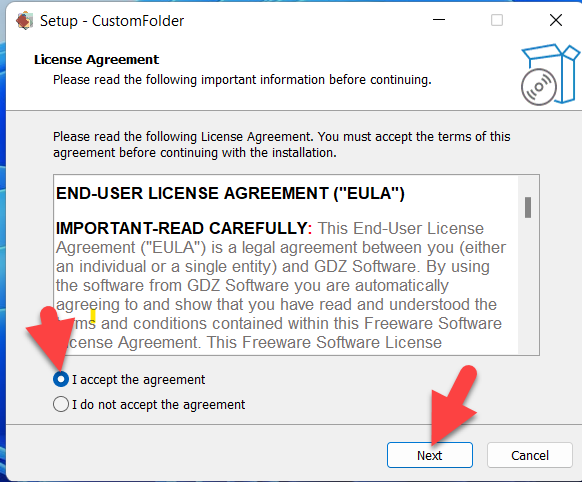
Step 3. Now, simply check the box of I Accept The Agreement then click on the Next.
 Click on the Next
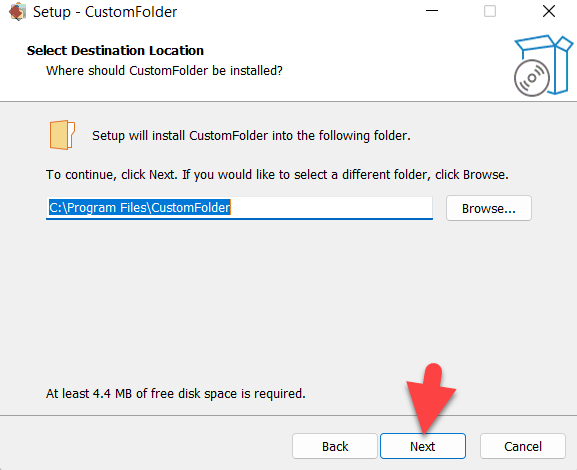
 Step 4. Click on the Next.
 Click on the Next
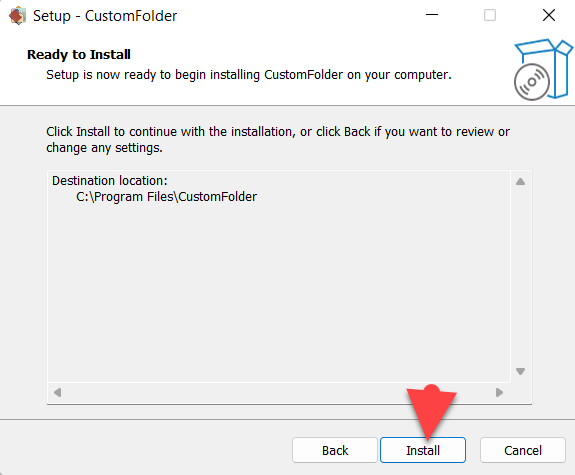
 Step 5. Next, you will get the window of Ready to Install simply click on the Install after that once the installation is done click on the Finish.
 Click on the Finish
 Step 6. Drag and drop the folder that you want to change the color of the folder.
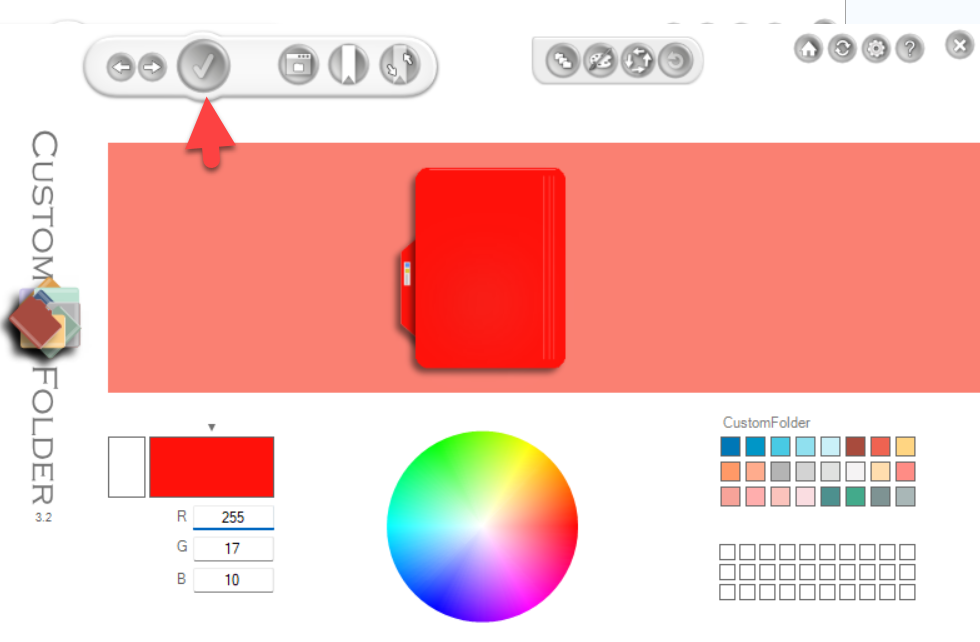
Step 7. At last, select any color that you need to apply to your folder then when you choose a color after that click on the icon of Tick at the top left side of the screen.
Method 2: Change the Folder Color Using Folder Painter
However, if the above method doesn’t work then this method will easily work. Before we start you need to download the Folder Painter that can help you change the folder color easily. Follow the steps down below.
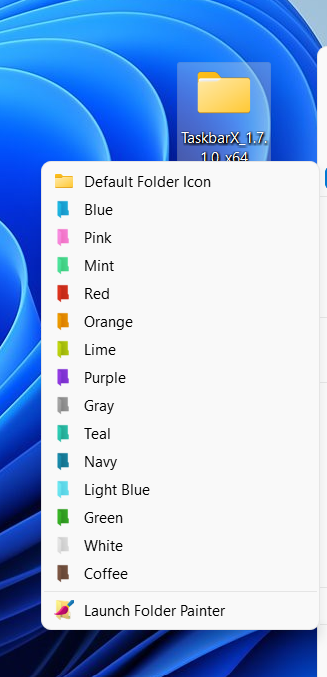
Step 1. At first, once the software is downloaded then right-click on that folder which you want to change the color after that select Change Folder Icon.
Step 2. After that, you will get a list of colors select any of them.
 Select.0
 Bottom Line
It was all about to How to Change the Folder Color in Windows 11? I hope this article is very helpful for you to change the folder color. From this article, you will not face any kind of problem. This is the right place where you can easily solve your problem. After following these steps I hope you will not face any kind of problem. If you faced any kind of problem and if you have any type of suggestions then do comment.
Related Posts:
Share This Article
From this article, you will learn How to Change the Folder Color in Windows 11? Do you want to change the color of your folder? Then you are in the right article. To change the color of the folder is very interesting because we got to bore that the colors of our folder are always yellow. When you create a folder then the color of the folder is by default yellow. Windows 11 donʻt have the feature to change the colors of any folder. But there is very great software that can help you to change the color of the folder. If you want to change the color of your folder then you need to read this article. So, without wasting any time let’s get has started.
Method 1: Change the Folder Color Using CustomFolder
Step 1. First of all, you need to click on this link after that download to CustomFolder.
Step 2. Once the downloading is done then open the software to install it. Click on the Run Anyway.
Step 3. Now, simply check the box of I Accept The Agreement then click on the Next.
Click on the Next Step 4. Click on the Next.
Click on the Next Step 5. Next, you will get the window of Ready to Install simply click on the Install after that once the installation is done click on the Finish.
Click on the Finish Step 6. Drag and drop the folder that you want to change the color of the folder.
Step 7. At last, select any color that you need to apply to your folder then when you choose a color after that click on the icon of Tick at the top left side of the screen.
Method 2: Change the Folder Color Using Folder Painter
However, if the above method doesn’t work then this method will easily work. Before we start you need to download the Folder Painter that can help you change the folder color easily. Follow the steps down below.
Step 1. At first, once the software is downloaded then right-click on that folder which you want to change the color after that select Change Folder Icon.
Step 2. After that, you will get a list of colors select any of them.
Select.0 Bottom Line
It was all about to How to Change the Folder Color in Windows 11? I hope this article is very helpful for you to change the folder color. From this article, you will not face any kind of problem. This is the right place where you can easily solve your problem. After following these steps I hope you will not face any kind of problem. If you faced any kind of problem and if you have any type of suggestions then do comment.
Related Posts:


