

How to Backup Mac to an External Drive – Advanced Guide
 Azaz Shaikh
To backup Mac to the Mac itself is really easy and simple, but when you back up to an External drive needs somehow trick. Backing up your vital data and your whole system is a wonderful useful task to do on a daily basis. Nowadays most of the operating systems lost their data due to system interruptions. Also, it is important when you are going to change the operating system of your Mac like upgrading from macOS Catalina into macOS Big Sur. External Drive is carryable everywhere and when you want to get then can easily restore from it. Therefore, to keep your data safe from loss then you have to know How to Backup Mac to an External Drive – Advanced Guide.
However, there are many ways to get back up to an external drive. According to Technology, Time Machine is the best when you want to back up your Mac to an external drive. With the help of Time Machine, you can even backup your Mac on any platform. So, I will explain each and everything about Time Machine. Let’s get straight into it.
Why Backing up Mac is Important
- Because you might sell your Mac and buy a new one.
- Your Mac’s system might get damaged.
- When your Mac that someone.
- Before upgrading the operating system, it is better to backup.
- You might lose your Mac.
- Because you will be tension free of losing your data.
- You might need your data on another device.
Backup Mac to an External Drive using Time Machine
Time Machine is installed by default on every Mac operating system. It is a built-in backup feature for your Mac. With the help of Time Machine, you can automatically back up all of your files, including apps, music, photos, email, documents, and system files. Time Machne has a specific feature in order to exclude a folder that you don’t want to backup. Furthermore, Time Machines completely keep Hourly backups for the past 24 hours, Daily backups for the past month, and weekly backups for all previous months
Without wasting more time let’s get started on How to Backup Mac to an External Drive with the default feature of Mac which is Time Machine.
Step 1. Firstly, connect up your external device with your Mac.
Step 2. Turn on your Mac and click on the Apple Logo from the left-top corner of the screen and choose System Preference.
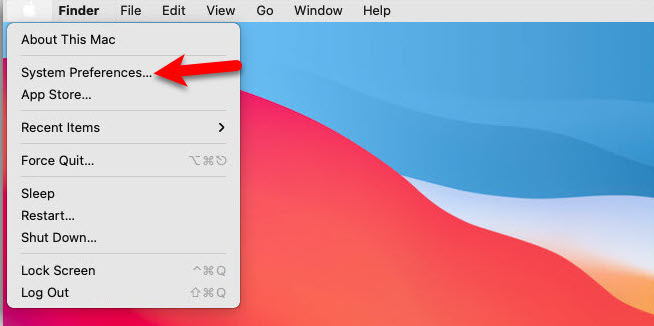 System Preferences of Mac
 Step 3. When the Time Machine appears, you have to click on the Time Machine option.
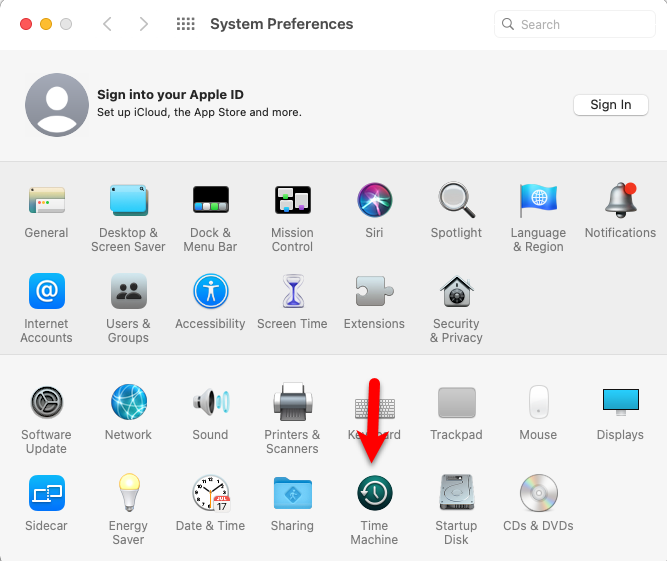 Time Machine
 Step 4. Check the option of Back up Automatically in order to back up your data on a daily basis.
Step 5. Now, click on the Select Disk under the backup option.
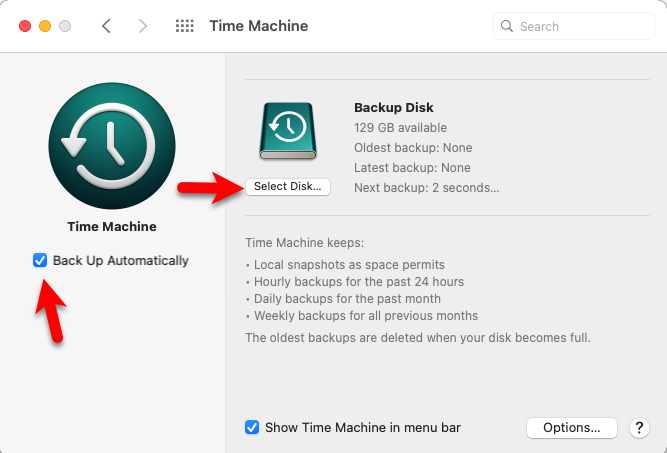 Backup
 Step 6. Select a backup disk that you want to back up your system’s data on it. Once you have chosen the disk then make sure to click on the Use Disk.
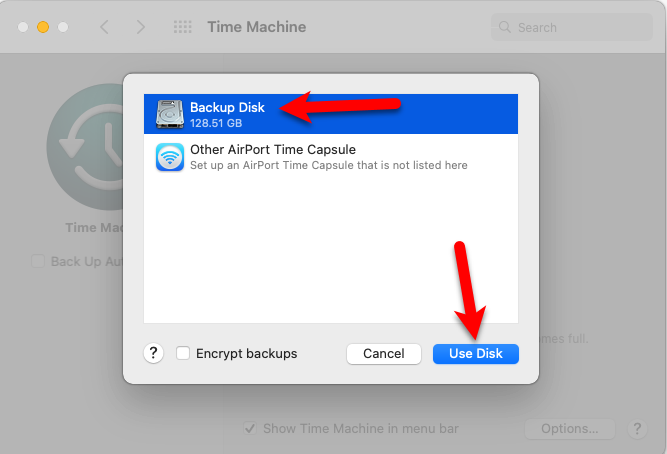 Use the Backup disk
 Step 7. After selecting your backup disk, the backup process of your data will begin automatically. You need to wait for a few minutes or even hours, actually, it depends on your size of data.
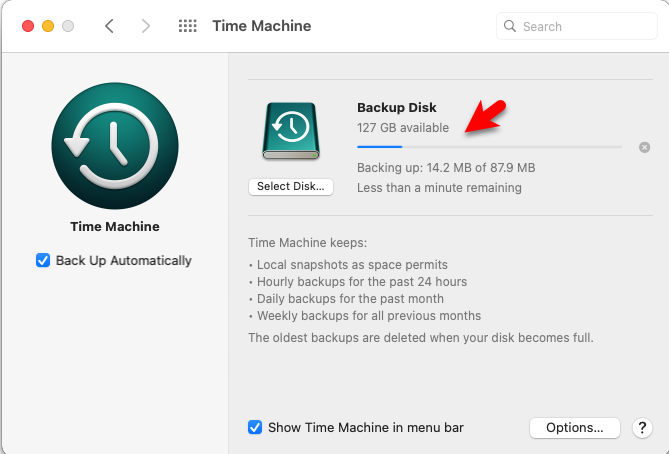 Process of Backup
 Step 8. When the backup process is complete, you will receive a notification.
 Successfully completed backup
 You can have the below guide too:
Bottom Line
The full guide on How to Backup Mac to an External Drive – Advanced Guide. Time Machine is a great source in order to backup to an external drive. However, if you have any kind of problem then don’t hesitate to leave comments in the comment section down below.
Share This Article
To backup Mac to the Mac itself is really easy and simple, but when you back up to an External drive needs somehow trick. Backing up your vital data and your whole system is a wonderful useful task to do on a daily basis. Nowadays most of the operating systems lost their data due to system interruptions. Also, it is important when you are going to change the operating system of your Mac like upgrading from macOS Catalina into macOS Big Sur. External Drive is carryable everywhere and when you want to get then can easily restore from it. Therefore, to keep your data safe from loss then you have to know How to Backup Mac to an External Drive – Advanced Guide.
However, there are many ways to get back up to an external drive. According to Technology, Time Machine is the best when you want to back up your Mac to an external drive. With the help of Time Machine, you can even backup your Mac on any platform. So, I will explain each and everything about Time Machine. Let’s get straight into it.
Why Backing up Mac is Important
- Because you might sell your Mac and buy a new one.
- Your Mac’s system might get damaged.
- When your Mac that someone.
- Before upgrading the operating system, it is better to backup.
- You might lose your Mac.
- Because you will be tension free of losing your data.
- You might need your data on another device.
Backup Mac to an External Drive using Time Machine
Time Machine is installed by default on every Mac operating system. It is a built-in backup feature for your Mac. With the help of Time Machine, you can automatically back up all of your files, including apps, music, photos, email, documents, and system files. Time Machne has a specific feature in order to exclude a folder that you don’t want to backup. Furthermore, Time Machines completely keep Hourly backups for the past 24 hours, Daily backups for the past month, and weekly backups for all previous months
Without wasting more time let’s get started on How to Backup Mac to an External Drive with the default feature of Mac which is Time Machine.
Step 1. Firstly, connect up your external device with your Mac.
Step 2. Turn on your Mac and click on the Apple Logo from the left-top corner of the screen and choose System Preference.
System Preferences of Mac Step 3. When the Time Machine appears, you have to click on the Time Machine option.
Time Machine Step 4. Check the option of Back up Automatically in order to back up your data on a daily basis.
Step 5. Now, click on the Select Disk under the backup option.
Backup Step 6. Select a backup disk that you want to back up your system’s data on it. Once you have chosen the disk then make sure to click on the Use Disk.
Use the Backup disk Step 7. After selecting your backup disk, the backup process of your data will begin automatically. You need to wait for a few minutes or even hours, actually, it depends on your size of data.
Process of Backup Step 8. When the backup process is complete, you will receive a notification.
Successfully completed backup You can have the below guide too:
Bottom Line
The full guide on How to Backup Mac to an External Drive – Advanced Guide. Time Machine is a great source in order to backup to an external drive. However, if you have any kind of problem then don’t hesitate to leave comments in the comment section down below.


