

How to Add a Wireless Printer in Windows 11?
 Azaz Shaikh
In this article, you will learn How to Add a Wireless Printer in Windows 11? Do you want to add a wireless printer? If yes then you will find several methods in this article. The printer is a very helpful device that can help you print the image of anything or text. And it will print an average of 220 pages. Most of the people they are having with wire printers and can easily add their printer to a PC. If you are having a wireless printer that you might face some issues that you can’t print anything. However, if you want to add a wireless printer then you need to read this article. So, without wasting any time let’s get has started.
Method 1: How to Add a New Printer Automatically
Step 1. First of all, you need to launch the Settings by pressing Win + I.
Step 2. However, when the settings are launched then head towards the Bluetooth & Devices from the left side go to the Printers & Scanners from the right side.
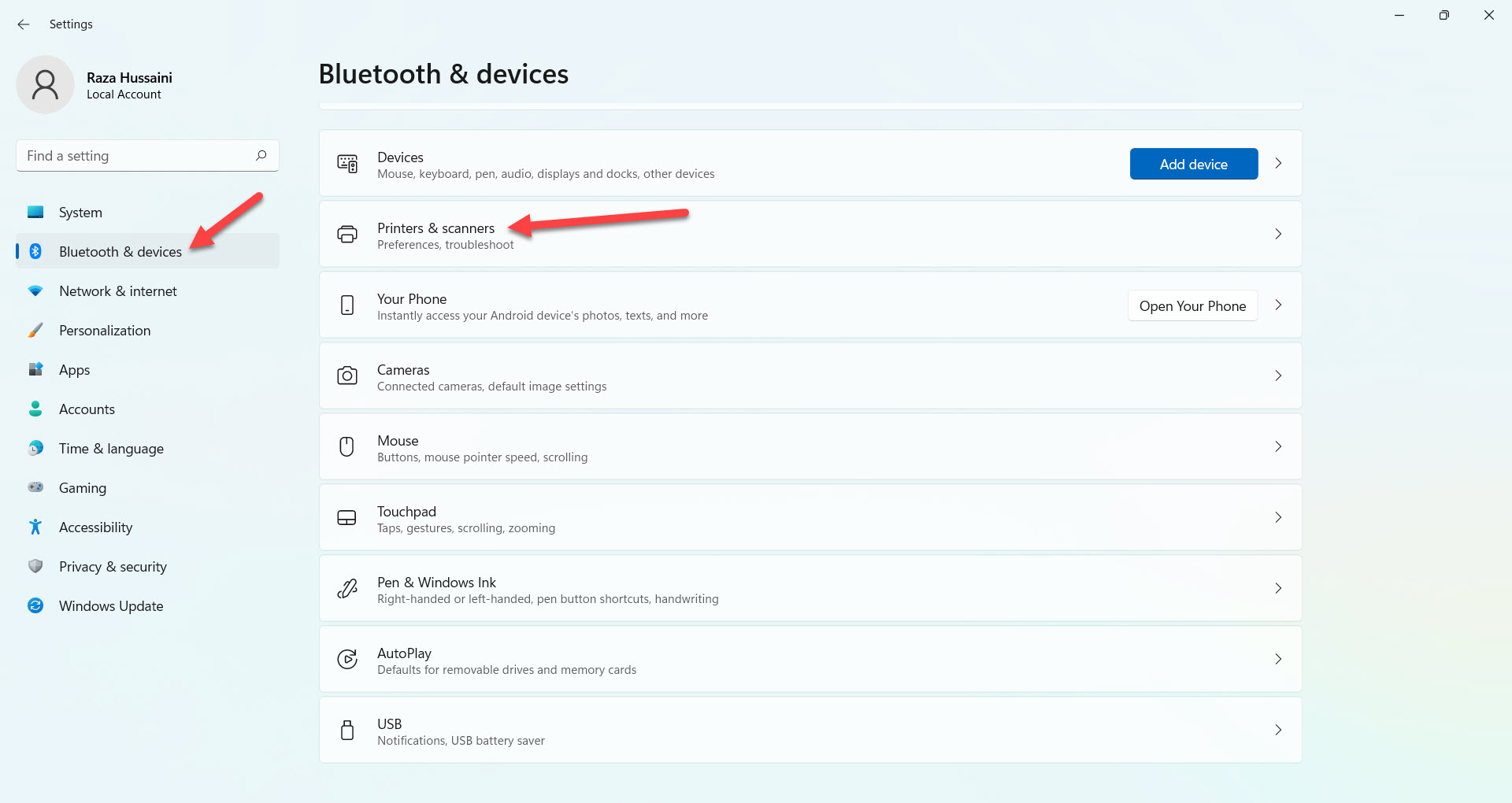 Go to Printers & Scanners
 Step 3. Now, click on the Add Device.
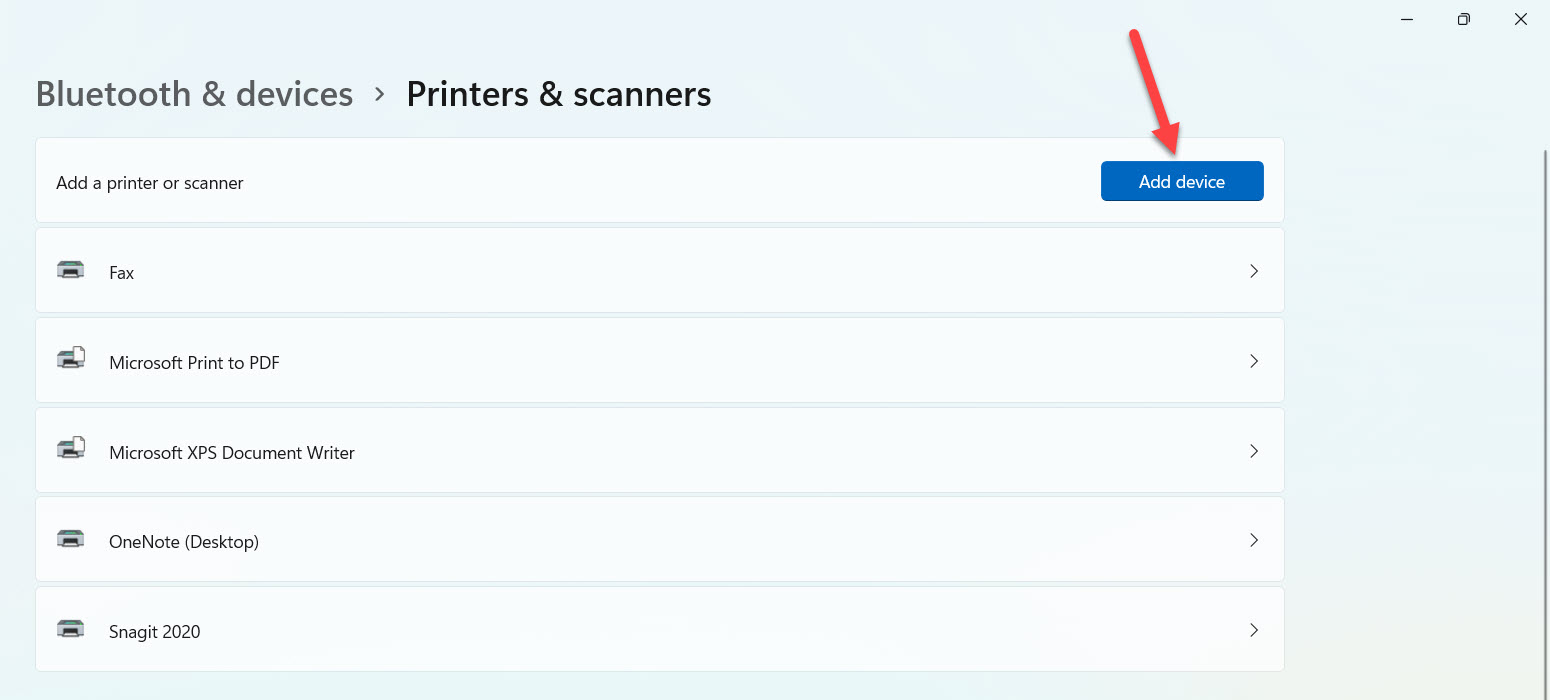 Click on the Add Device
 Step 4. At last, click on the Add Device then it will automatically detect your wireless printer.
Method 2: Add Manually a Wireless Printer
Step 1. At first, go to the Settings.
Step 2. Now, click on the Printers & Scanners.
Go to Printers & Scanners Step 3. Tap on the Add Manually.
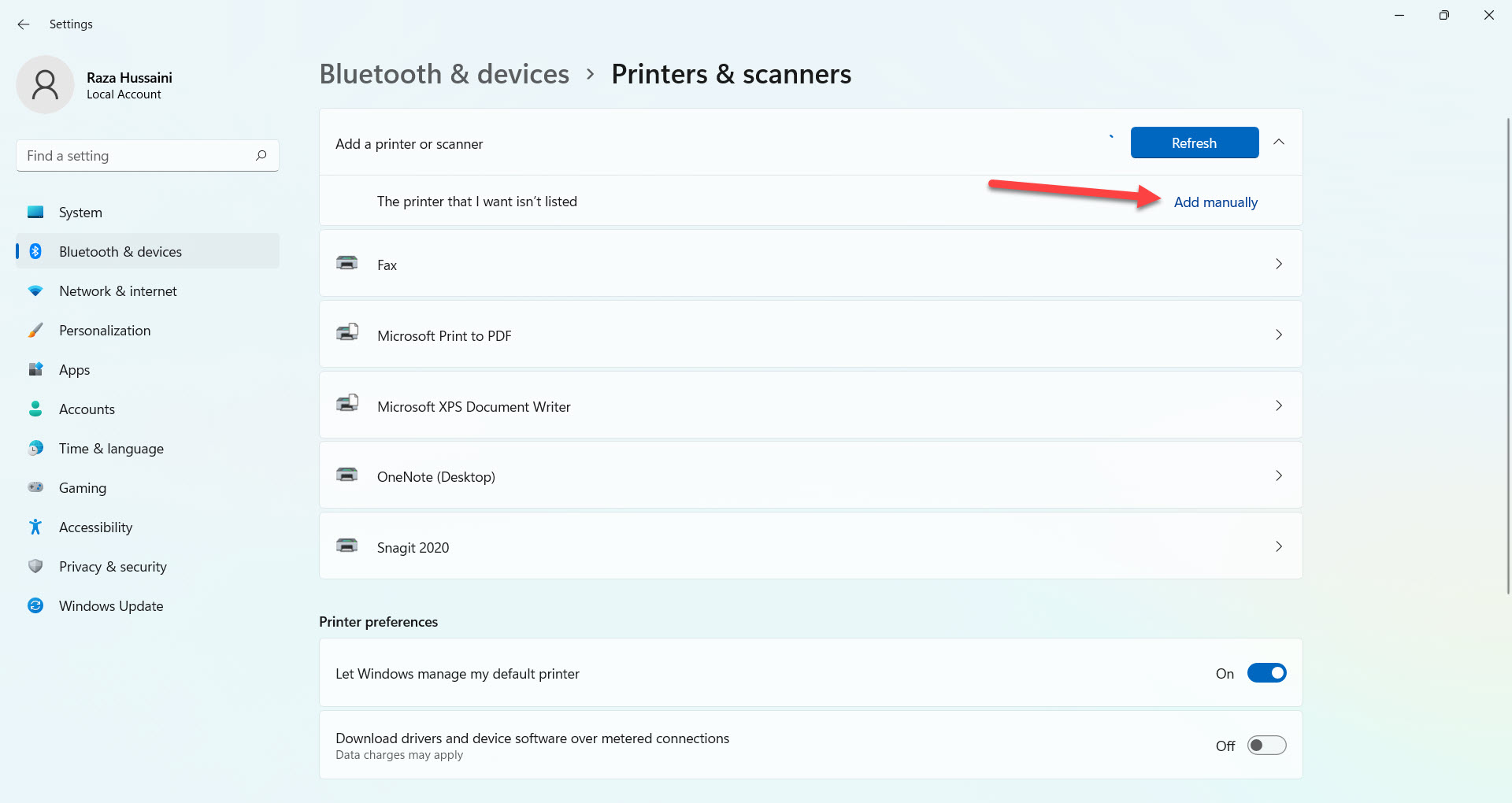 Tap on the Add Manually
 Step 4. Next, check the box of Add a Bluetooth, Wireless or Network Discoverable Printer.
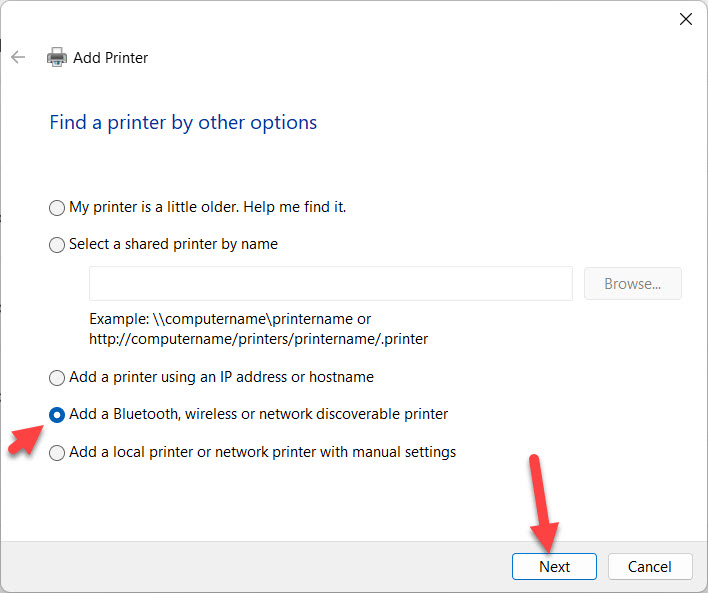 Add a Bluetooth, Wireless or Network Discoverable Printer
 Step 5. Here select your wireless printer in the option of Add a Device after that click on the Next.
Method 3: How to Add a New Printer Using Control Panel
Step 1. Firstly, open the Control Panel from your desktop screen or from the start menu.
Step 2. Click on the Category at the top right corner to open the drop-down after that select the Large icons.
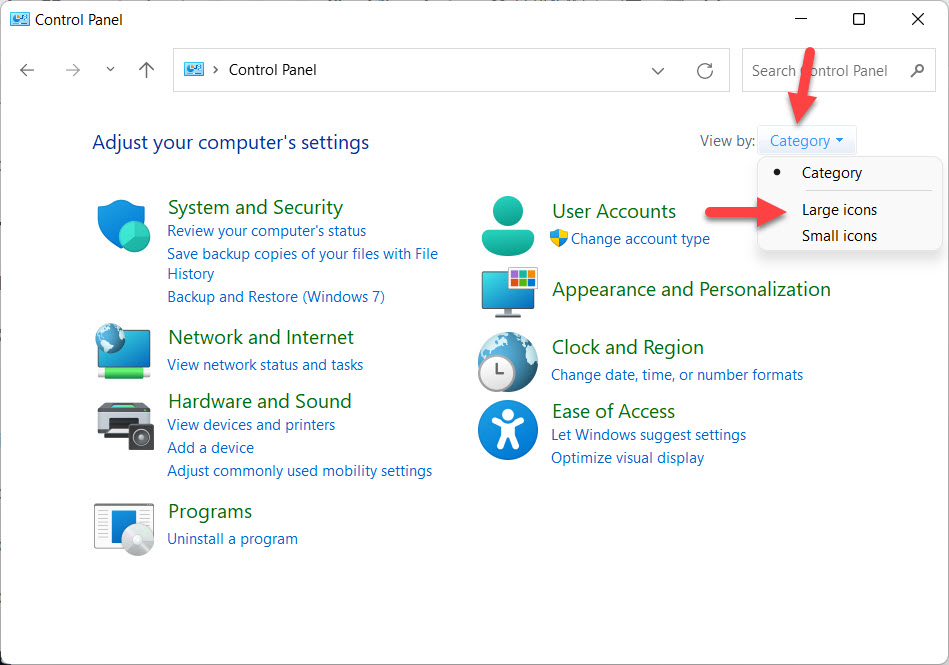 Select the Large Icon
 Step 3. Find the Devices and Printers on the control panel then click on it.
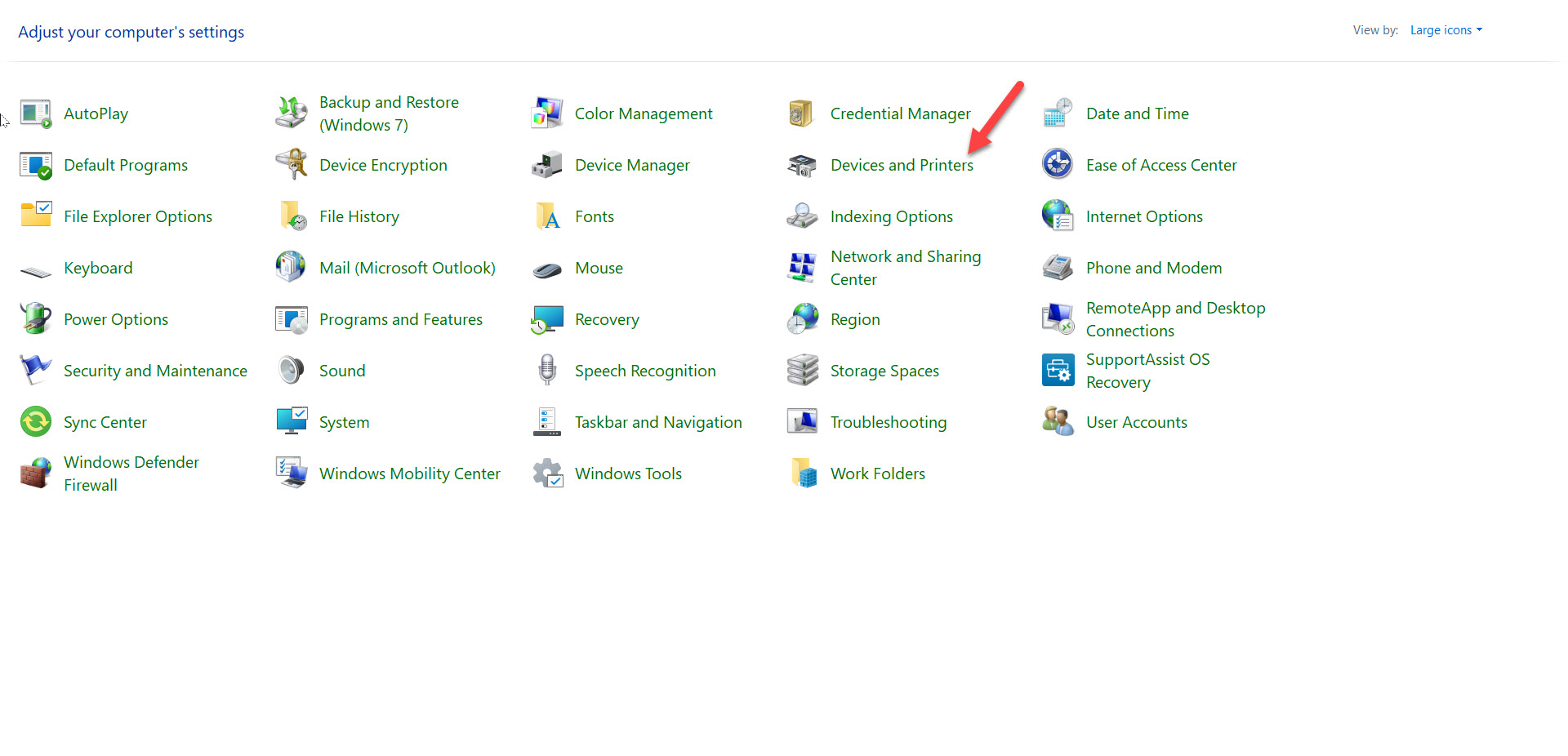 Devices and Printers
 Step 4. Moreover, click on the Add a Printer.
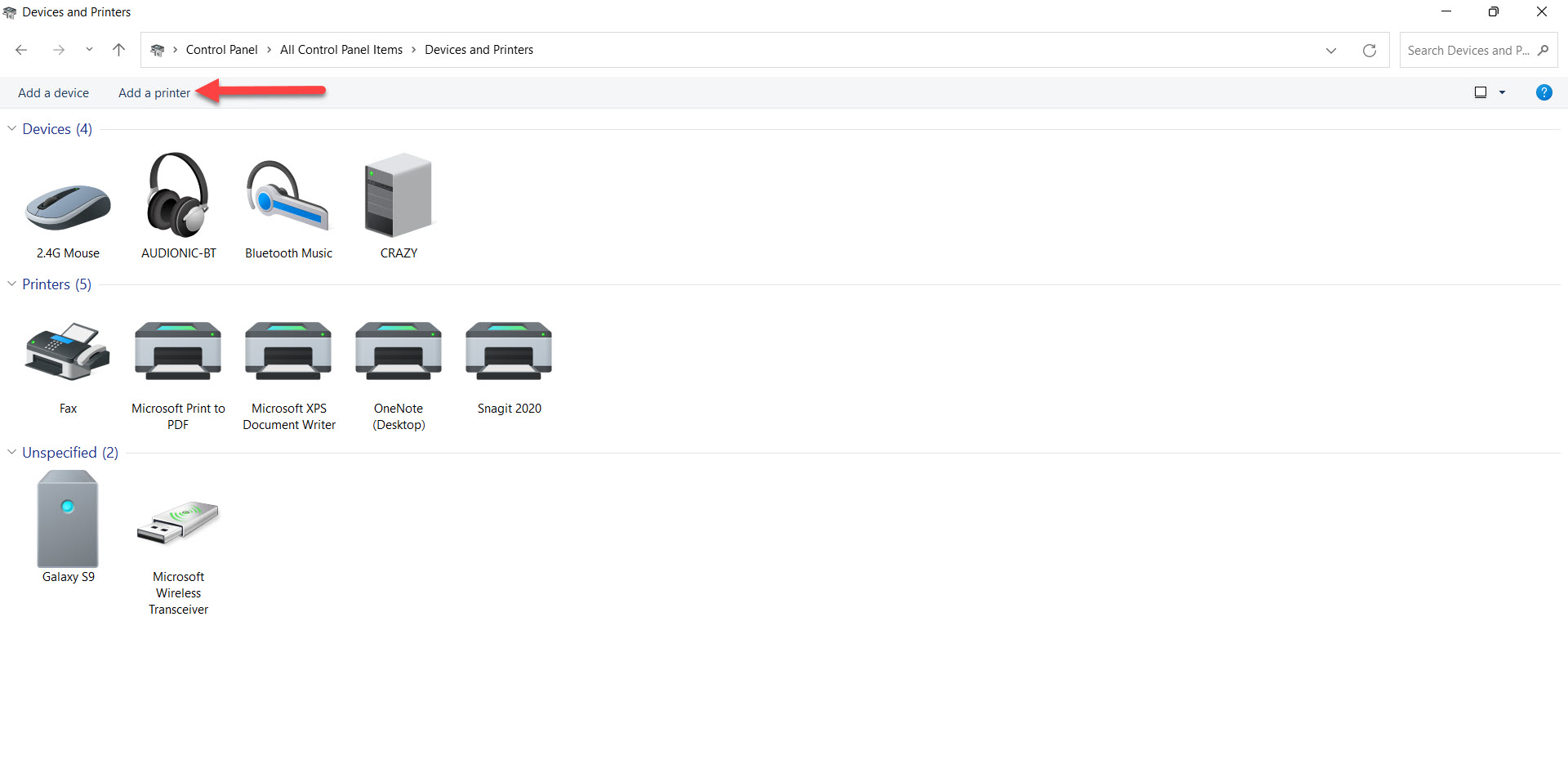 Click on the Add a Printer
 Step 5. In this step, you need to select your wireless printer after that tap on the Next.
Step 6. At last, click on the Finish when all set.
Bottom Line
It was all about to How to Add a Wireless Printer in Windows 11? I hope this article is very helpful for you to add a wireless printer. From this article, you will get something good. This is the right place where you can easily solve your problem. After following these steps I hope you will not face any kind of problem. If you faced any kind of problem and if you have any type of suggestions then do comment.
Related Posts:
Tagged
Share This Article
In this article, you will learn How to Add a Wireless Printer in Windows 11? Do you want to add a wireless printer? If yes then you will find several methods in this article. The printer is a very helpful device that can help you print the image of anything or text. And it will print an average of 220 pages. Most of the people they are having with wire printers and can easily add their printer to a PC. If you are having a wireless printer that you might face some issues that you can’t print anything. However, if you want to add a wireless printer then you need to read this article. So, without wasting any time let’s get has started.
Method 1: How to Add a New Printer Automatically
Step 1. First of all, you need to launch the Settings by pressing Win + I.
Step 2. However, when the settings are launched then head towards the Bluetooth & Devices from the left side go to the Printers & Scanners from the right side.
Go to Printers & Scanners Step 3. Now, click on the Add Device.
Click on the Add Device Step 4. At last, click on the Add Device then it will automatically detect your wireless printer.
Method 2: Add Manually a Wireless Printer
Step 1. At first, go to the Settings.
Step 2. Now, click on the Printers & Scanners.
Go to Printers & Scanners Step 3. Tap on the Add Manually.
Tap on the Add Manually Step 4. Next, check the box of Add a Bluetooth, Wireless or Network Discoverable Printer.
Add a Bluetooth, Wireless or Network Discoverable Printer Step 5. Here select your wireless printer in the option of Add a Device after that click on the Next.
Method 3: How to Add a New Printer Using Control Panel
Step 1. Firstly, open the Control Panel from your desktop screen or from the start menu.
Step 2. Click on the Category at the top right corner to open the drop-down after that select the Large icons.
Select the Large Icon Step 3. Find the Devices and Printers on the control panel then click on it.
Devices and Printers Step 4. Moreover, click on the Add a Printer.
Click on the Add a Printer Step 5. In this step, you need to select your wireless printer after that tap on the Next.
Step 6. At last, click on the Finish when all set.
Bottom Line
It was all about to How to Add a Wireless Printer in Windows 11? I hope this article is very helpful for you to add a wireless printer. From this article, you will get something good. This is the right place where you can easily solve your problem. After following these steps I hope you will not face any kind of problem. If you faced any kind of problem and if you have any type of suggestions then do comment.
Related Posts:


