

How to Fix Time Not Updating or Syncing in Windows 11?
 Azaz Shaikh
In this article, you will learn How to Fix Time Not Updating or Syncing in Windows 11? Time & Date are functioning the important part of our PCs. It can help us to complete our work on time and the Time & Date should work smoothly and perfectly every time. There is a feature that is helping your system to balance the Date & Time and that feature is automatic clock synchronization. If sometimes this feature can’t sync with time.windows.com then the Time & Date of your PC may stay remain back and function slow or it will stop working. When it stops working or it is not syncing then you should be aware of that. If you want to fic time not updating or syncing then you need to read this article.
Method 1: From Date & Time Settings
Step 1. First of all, you need to press and hold Windows Key + I to open the Settings of your PC.
Step 2. When the Settings are open then go to the window of Date & Time.
Step 3. Now, here is the toggle of Set the Time Automatically should enable, if not then your time won’t set automatically. Whenever the time is not syncing then simply click on Sync Now just on the same page, and check the previous time it was synced also.
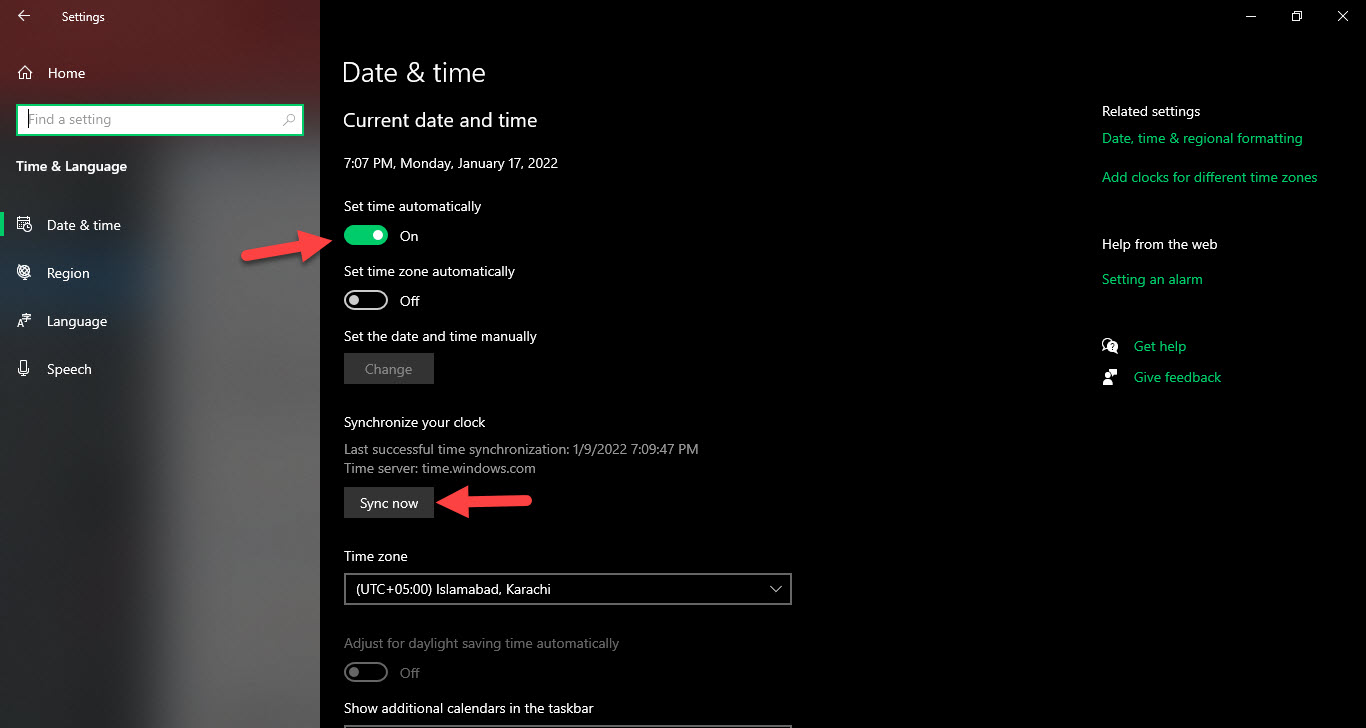
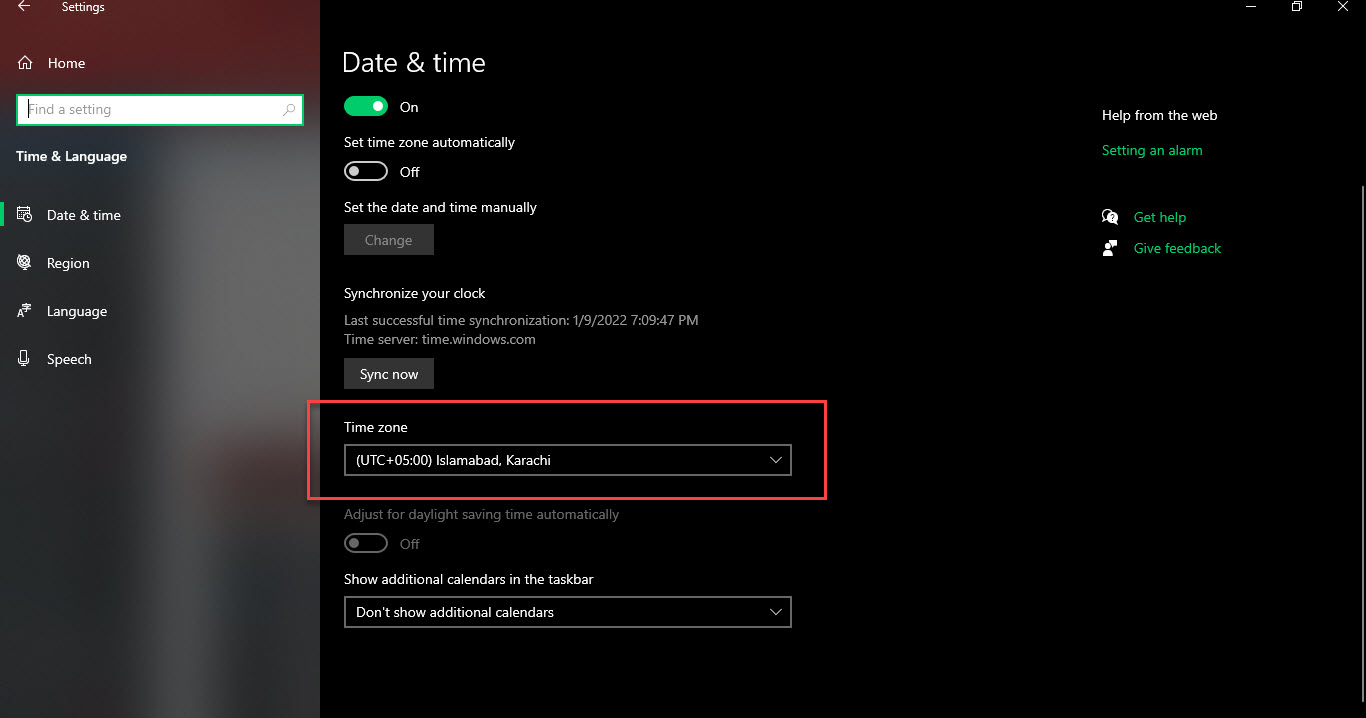
Step 4. You can also set multiple time zones and you have to choose a suitable time zone for your PC. If you want to set different types of clocks then click on the Add Clocks for Different Time Zones when you set clocks then it will help when you are traveling.
Method 2: Via Windows Time Service
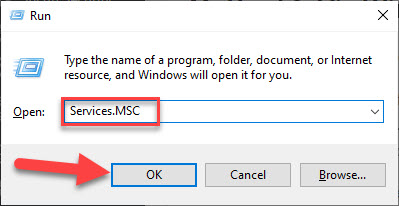
Step 1. First, open the Run by pressing Win + R shortcut then type Services.MSC after that click on the Ok.
 Services.MSC
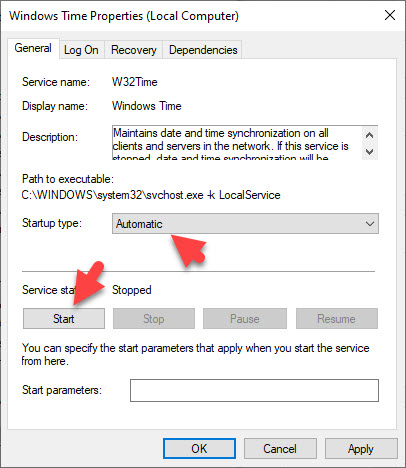
 Step 2. Now, you will get a list of the names simply find Windows Time and double-click on it after that open the drop-down then select Manual or Automatic from the section of Setup type, and the service status is Stopped after that Start the process and switch it into the auto.
Step 3. When all process is done then save all the changes then restart your PC and look if the problem is fixed.
Method 3: With the Help of CMD (Command Prompt)
If the above is not working then try this one it may work. Follow the strategy down below.
Step 1. Open Command Prompt from the Start menu by searching and dont forget to run the CMD as administrator.
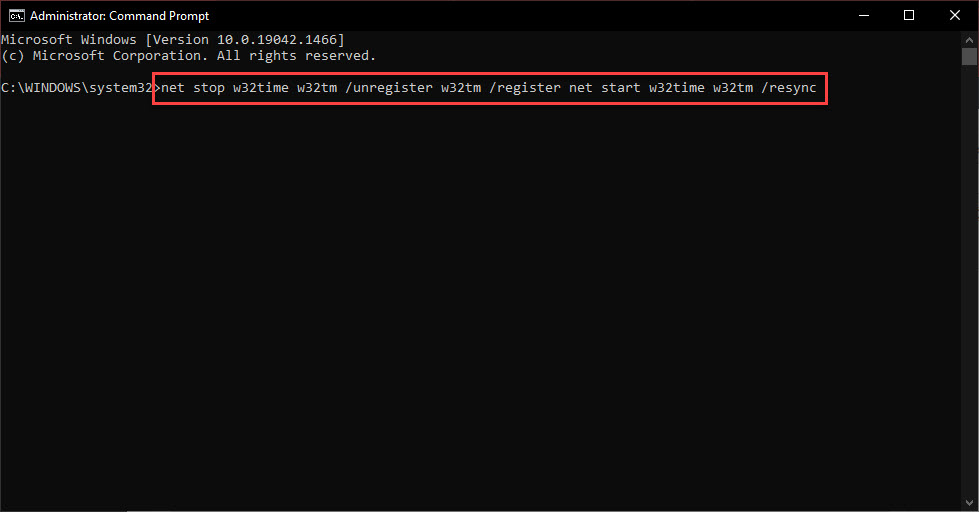
Step 2. Once you open the CMD then copy and paste the following command after that press Enter button to execute the command.
net stop w32time w32tm /unregister w32tm /register net start w32time w32tm /resync
The command will force the system to sync the time.
Bottom Line
It was all about How to Fix Time Not Updating or Syncing in Windows 11? I hope this article is very helpful for you to fix time not updating or syncing. From this article, you will get something good. This is the right place where you can easily solve your problem. After following these steps I hope you will not face any kind of problem. If you faced any kind of problem and if you have any type of suggestions then do comment.
Explore More:
Share This Article
In this article, you will learn How to Fix Time Not Updating or Syncing in Windows 11? Time & Date are functioning the important part of our PCs. It can help us to complete our work on time and the Time & Date should work smoothly and perfectly every time. There is a feature that is helping your system to balance the Date & Time and that feature is automatic clock synchronization. If sometimes this feature can’t sync with time.windows.com then the Time & Date of your PC may stay remain back and function slow or it will stop working. When it stops working or it is not syncing then you should be aware of that. If you want to fic time not updating or syncing then you need to read this article.
Method 1: From Date & Time Settings
Step 1. First of all, you need to press and hold Windows Key + I to open the Settings of your PC.
Step 2. When the Settings are open then go to the window of Date & Time.
Step 3. Now, here is the toggle of Set the Time Automatically should enable, if not then your time won’t set automatically. Whenever the time is not syncing then simply click on Sync Now just on the same page, and check the previous time it was synced also.
Step 4. You can also set multiple time zones and you have to choose a suitable time zone for your PC. If you want to set different types of clocks then click on the Add Clocks for Different Time Zones when you set clocks then it will help when you are traveling.
Method 2: Via Windows Time Service
Step 1. First, open the Run by pressing Win + R shortcut then type Services.MSC after that click on the Ok.
Services.MSC Step 2. Now, you will get a list of the names simply find Windows Time and double-click on it after that open the drop-down then select Manual or Automatic from the section of Setup type, and the service status is Stopped after that Start the process and switch it into the auto.
Step 3. When all process is done then save all the changes then restart your PC and look if the problem is fixed.
Method 3: With the Help of CMD (Command Prompt)
If the above is not working then try this one it may work. Follow the strategy down below.
Step 1. Open Command Prompt from the Start menu by searching and dont forget to run the CMD as administrator.
Step 2. Once you open the CMD then copy and paste the following command after that press Enter button to execute the command.
net stop w32time w32tm /unregister w32tm /register net start w32time w32tm /resync
The command will force the system to sync the time.
Bottom Line
It was all about How to Fix Time Not Updating or Syncing in Windows 11? I hope this article is very helpful for you to fix time not updating or syncing. From this article, you will get something good. This is the right place where you can easily solve your problem. After following these steps I hope you will not face any kind of problem. If you faced any kind of problem and if you have any type of suggestions then do comment.
Explore More:


