

How to Fix This PC Can’t Run Windows 11?
 Azaz Shaikh
Microsoft is launching its new operating system. This new operating system is Windows 11. This Windows 11 have very advanced features. Till now the Windows 11 do not launch only the beta version is leaked on the internet. If you want to install this operating system then you can because this new operating is having many new features. When you want to install Windows 11. Then when you will try after that once you finish the process to install the Windows 11 then, at last, it says This PC Can’t Run Windows 11. But don’t worry here is the method to fix this problem. If you want to fix this PC that can’t run Windows 11 then you need to read this article. So, without wasting any time let’s get has started. From this article, you will learn How to Fix This PC Can’t Run Windows 11?
Related Post: How to Check If Your Windows 10 PC Can Run Windows 11
How to Fix This PC Can’t Run Windows 11
First, you need to create the bootable of Windows 11. To bootable Windows 11, you need to click on the link down below. You don’t need to pay any money to bootable your Windows 11.
When you create the bootable of Windows 11 then simply follow the step down below.
Step 1. First of all, go to the official website of GitHub once you reach there successfully after that scroll down then copy the command and if you want to copy from here then the command is down below.
“BypassTPMCheck”=dword:00000001
“BypassSecureBootCheck”=dword:00000001
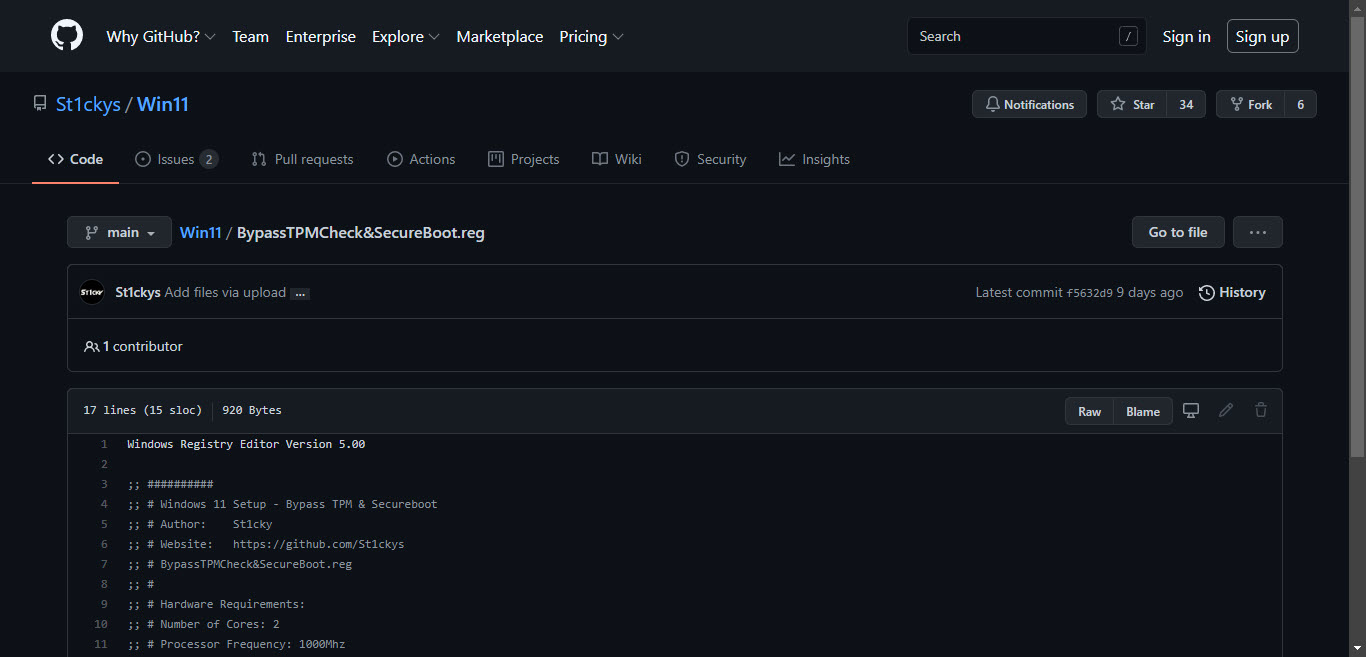 GitHub
 Step 2. When you copy the command after that head towards the notepad you can head towards by dialogue box and from the Start menu also.
Step 3. Once the notepad is launch then paste the command after that go to the File then click on the Save As.
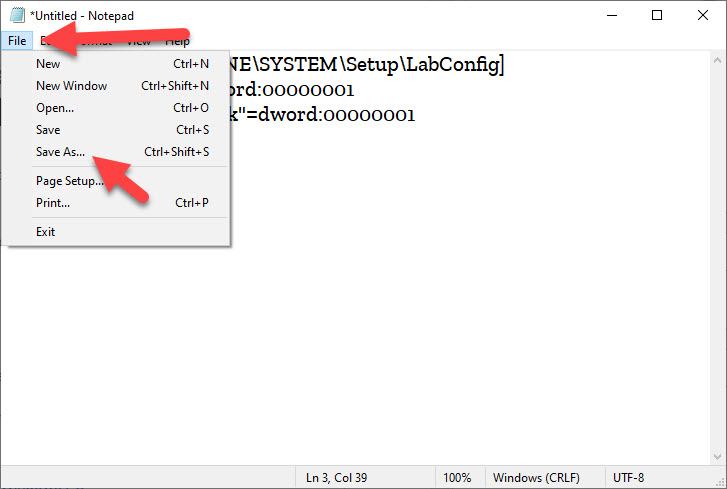 Click on the Save As
 Step 4. Now, set the name of your life as Bypasswindows11.Reg after that tap on the Save and save the file into the desktop.
 Tap on the Save
 Step 5. Next, move the file into the file of bootable USB drive Windows 11.
At last, when the process is finished then you need to restart your PC then press the Boot menu to run Windows 11 on your PC.
Related Post: Download macOS Monterey on VirtualBox on Windows PC
Bottom Line
It was all about How to Fix This PC Can’t Run Windows 11? I hope this article is very helpful for you to fix this PC that can’t run Windows 11. From this article, you will good something good. This is the right place where you can easily solve your problem. After following these steps I hope you will not face any kind of problem. If you faced any kind of problem and if you have any type of suggestions then do comment.
Share This Article
Microsoft is launching its new operating system. This new operating system is Windows 11. This Windows 11 have very advanced features. Till now the Windows 11 do not launch only the beta version is leaked on the internet. If you want to install this operating system then you can because this new operating is having many new features. When you want to install Windows 11. Then when you will try after that once you finish the process to install the Windows 11 then, at last, it says This PC Can’t Run Windows 11. But don’t worry here is the method to fix this problem. If you want to fix this PC that can’t run Windows 11 then you need to read this article. So, without wasting any time let’s get has started. From this article, you will learn How to Fix This PC Can’t Run Windows 11?
Related Post: How to Check If Your Windows 10 PC Can Run Windows 11
How to Fix This PC Can’t Run Windows 11
First, you need to create the bootable of Windows 11. To bootable Windows 11, you need to click on the link down below. You don’t need to pay any money to bootable your Windows 11.
When you create the bootable of Windows 11 then simply follow the step down below.
Step 1. First of all, go to the official website of GitHub once you reach there successfully after that scroll down then copy the command and if you want to copy from here then the command is down below.
“BypassTPMCheck”=dword:00000001
“BypassSecureBootCheck”=dword:00000001
GitHub Step 2. When you copy the command after that head towards the notepad you can head towards by dialogue box and from the Start menu also.
Step 3. Once the notepad is launch then paste the command after that go to the File then click on the Save As.
Click on the Save As Step 4. Now, set the name of your life as Bypasswindows11.Reg after that tap on the Save and save the file into the desktop.
Tap on the Save Step 5. Next, move the file into the file of bootable USB drive Windows 11.
At last, when the process is finished then you need to restart your PC then press the Boot menu to run Windows 11 on your PC.
Related Post: Download macOS Monterey on VirtualBox on Windows PC
Bottom Line
It was all about How to Fix This PC Can’t Run Windows 11? I hope this article is very helpful for you to fix this PC that can’t run Windows 11. From this article, you will good something good. This is the right place where you can easily solve your problem. After following these steps I hope you will not face any kind of problem. If you faced any kind of problem and if you have any type of suggestions then do comment.


