How to Connect TOZO Earbuds with All Your Devices?
 Azaz Shaikh
In this world of technology wireless AirPods are like a style and fashion for everyone. These days the demand for AirPods and AirBuds is increasing fastly. Of course, these kinds of wireless things are helpful in every kind of circumstance. For example, you can listen to your selective things, call, and many more. AirPods and EarBuds make everyone’s life comfortable and make their work easy. From this article, you will learn How to Connect TOZO Earbuds with All Your Devices.
By the time of demand that is getting much popular and the price of it will be more expensive which many of the people can’t afford it. Rather than buying expensive wireless AirPods you can also buy and use EarBuds. Which will give the same quality and amazing price. Therefore the new EarBuds TOZO is the same as Airpods. It has an affordable price which you buy it and make your jobs easier.
If you want to know the way to connect TOZO EarBuds then you have to read this article. So, without wasting any time let’s get started.
How to Connect TOZO EarBuds with Android Phone
Step 1. First of all, you need to open your Notification Bar just by swiping down from the top of the screen and then click on the Gear icon.
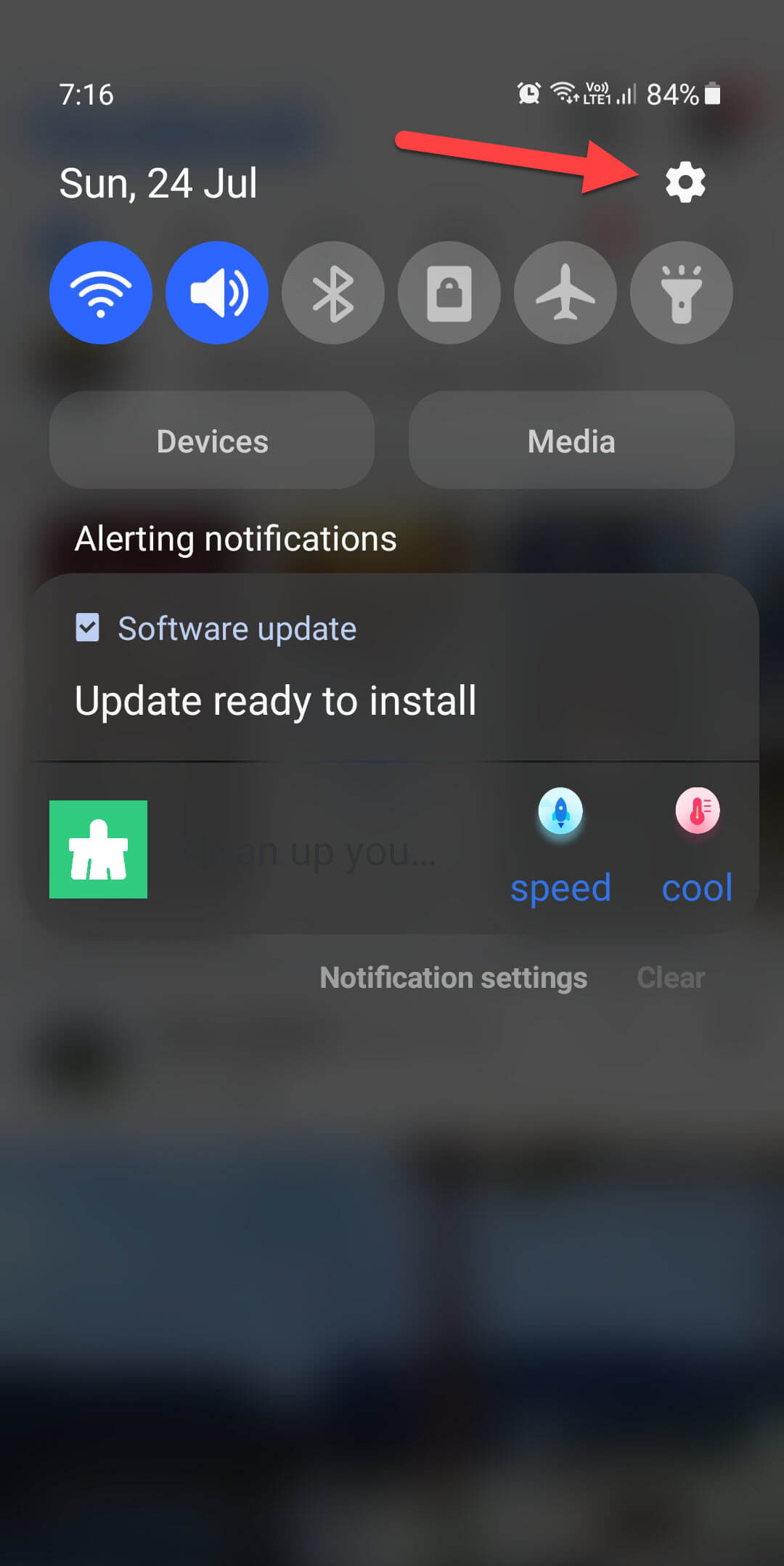 Click on the Gear Icon
 Step 2. Now, go to the Connections.
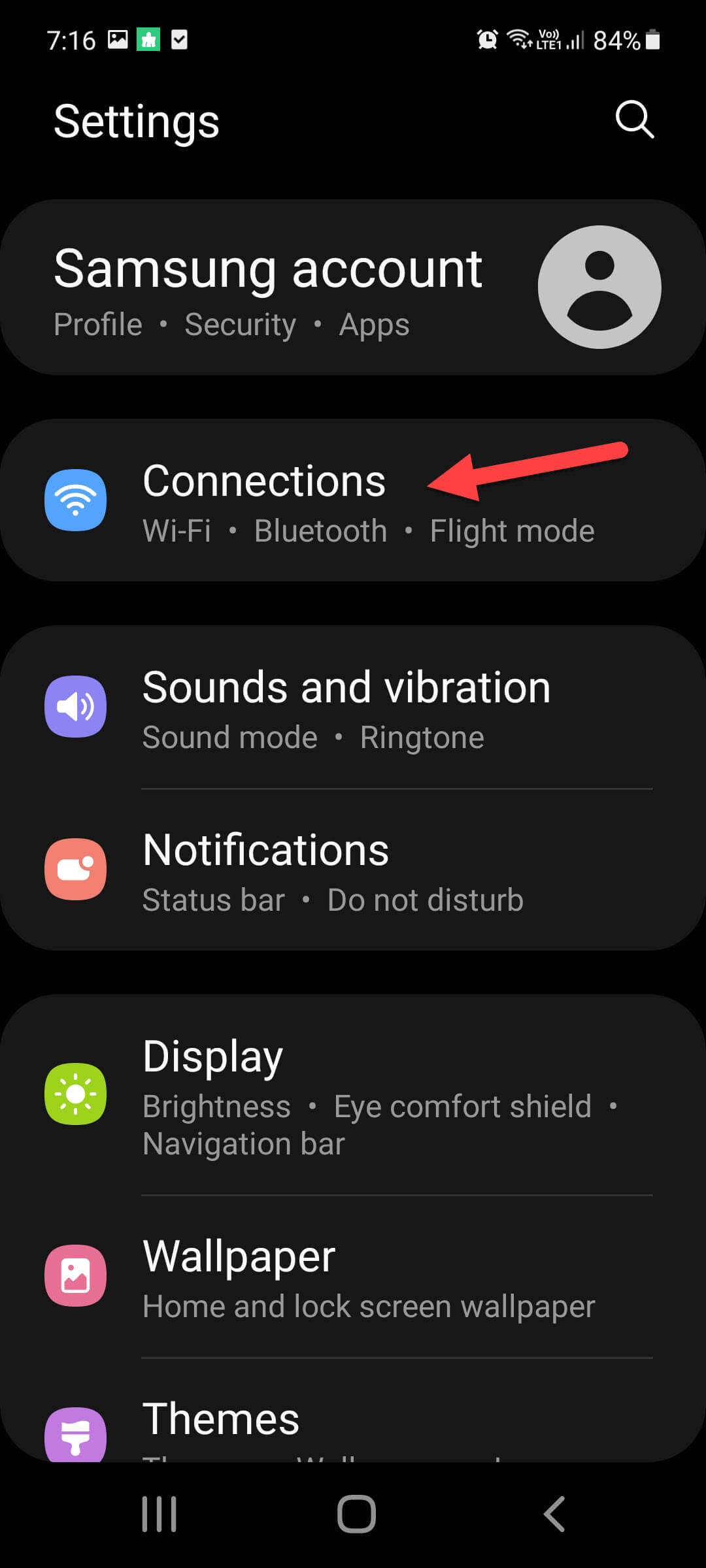 Go to the Connections
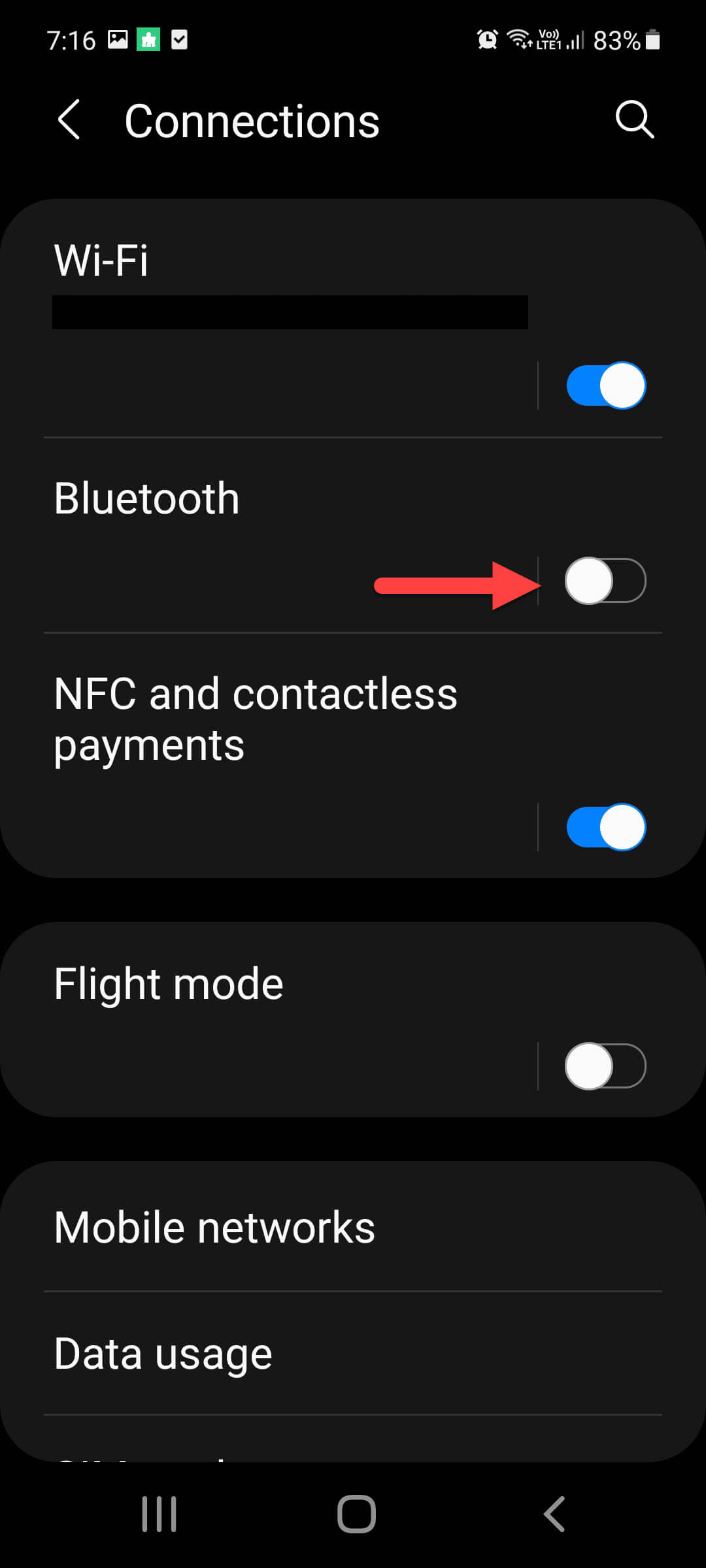
 Step 3. Next, turn on the toggle of the Bluetooth and click on it.
Step 4. Here you need to find your EarBuds name and then select. If you couldn’t find it after that tap on the Scan and it will start searching for your EarBuds.
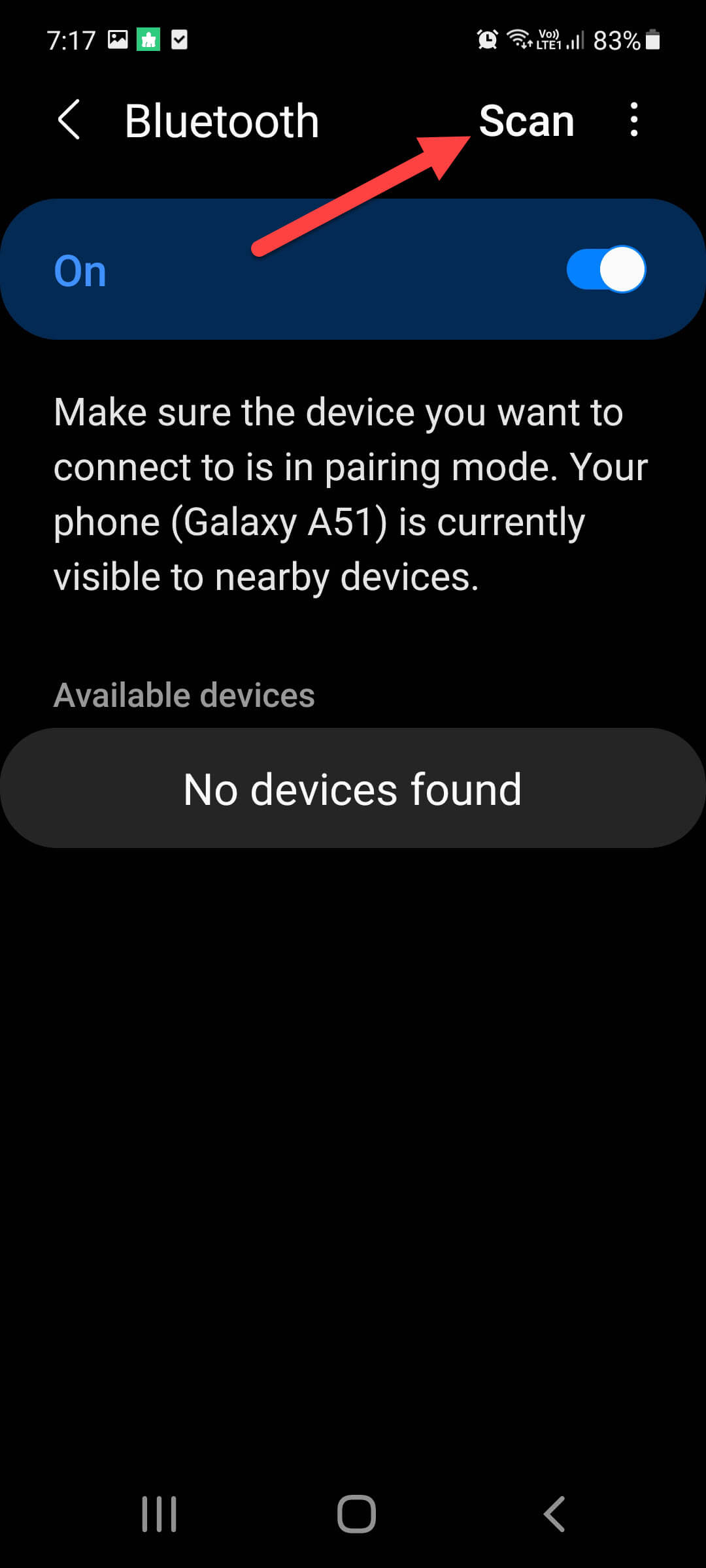 Scan
Scan Step 5. At last, select Pair to connect the TOZO Earbuds.
Connect TOZO EarBuds with iPhone
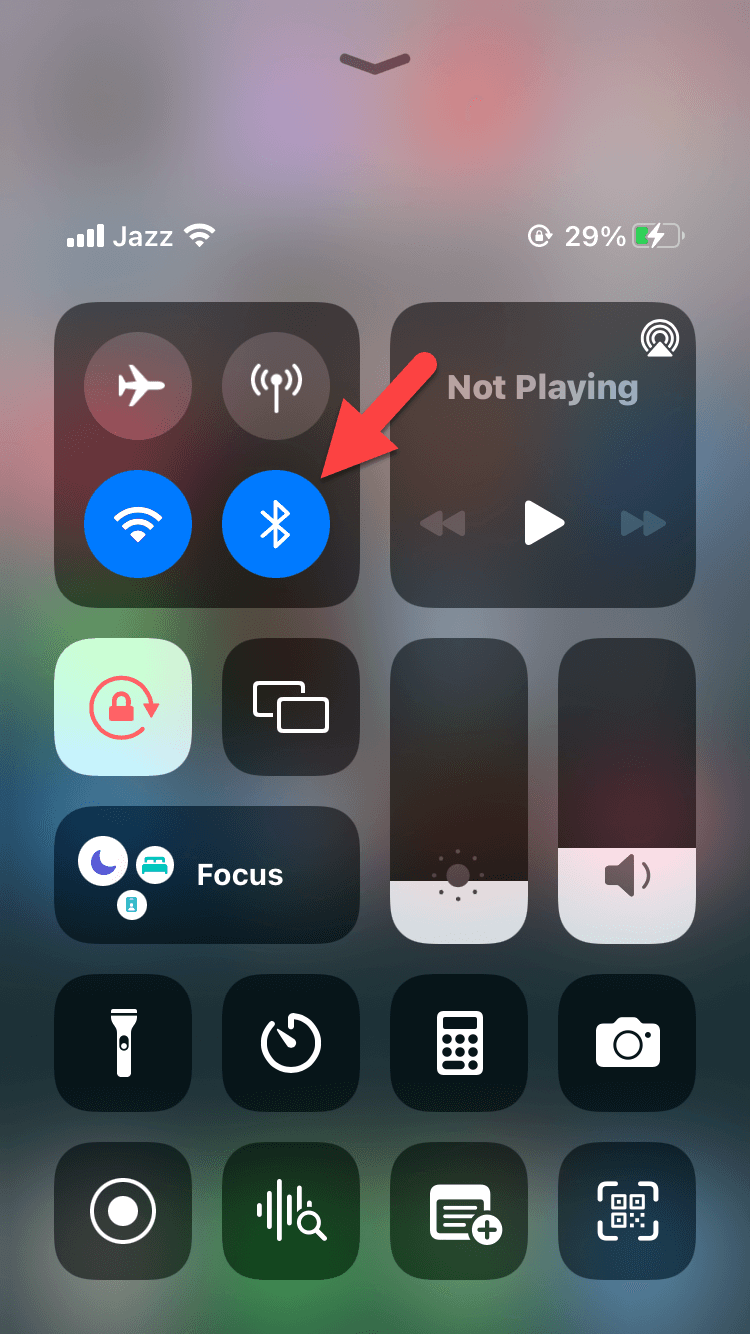
Step 1. To connect the Earbuds simply launch the control centre of your iPhone and then long press on the Bluetooth.
Step 2. Then it will directly open the Bluetooth section and you have to toggle on Bluetooth.
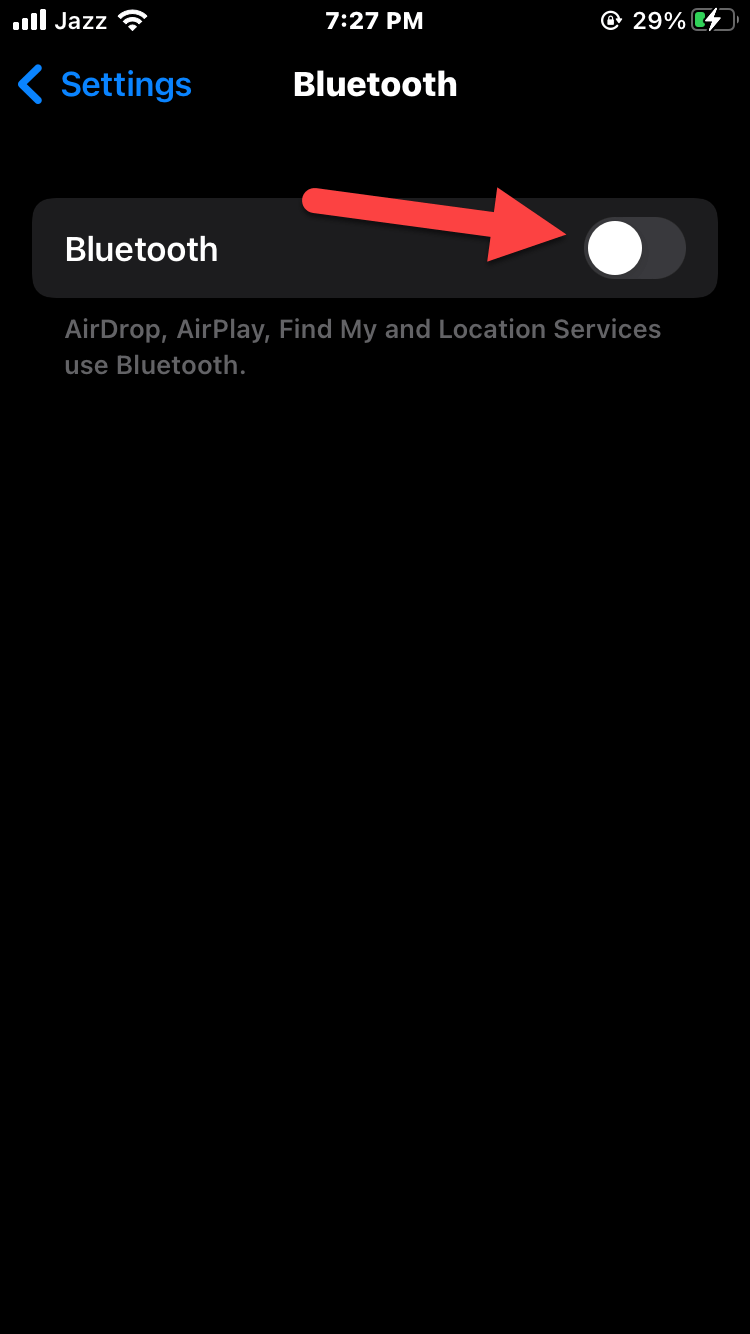 Toggle on
 Step 3. Once the Bluetooth is turned on then find your EarBuds name after that click on it.
Step 4. When you select it then the message gets pops up which will say that would you like to use Bluetooth and you have to click on Ok.
How to Connect TOZO EarBuds with PC
Step 1. Firstly, you need to open the Settings by pressing Win Key + I which will open the settings.
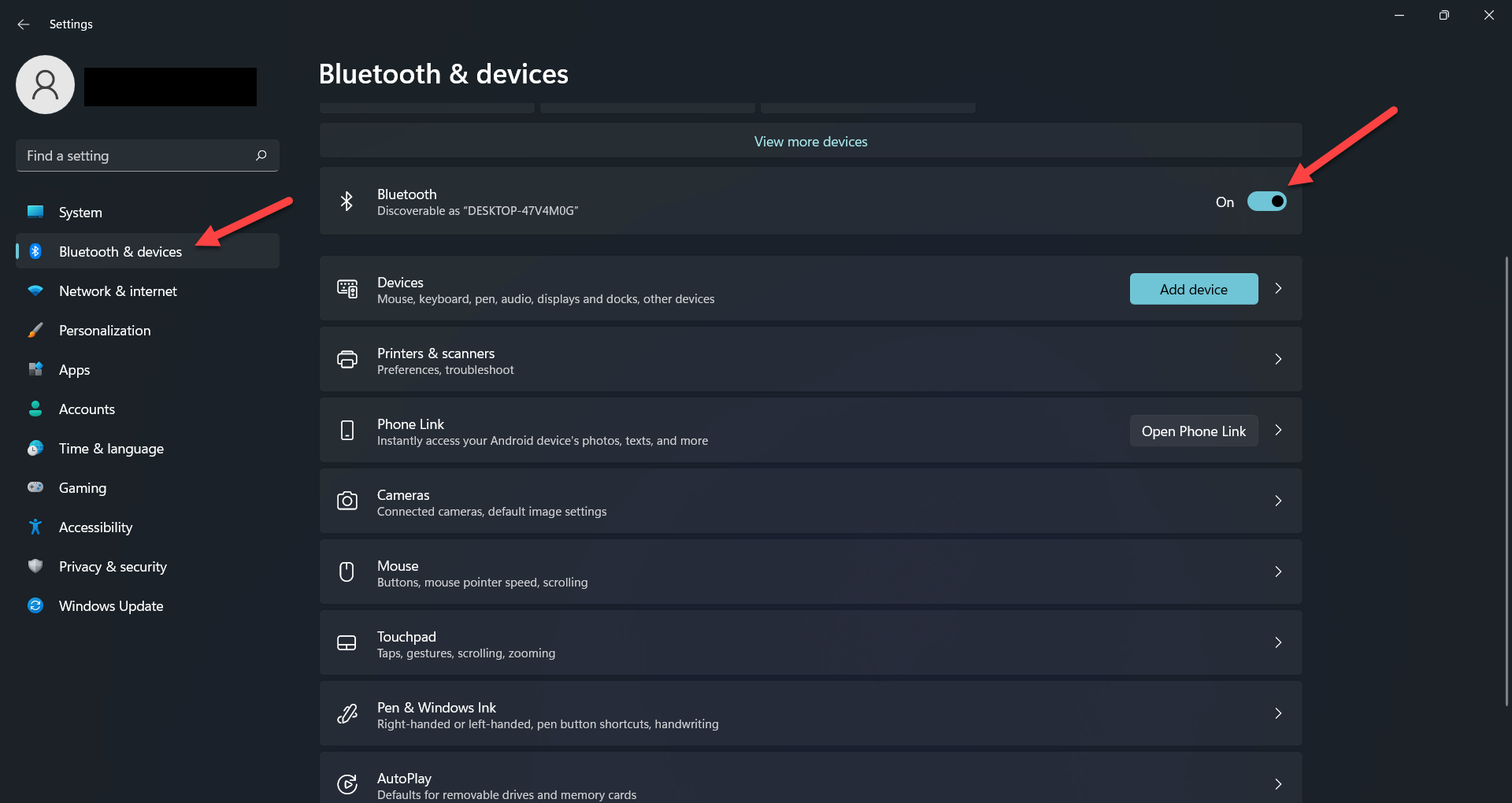
Step 2. When the settings get launched then head towards the Bluetooth & Devices and turn on the toggle of Bluetooth.
Step 3. Now, put the EarBuds in their case then long press on the button which is on the back side of the case. Keep pressing until you don’t see the lights blinking.
Step 4. Click on the Add Device from settings.
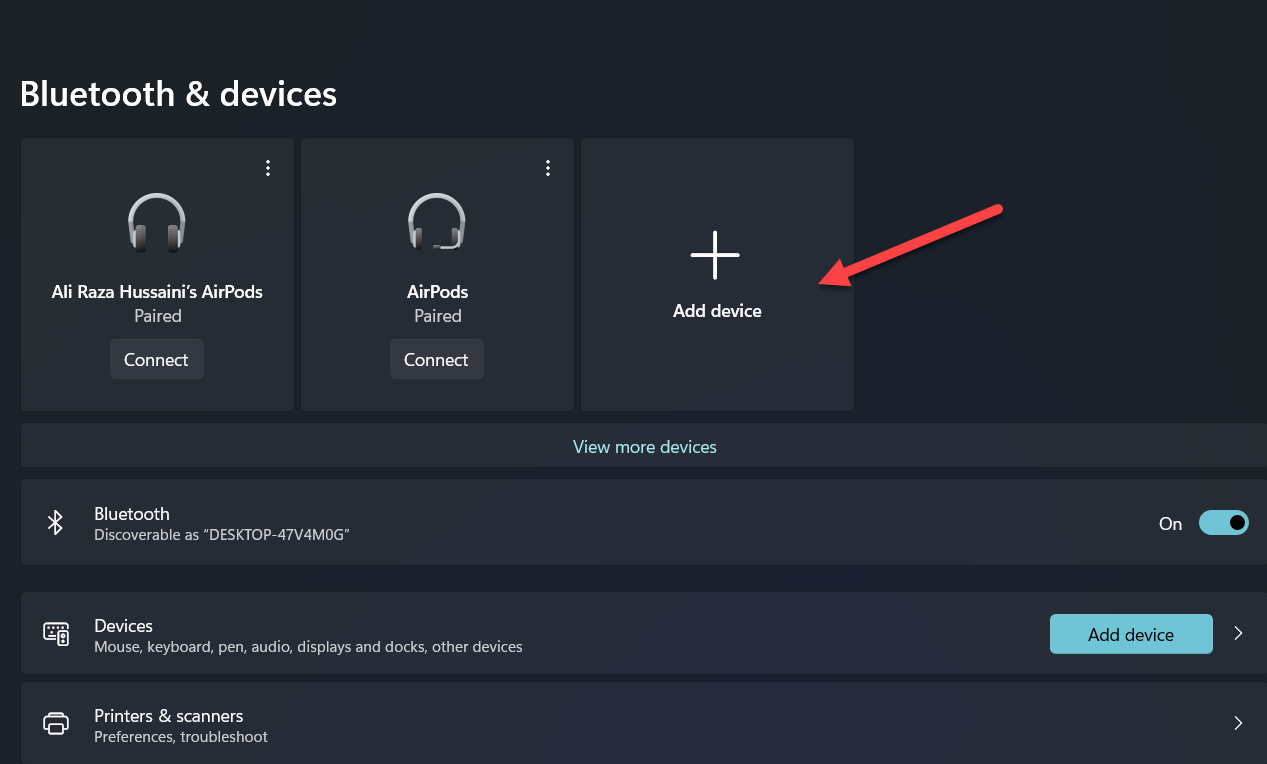 Click on the Add Device
 Step 5. Next, tap on the Bluetooth then you will get your device name, click on it.
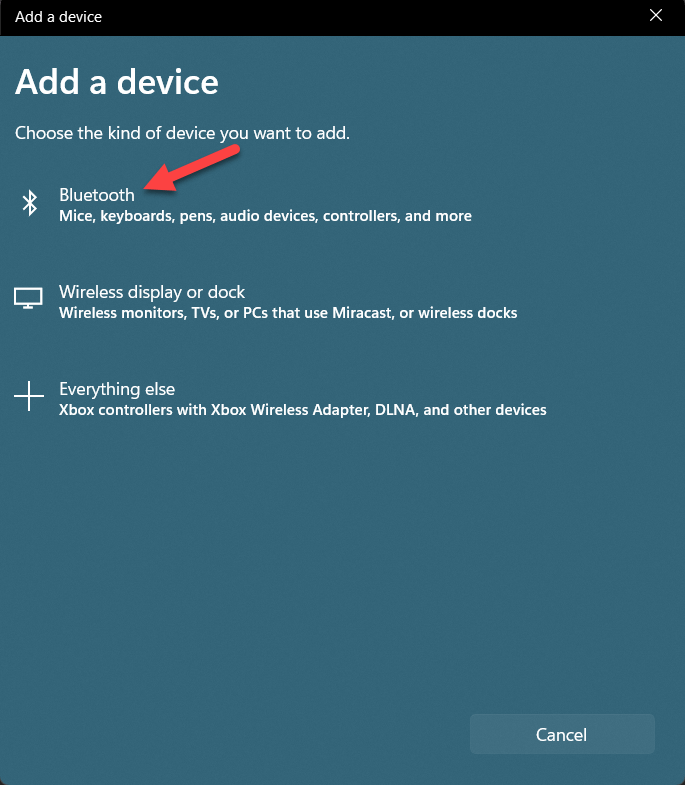 Tap on the Bluetooth
 Final Words
It was all about How to Connect TOZO Earbuds with All Your Devices. I hope this article is very helpful for you to connect TOZO EarBuds. From this article, you will get something good. This was step by step guide on the that you were searching about it. Further, this is the right place where you can easily solve your problem. After following these steps I hope you will not face any kind of problem. However, If you faced any kind of problem and if you have any type of suggestion then do comment.
Explore More:
Tagged
Share This Article
In this world of technology wireless AirPods are like a style and fashion for everyone. These days the demand for AirPods and AirBuds is increasing fastly. Of course, these kinds of wireless things are helpful in every kind of circumstance. For example, you can listen to your selective things, call, and many more. AirPods and EarBuds make everyone’s life comfortable and make their work easy. From this article, you will learn How to Connect TOZO Earbuds with All Your Devices.
By the time of demand that is getting much popular and the price of it will be more expensive which many of the people can’t afford it. Rather than buying expensive wireless AirPods you can also buy and use EarBuds. Which will give the same quality and amazing price. Therefore the new EarBuds TOZO is the same as Airpods. It has an affordable price which you buy it and make your jobs easier.
If you want to know the way to connect TOZO EarBuds then you have to read this article. So, without wasting any time let’s get started.
How to Connect TOZO EarBuds with Android Phone
Step 1. First of all, you need to open your Notification Bar just by swiping down from the top of the screen and then click on the Gear icon.
Click on the Gear Icon Step 2. Now, go to the Connections.
Go to the Connections Step 3. Next, turn on the toggle of the Bluetooth and click on it.
Step 4. Here you need to find your EarBuds name and then select. If you couldn’t find it after that tap on the Scan and it will start searching for your EarBuds.
Scan Step 5. At last, select Pair to connect the TOZO Earbuds.
Connect TOZO EarBuds with iPhone
Step 1. To connect the Earbuds simply launch the control centre of your iPhone and then long press on the Bluetooth.
Step 2. Then it will directly open the Bluetooth section and you have to toggle on Bluetooth.
Toggle on Step 3. Once the Bluetooth is turned on then find your EarBuds name after that click on it.
Step 4. When you select it then the message gets pops up which will say that would you like to use Bluetooth and you have to click on Ok.
How to Connect TOZO EarBuds with PC
Step 1. Firstly, you need to open the Settings by pressing Win Key + I which will open the settings.
Step 2. When the settings get launched then head towards the Bluetooth & Devices and turn on the toggle of Bluetooth.
Step 3. Now, put the EarBuds in their case then long press on the button which is on the back side of the case. Keep pressing until you don’t see the lights blinking.
Step 4. Click on the Add Device from settings.
Click on the Add Device Step 5. Next, tap on the Bluetooth then you will get your device name, click on it.
Tap on the Bluetooth Final Words
It was all about How to Connect TOZO Earbuds with All Your Devices. I hope this article is very helpful for you to connect TOZO EarBuds. From this article, you will get something good. This was step by step guide on the that you were searching about it. Further, this is the right place where you can easily solve your problem. After following these steps I hope you will not face any kind of problem. However, If you faced any kind of problem and if you have any type of suggestion then do comment.
Explore More: