

How to Change Windows 10 Desktop icons?
 Azaz Shaikh
In this article, I am going to guide you how to change Windows 10 Desktop Icons. It might be boring for everyone that see the same and same icons on his or her desktop screen every time he opens or works on his laptop or desktop. If you want to make your devices interesting for yourself or others so it is very easy for that you can customize your device like you can change the wallpaper, the color of your taskbar or anything else. You need to follow some easy tricks to change it within a minute.
How to Change Windows 10 Desktop icons?
Therefore, some more realities you can make your friends various. One of the ways to make your devices is to change the icons of your devices, programs like changing the computers “Recycle bin” or any other programs. It is very simple but very useful. To change Windows 10 desktop icons, follow the steps below.
Change Windows 10 icons:
Step 1: Right click on your desktop, choose to personalize option then click on the personalize option.
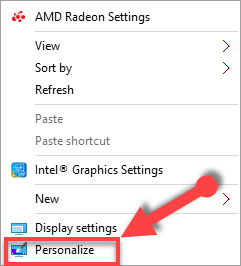 Personalize…
 Step 2: Once the personalization window opened, click “Theme”. Then click on the Desktop icon setting.
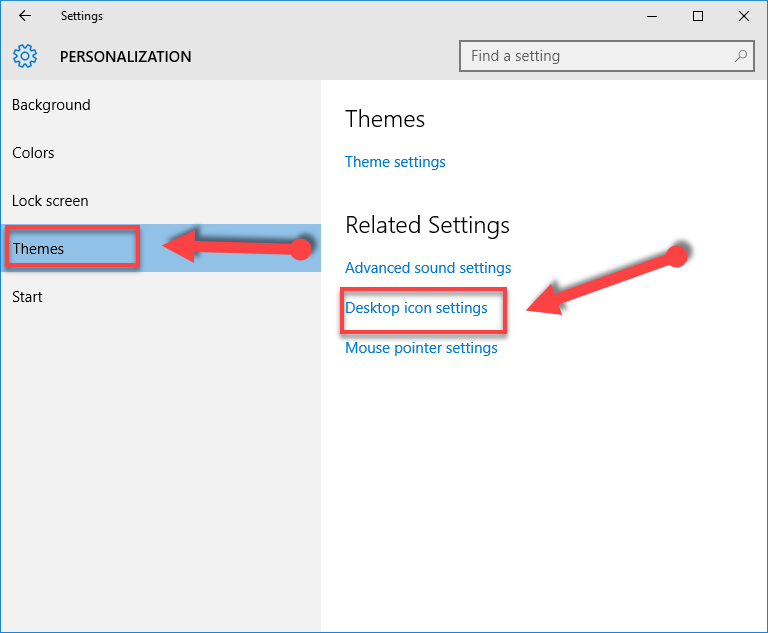 click on theme option
 Step 3: Select the desktop icon that you want to change it. Click on “Change Icon” button. There are hundreds of icon that you can choose from. When a new window is open then you have to choose any of the icons you want, scroll down for more icons on the right side of the window and don’t forget you can import any of the icons from the top of the windows which I have marked in the following picture, after choosing any of the icons click “OK” to end the last step.
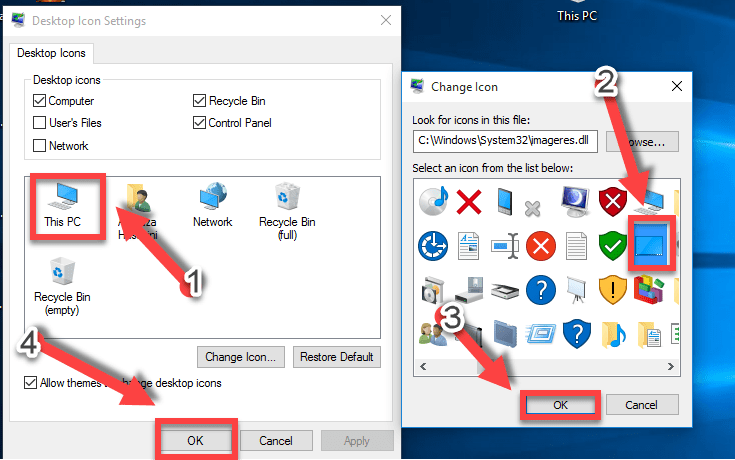 change it
 Congrats! You have done great you may see the result what changes have come
 before
  After
After How To Change Folder Icon?
Therefore, You have learned How to Change Windows 10 Desktop icons?. Now, it is time to guide you that how to change the folder icon. Before wasting the time let’s get started. It also needs some easy tricks just need to follow the instruction below.
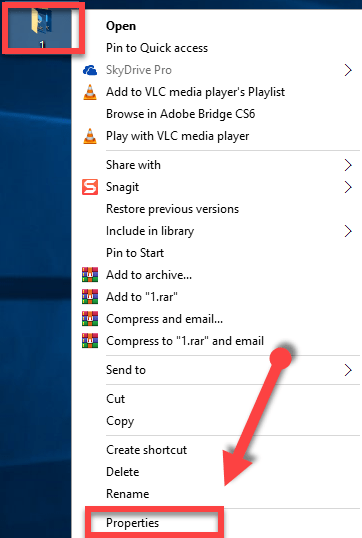
Step 1. You can change the folder. The first way is this that you should right-click on the folder that you want to change the icon and choose “Properties“.
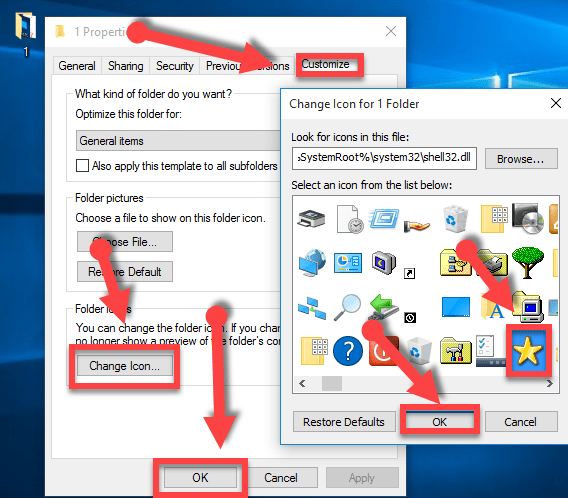
Step 2: From the top menu bar, choose “Customize“. From the bottom of the screen, select “Change Icons“. Now, select the icon that you would like to change into.
Great! you have done successfully!
Also Check:
How To Make Payoneer Account in Pakistan
Conclusion:
Therefore, we’ve mentioned that how to change the Windows 10 desktop icon and change the Windows 10 folder icon. I hope that you guys have enjoyed reading this article and hope that helps you. If you’ve any question, so feel free to ask us down below this post. Thanks for being with us. Daily visit our website for best tech learning point.
If you like it then share it your friends and families let them about the interesting article.
Share This Article
In this article, I am going to guide you how to change Windows 10 Desktop Icons. It might be boring for everyone that see the same and same icons on his or her desktop screen every time he opens or works on his laptop or desktop. If you want to make your devices interesting for yourself or others so it is very easy for that you can customize your device like you can change the wallpaper, the color of your taskbar or anything else. You need to follow some easy tricks to change it within a minute.
How to Change Windows 10 Desktop icons?
Therefore, some more realities you can make your friends various. One of the ways to make your devices is to change the icons of your devices, programs like changing the computers “Recycle bin” or any other programs. It is very simple but very useful. To change Windows 10 desktop icons, follow the steps below.
Change Windows 10 icons:
Step 1: Right click on your desktop, choose to personalize option then click on the personalize option.
Personalize… Step 2: Once the personalization window opened, click “Theme”. Then click on the Desktop icon setting.
click on theme option Step 3: Select the desktop icon that you want to change it. Click on “Change Icon” button. There are hundreds of icon that you can choose from. When a new window is open then you have to choose any of the icons you want, scroll down for more icons on the right side of the window and don’t forget you can import any of the icons from the top of the windows which I have marked in the following picture, after choosing any of the icons click “OK” to end the last step.
change it Congrats! You have done great you may see the result what changes have come
before After How To Change Folder Icon?
Therefore, You have learned How to Change Windows 10 Desktop icons?. Now, it is time to guide you that how to change the folder icon. Before wasting the time let’s get started. It also needs some easy tricks just need to follow the instruction below.
Step 1. You can change the folder. The first way is this that you should right-click on the folder that you want to change the icon and choose “Properties“.
Step 2: From the top menu bar, choose “Customize“. From the bottom of the screen, select “Change Icons“. Now, select the icon that you would like to change into.
Great! you have done successfully!
Also Check:
How To Make Payoneer Account in Pakistan
Conclusion:
Therefore, we’ve mentioned that how to change the Windows 10 desktop icon and change the Windows 10 folder icon. I hope that you guys have enjoyed reading this article and hope that helps you. If you’ve any question, so feel free to ask us down below this post. Thanks for being with us. Daily visit our website for best tech learning point.
If you like it then share it your friends and families let them about the interesting article.


