

How to Change Themes in Windows 11 Without Activating Windows?
 Azaz Shaikh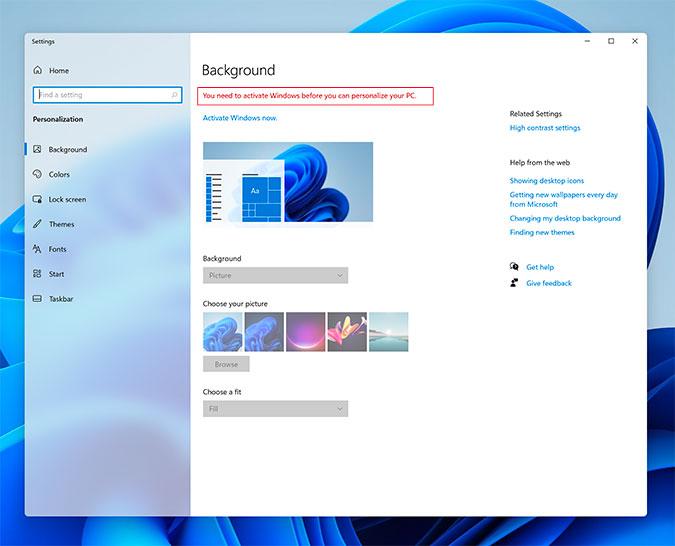
Windows 11 is one of the great operating systems. And with the great and amazing features. When you try to change the themes in Windows 11. Once you try then you don’t know how to change the themes. When you don’t know how to change the theme then you will search on YouTube after that the video you are watching maybe it is not real. But don’t worry I am here to solve your problem. This is the place where you can solve your problem. If you want to change the themes in Windows 11 without activating windows. So, without wasting any time let’s get has started. From this article, you will learn How to Change Themes in Windows 11 Without Activating Windows.
Related Post: Download macOS Monterey VMware and VirtualBox Image
Activate Dark Mode in Windows 11
Step 1. First of all, hold Windows + R to open the dialogue box after that on the search bar you need to type Regedit then hit the Ok button.
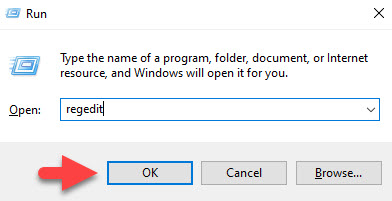 Hit the Ok Button
 Step 2. Now, when the regedit is open then copy and paste them inside the search bar the code down below.
\HKEY_CURRENT_USER\Software\Microsoft\Windows\CurrentVersion\Themes\Personalize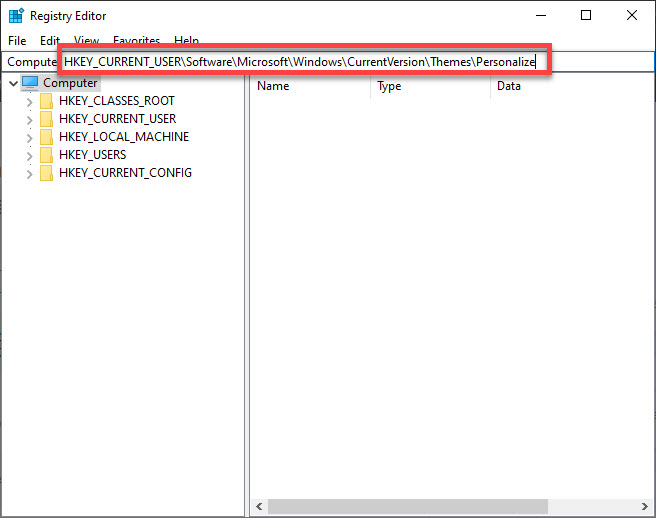 Copy and Paste the Code
 Step 3. Next, you will reach the folder of personalize after that set the value 0 of AppUseLightTheme and SystemUseLightTheme.
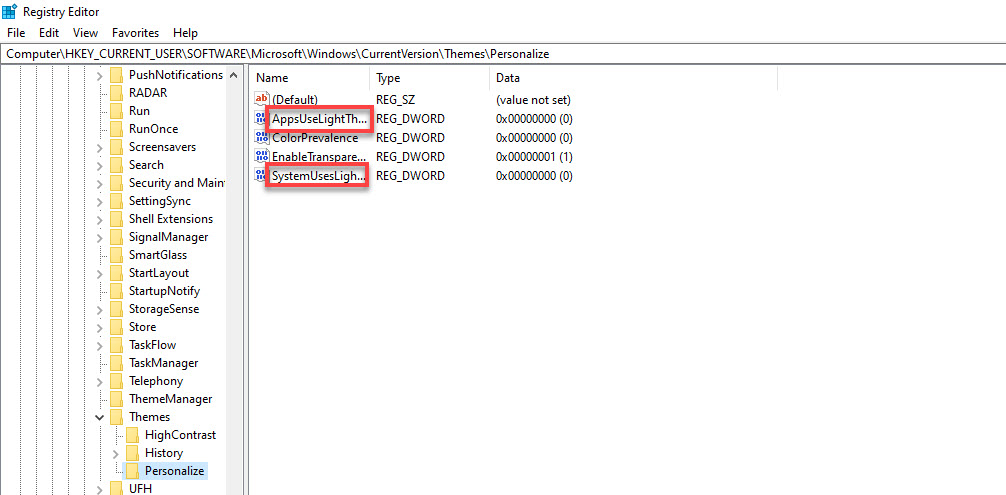 Set 0 Value
 Step 4. At last, you will see all the themes in a dark mode without activating your windows.
Try New Windows 11 Wallpaper
In this method, you can find the various find of wallpaper of Windows 11.
Step 1. At first, open your This PC after that copy and paste the code and the code is down below.
C:\Windows\WebStep 2. Now, you will see the various kind of pictures of Windows 11. You can choose any kind of picture that you want.
Related Post: How to Install macOS Monterey on VirtualBox on Windows PC
Bottom Line
It was all about How to Change Themes in Windows 11 Without Activating Windows. I hope this article, is very helpful for you to change themes in Windows 11. From this article, you will something good. This is the right place to solve your problem. After following these steps I hope you will not face any kind of problem. If you faced any kind of problem and if you have any type of suggestions then do comment.
Related Post: How to Use Live Text in iOS 15 and iPadOS 15
Share This Article
Windows 11 is one of the great operating systems. And with the great and amazing features. When you try to change the themes in Windows 11. Once you try then you don’t know how to change the themes. When you don’t know how to change the theme then you will search on YouTube after that the video you are watching maybe it is not real. But don’t worry I am here to solve your problem. This is the place where you can solve your problem. If you want to change the themes in Windows 11 without activating windows. So, without wasting any time let’s get has started. From this article, you will learn How to Change Themes in Windows 11 Without Activating Windows.
Related Post: Download macOS Monterey VMware and VirtualBox Image
Activate Dark Mode in Windows 11
Step 1. First of all, hold Windows + R to open the dialogue box after that on the search bar you need to type Regedit then hit the Ok button.
Hit the Ok Button Step 2. Now, when the regedit is open then copy and paste them inside the search bar the code down below.
\HKEY_CURRENT_USER\Software\Microsoft\Windows\CurrentVersion\Themes\PersonalizeStep 3. Next, you will reach the folder of personalize after that set the value 0 of AppUseLightTheme and SystemUseLightTheme.
Set 0 Value Step 4. At last, you will see all the themes in a dark mode without activating your windows.
Try New Windows 11 Wallpaper
In this method, you can find the various find of wallpaper of Windows 11.
Step 1. At first, open your This PC after that copy and paste the code and the code is down below.
C:\Windows\WebStep 2. Now, you will see the various kind of pictures of Windows 11. You can choose any kind of picture that you want.
Related Post: How to Install macOS Monterey on VirtualBox on Windows PC
Bottom Line
It was all about How to Change Themes in Windows 11 Without Activating Windows. I hope this article, is very helpful for you to change themes in Windows 11. From this article, you will something good. This is the right place to solve your problem. After following these steps I hope you will not face any kind of problem. If you faced any kind of problem and if you have any type of suggestions then do comment.
Related Post: How to Use Live Text in iOS 15 and iPadOS 15


