

How to Check HP Laptop Graphics Card on Windows 11?
 Azaz Shaikh
In this article, you will learn How to Check HP Laptop Graphics Card on Windows 11? A graphics card is a device or a mechanical device that is inserted into your computer that is helping you to see graphics cards and video, faster, more clear. However, most computers will come with a small built-in chip into the main part of the computer that allows graphics to be displayed. But itʻs very weak and doesn’t have many features. Moreover, if you want to have many photos and videos inside your laptop then you should have a good graphics card. If you want to check the HP laptop graphics card then you need to read this article.
Method 1: Check HP Laptop Graphics Card With Task Manager
Step 1. First of all, you need to right-click on the Start Menu after that click on the Task Manager.
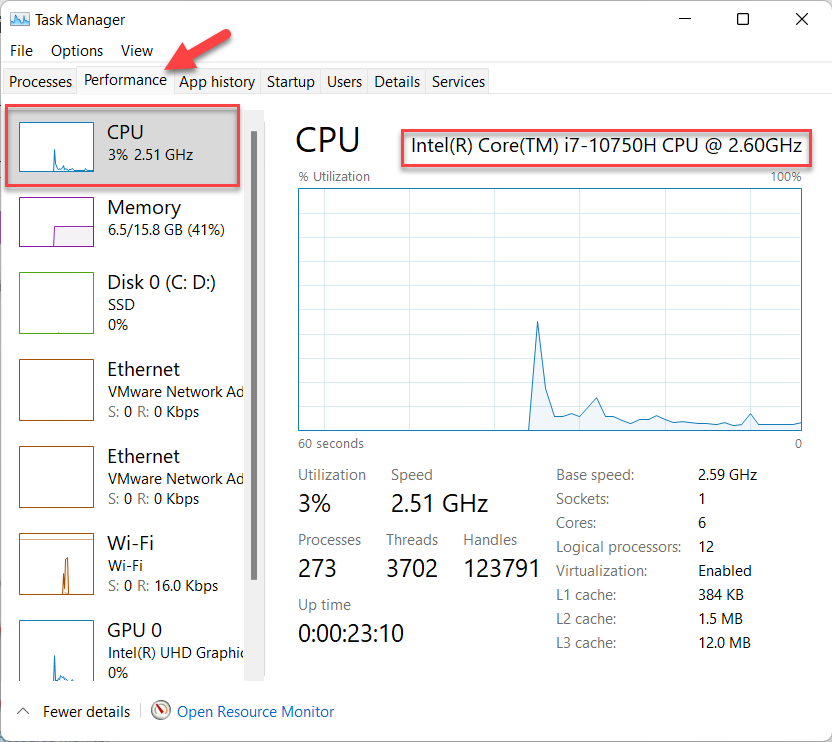
Step 2. When the Task Manager is open then go to the Performance tab after that you will get your graphics card in the section of CPU.
 Performance Tab
 Method 2: Check HP Laptop Graphics Card Using Device Manager
Step 1. At first, open the Device Manager from the Start menu.
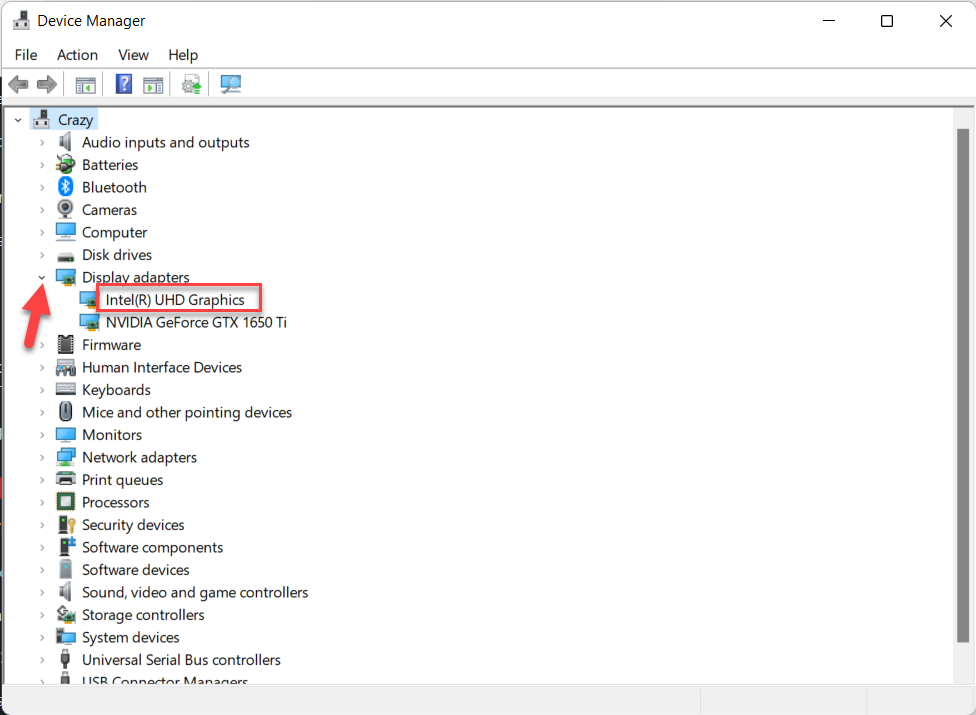
Step 2. Now, click on the Arrow to expand that then you will find the graphics card.
Method 3: Find HP Laptop Graphics Card Via System Information
Step 1. Firstly, hold and press on Win Key + R to open the Run
Step 2. Then type msinfo32 after that click on the Ok.
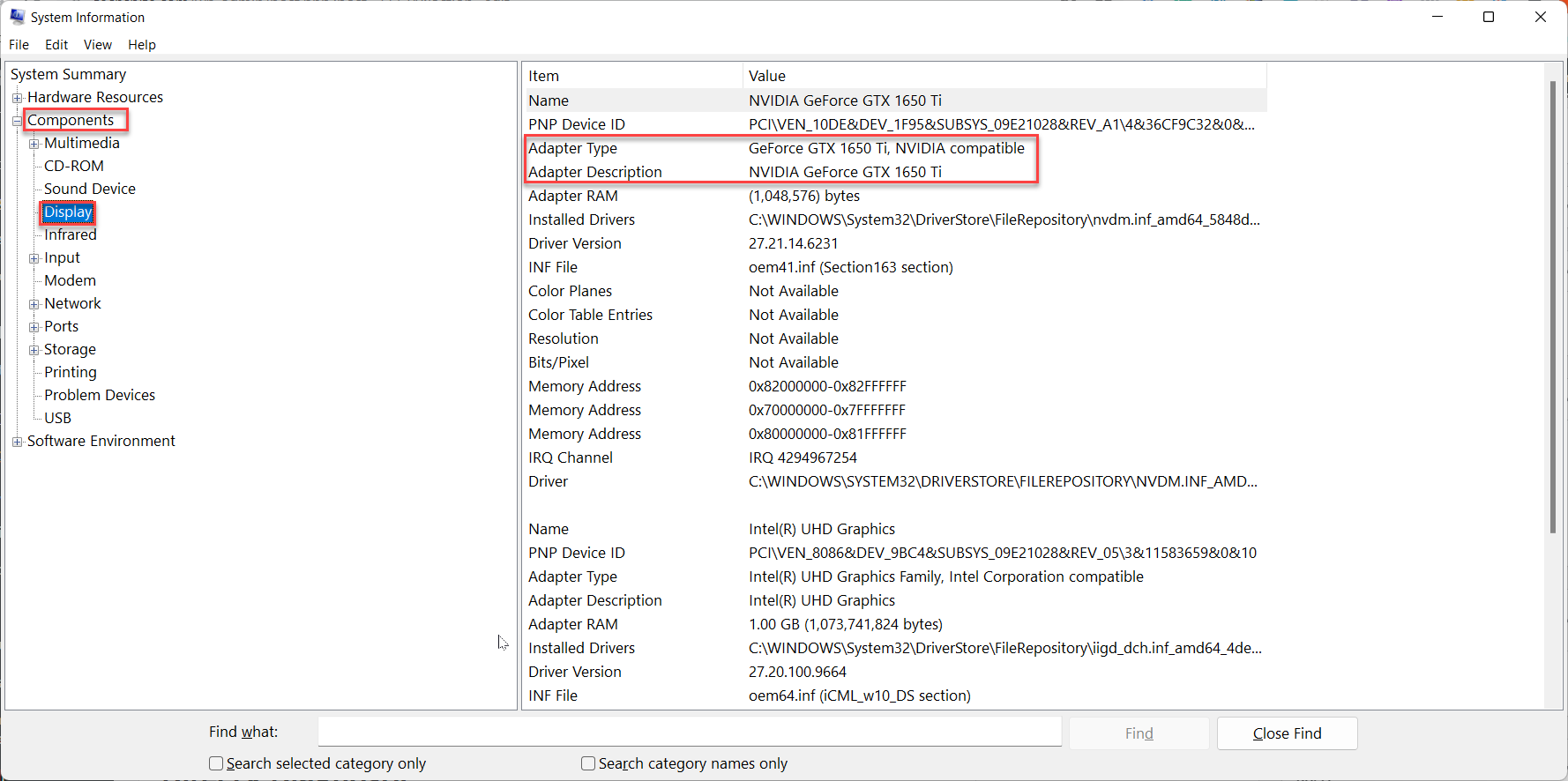
Step 3. Double-click on the Components then click on the Display after that you will find the graphics card next to Adapter Type or Adapter Description.
Method 4: How to Check HP Laptop Graphics Card With DirectX Diagnostic
Step 1. Hold or press on Win Key + S to launch the search box on your machine.
Step 2. After that type, Dxdiag then hit the Enter to open it.
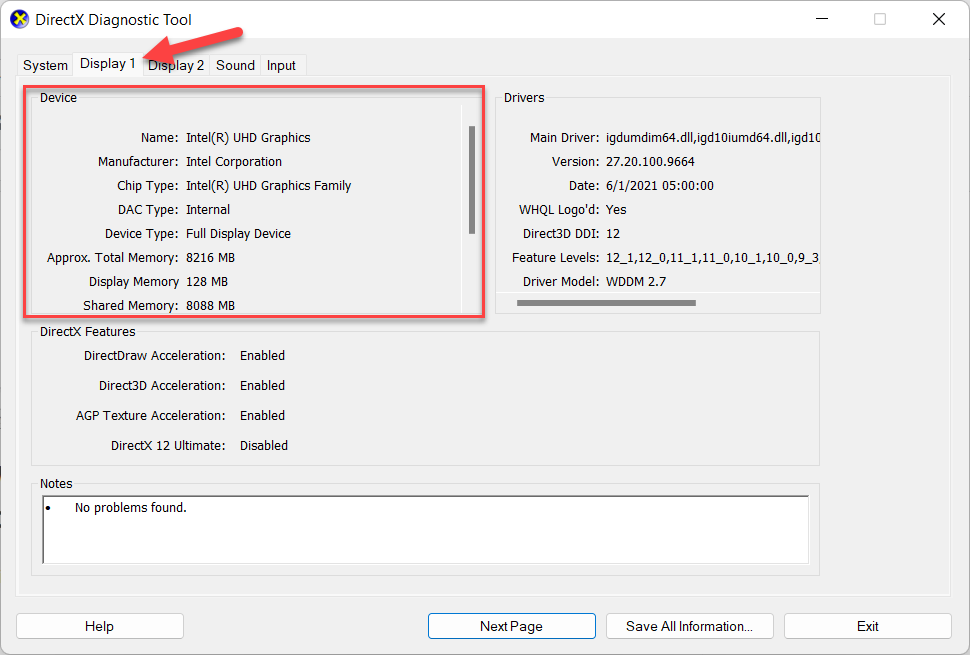
Step 3. Next, head towards the Display from the menu tab then you will find the details about your laptop’s graphics card in the section of Device.
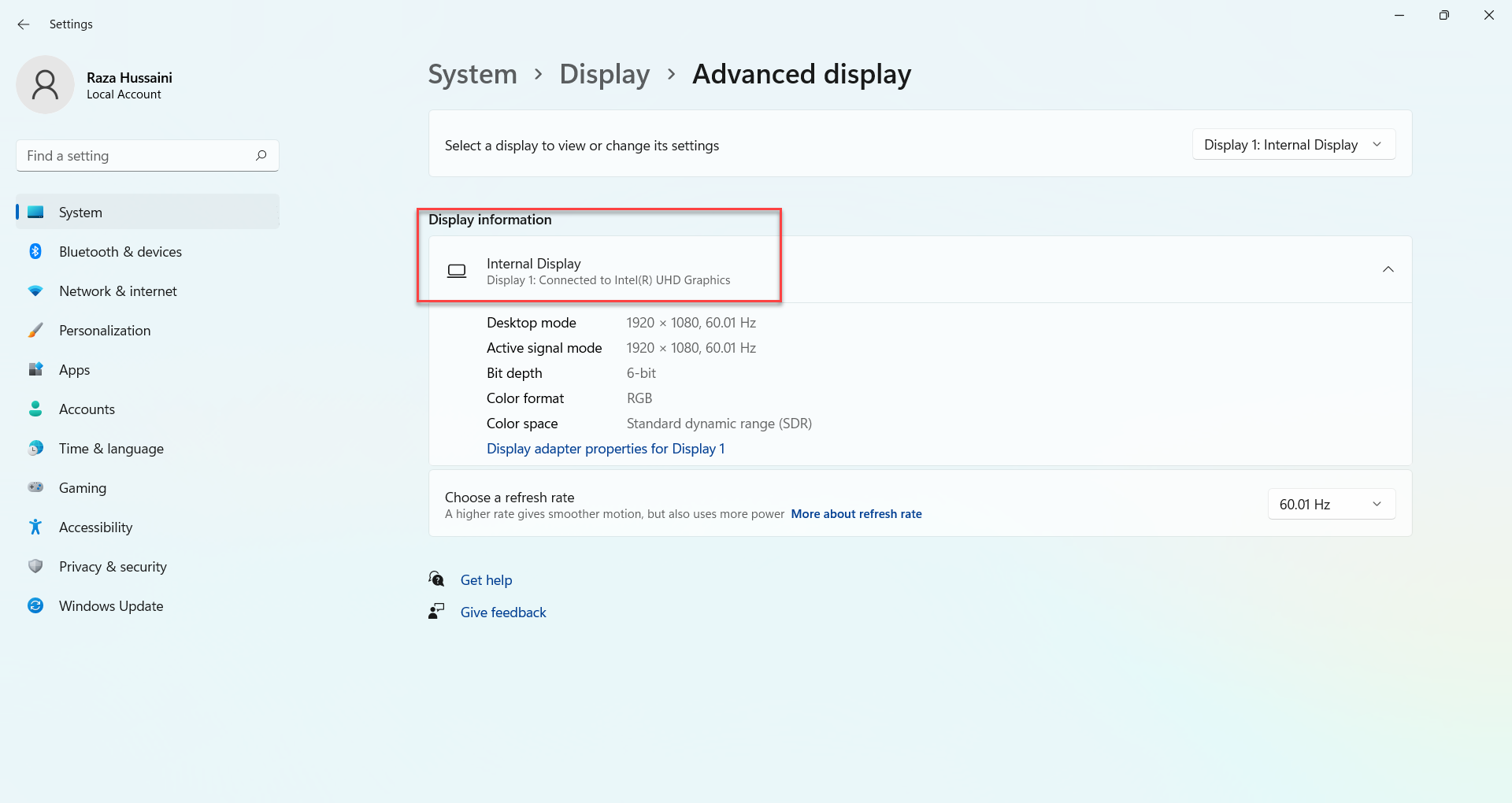
Method 5: Inspect HP Laptop Graphics Card With the Help of Settings
Step 1. Open the Settings by pressing Windows + I.
Step 2. Moreover, go to Display.
Step 3. In this step, scroll down to the bottom of your page then click on the Advanced Display.
Step 4. Finally, you will inspect the graphics card of your HP laptop.
Bottom Line
It was all about How to Check HP Laptop Graphics Card on Windows 11? I hope this article is very helpful for you to check the graphics card. From this article, you will get something good. This is the right place where you can easily solve your problem. After following these steps I hope you will not face any kind of problem. If you faced any kind of problem and if you have any type of suggestions then do comment.
Related Posts:
Tagged
Share This Article
In this article, you will learn How to Check HP Laptop Graphics Card on Windows 11? A graphics card is a device or a mechanical device that is inserted into your computer that is helping you to see graphics cards and video, faster, more clear. However, most computers will come with a small built-in chip into the main part of the computer that allows graphics to be displayed. But itʻs very weak and doesn’t have many features. Moreover, if you want to have many photos and videos inside your laptop then you should have a good graphics card. If you want to check the HP laptop graphics card then you need to read this article.
Method 1: Check HP Laptop Graphics Card With Task Manager
Step 1. First of all, you need to right-click on the Start Menu after that click on the Task Manager.
Step 2. When the Task Manager is open then go to the Performance tab after that you will get your graphics card in the section of CPU.
Performance Tab Method 2: Check HP Laptop Graphics Card Using Device Manager
Step 1. At first, open the Device Manager from the Start menu.
Step 2. Now, click on the Arrow to expand that then you will find the graphics card.
Method 3: Find HP Laptop Graphics Card Via System Information
Step 1. Firstly, hold and press on Win Key + R to open the Run
Step 2. Then type msinfo32 after that click on the Ok.
Step 3. Double-click on the Components then click on the Display after that you will find the graphics card next to Adapter Type or Adapter Description.
Method 4: How to Check HP Laptop Graphics Card With DirectX Diagnostic
Step 1. Hold or press on Win Key + S to launch the search box on your machine.
Step 2. After that type, Dxdiag then hit the Enter to open it.
Step 3. Next, head towards the Display from the menu tab then you will find the details about your laptop’s graphics card in the section of Device.
Method 5: Inspect HP Laptop Graphics Card With the Help of Settings
Step 1. Open the Settings by pressing Windows + I.
Step 2. Moreover, go to Display.
Step 3. In this step, scroll down to the bottom of your page then click on the Advanced Display.
Step 4. Finally, you will inspect the graphics card of your HP laptop.
Bottom Line
It was all about How to Check HP Laptop Graphics Card on Windows 11? I hope this article is very helpful for you to check the graphics card. From this article, you will get something good. This is the right place where you can easily solve your problem. After following these steps I hope you will not face any kind of problem. If you faced any kind of problem and if you have any type of suggestions then do comment.
Related Posts:


