

How to Hide Files, Folders, and Drives in Windows 11?
 Azaz Shaikh
In this article, you will learn How to Hide Files, Folders, and Drives in Windows 11. This new operating system has many great features. When someone wants to use your PC and inside your PC you have many important files. That you don’t want to see other people your essential file. Something else you have a problem that no one will not see it. In this situation, if you know how to hide the folder or drives they will not be stuck. Or if someone doesn’t know how to hide it after that you will be stuck. This method doesn’t need any third-party software to hide the files, folders, and drives. If you want to hide or unhide files, folders, and drives then you need to read this article. So, without wasting any time let’s get has started.
Related Post: iOS 15: How to Use Siri Offline on iPhone and iPad
How to Hide Files, Folders, and Drives in Windows 11
Follow the step to hide the files, folders, and drives in Windows 11.
Step 1. First of all, on your desktop right-click on the file or folder that you want to hide after that tap on the Properties.
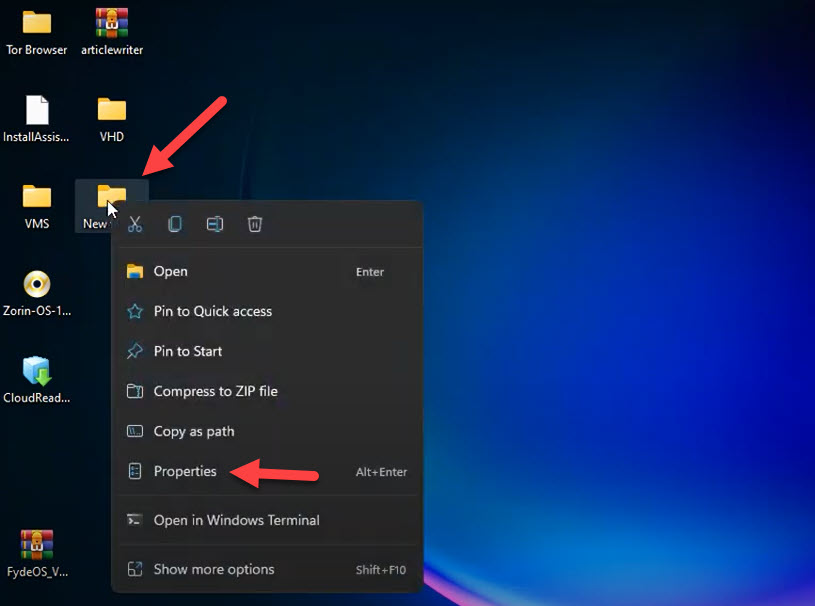 Tap on the Properties
 Step 2. When the properties of the file or folder are open then at the bottom of your screen simply check the box of Hidden then tap on Apply.
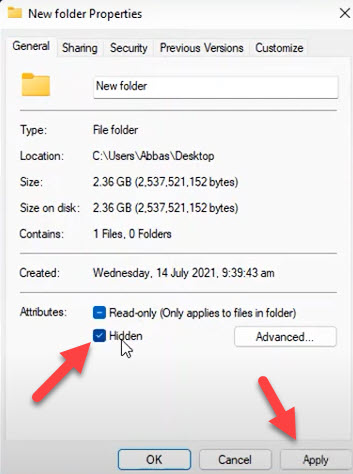 Tap on Apply
 Step 3. Now, here you will see two checkboxes you can select any of them like I will select the second one then click on the Ok.
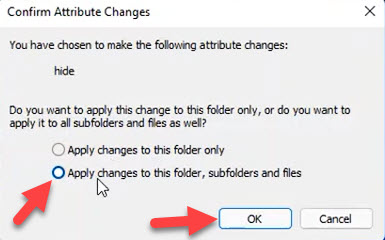 Click on the Ok
 Step 4. At last, when you click on the ok then the file or folder is hidden from your screen.
How to Unhide Files, Folders, and Drives in Windows 11
Whenever you want to unhide the folder then follow the step. Simply follow the step down below to unhide the files.
Step 1. At first, open the This PC on your PC after that tap on the Three Dots then select the Options.
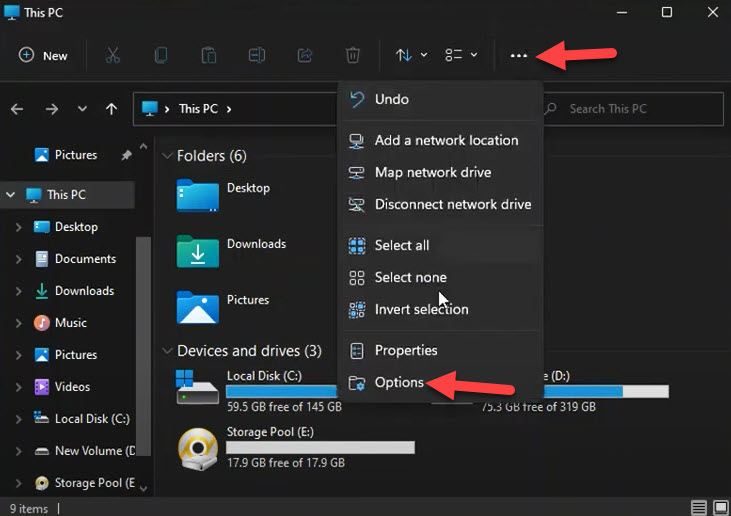 Select the Options
 Step 2. Here in this step, you need to head towards the View from the menu.
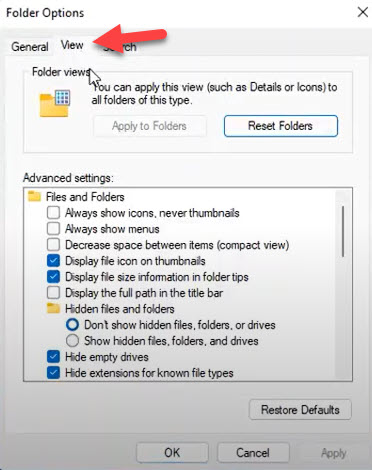 View
View Step 3. Now, check the box of Show Hidden Files, Folders, and Drives then click on the Apply after that tap on the Ok.
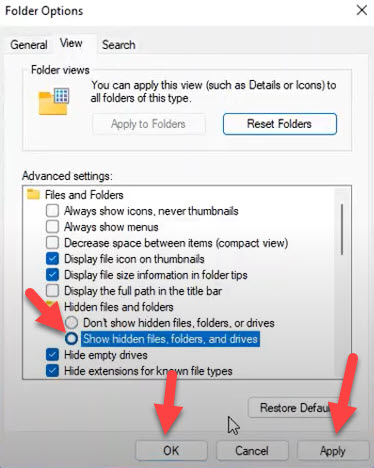 Tap on the Ok
 Step 4. Next, as you can see that file or folder is not totally unhide to fix it. Right-click on the file after that go to the Properties.
Go to the Properties Step 5. Then uncheck the box of Hidden then click on the Ok.
Step 6. After that tap on the Ok once again.
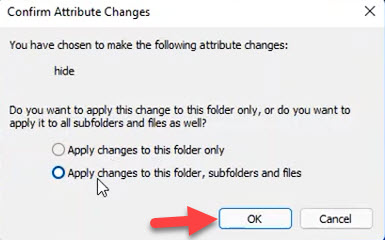 Tap on the Ok
 Step 7. Check that the folder totally unhide.
Related Post: How to Create macOS Monterey Bootable USB Drive on Mac
Bottom Line
It was all about How to Hide Files, Folders, and Drives in Windows 11. I hope this article is very helpful for you to hide or unhide the files. From this article, you will get something good. This is the right place where you can easily solve your problems. After following these steps I hope you will not face any kind of problem. If you faced any kind of problem and if you have any type of suggestions then do comment.
Tagged
Share This Article
In this article, you will learn How to Hide Files, Folders, and Drives in Windows 11. This new operating system has many great features. When someone wants to use your PC and inside your PC you have many important files. That you don’t want to see other people your essential file. Something else you have a problem that no one will not see it. In this situation, if you know how to hide the folder or drives they will not be stuck. Or if someone doesn’t know how to hide it after that you will be stuck. This method doesn’t need any third-party software to hide the files, folders, and drives. If you want to hide or unhide files, folders, and drives then you need to read this article. So, without wasting any time let’s get has started.
Related Post: iOS 15: How to Use Siri Offline on iPhone and iPad
How to Hide Files, Folders, and Drives in Windows 11
Follow the step to hide the files, folders, and drives in Windows 11.
Step 1. First of all, on your desktop right-click on the file or folder that you want to hide after that tap on the Properties.
Tap on the Properties Step 2. When the properties of the file or folder are open then at the bottom of your screen simply check the box of Hidden then tap on Apply.
Tap on Apply Step 3. Now, here you will see two checkboxes you can select any of them like I will select the second one then click on the Ok.
Click on the Ok Step 4. At last, when you click on the ok then the file or folder is hidden from your screen.
How to Unhide Files, Folders, and Drives in Windows 11
Whenever you want to unhide the folder then follow the step. Simply follow the step down below to unhide the files.
Step 1. At first, open the This PC on your PC after that tap on the Three Dots then select the Options.
Select the Options Step 2. Here in this step, you need to head towards the View from the menu.
View Step 3. Now, check the box of Show Hidden Files, Folders, and Drives then click on the Apply after that tap on the Ok.
Tap on the Ok Step 4. Next, as you can see that file or folder is not totally unhide to fix it. Right-click on the file after that go to the Properties.
Go to the Properties Step 5. Then uncheck the box of Hidden then click on the Ok.
Step 6. After that tap on the Ok once again.
Tap on the Ok Step 7. Check that the folder totally unhide.
Related Post: How to Create macOS Monterey Bootable USB Drive on Mac
Bottom Line
It was all about How to Hide Files, Folders, and Drives in Windows 11. I hope this article is very helpful for you to hide or unhide the files. From this article, you will get something good. This is the right place where you can easily solve your problems. After following these steps I hope you will not face any kind of problem. If you faced any kind of problem and if you have any type of suggestions then do comment.


